Cybersecurity best practices for individuals and Mac users
Posted on
by
Doris Muthuri

Cybersecurity best practices aren’t reserved for businesses or IT teams. Anyone who uses a computer, smartphone, email, or online account can encounter phishing, stolen passwords, malware, and other cyber threats.
Whether you’re using your own Mac, working remotely, or running a small business, this guide covers how to protect your accounts, devices, networks, and important data.
Why cybersecurity best practices matter today
Cybercriminals keep finding more convincing ways to steal information and get into accounts or devices. They might impersonate a company you trust in a phishing message, create a fake login page, disguise malware as legitimate software, or take advantage of a newly discovered flaw before a fix is available.
No single security measure stops every attack, and it doesn’t need to. When you layer a few protections together, you reduce your exposure, limit how far an attacker can get, and make it easier to recover if something does slip through.
If you only do 5 things, start here
If the full list feels like a lot, start with these. They’re the handful that make the biggest difference.
- Install operating system, browser, and app updates.
- Use a different password for every important account.
- Turn on multi-factor authentication, preferably with a passkey or security key.
- Verify unexpected login prompts, payment requests, and download instructions before acting.
- Keep a separate backup of files you can’t afford to lose.
Cybersecurity best practices for individuals
Good cybersecurity doesn’t take technical know-how. These everyday practices can go a long way toward protecting your accounts, devices, and information across different platforms:
- Use strong, unique passwords. Never reuse the same password across multiple accounts. If one service suffers a data breach, attackers may test the exposed password elsewhere. NIST recommends using a password manager to generate and store unique passwords securely.
- Turn on multi-factor authentication (MFA). Open each account’s security settings and look for a passkey, which lets you sign in without a password. If you use a password, turn on MFA to add another identity check. Prefer passkeys or security keys where available, as they help protect against fake login pages. Keep recovery details up to date and store any backup codes safely.
- Install security updates promptly. Keep your operating system, browser, apps, router, and other software current, especially when an update fixes an actively exploited vulnerability.
- Learn to recognize phishing and social engineering. Treat unexpected requests for passwords, payments, downloads, or urgent action with caution. Open the official website or app directly instead of using links in the message.
- Download software carefully. Get apps, updates, and browser extensions from trusted sources. Ignore pop-ups claiming that your device is infected or needs an urgent update.
- Limit access to your information. Review app permissions, shared folders, connected services, and account access regularly. Remove permissions, devices, and accounts you no longer need.
- Lock your devices when you aren’t using them. Set your Mac, iPhone, and other devices to lock automatically after a short period of inactivity. Use a strong passcode, Touch ID, or Face ID to help protect your information if a device is lost, stolen, or accessed by someone else.
- Protect cloud accounts and shared files. Avoid public links for sensitive information and check who can open or edit shared files.
- Secure your home network. Change the router’s default administrator password (the login for the router’s own settings, which isn’t your Wi-Fi password), turn on Wi-Fi encryption (choose the setting labeled WPA3, or WPA2), install the router’s software updates (its firmware), and check for unfamiliar connected devices.
- Take extra care on public Wi-Fi. Confirm the network name before connecting and disable automatic connections to unfamiliar networks. Use HTTPS websites and consider a VPN, which encrypts the traffic it carries between your device and the VPN server.
- Keep reliable backups. Keep more than one copy of important files, including one separate from your device or everyday network. Check that your latest backup completed successfully. Occasionally restore a file and open it to confirm you can recover it.
What Zero Trust means for individuals
Zero Trust is a cybersecurity approach based on a simple principle: access shouldn’t be granted automatically because a person, device, or app was trusted before. Each request should be checked, and access stays limited to what’s needed.
For example, an email provider might ask for additional verification when someone signs in from a new device. A banking app may require Face ID before approving a payment, even when the phone is already unlocked. A cloud service can also restrict a shared document so recipients can view it without getting into the rest of your files.
These examples show why one successful login shouldn’t give someone unrestricted access to everything. NIST’s Zero Trust Architecture guidance describes the principle for organizations. The same idea works for you every time an account, app, or service verifies sensitive actions and limits the damage one stolen credential could cause.
Why cybercriminals target Mac users
Your Mac may hold saved passwords, personal files, and access to work or financial accounts. These are valuable to criminals, who create malware specifically for macOS.
In its 2026 Security 360 report, Jamf found that trojans accounted for about half of the Mac malware in its 2025 analysis. Trojans disguise themselves as legitimate software to persuade people to install them. This figure describes Jamf’s findings, rather than the proportion of all Macs affected.
Attackers also change their methods as Apple strengthens its defenses. Red Canary’s review of Mac threats in 2025 documented attacks that persuaded users to paste commands into Terminal, the Mac app used to run text instructions. Those commands installed malware designed to steal information. An apparently helpful instruction can therefore be part of an attack.
Apple includes several layers of protection in macOS. Gatekeeper checks downloaded apps before they run, while XProtect detects and removes malware. These protections help reduce risk, but your choices still matter. Pause before overriding a security warning, granting an unfamiliar app access to your files, or running commands from an unverified source.
Threats increasing in complexity
Cybercriminals are making the attacks you already know harder to spot, and finding new ways to avoid common security controls.
- AI-generated phishing: Attackers can use AI to create polished emails, messages, and voice recordings that imitate real companies or people you know. The natural wording and personal details make these scams much harder to catch.
- Credential and session theft: Malicious websites, browser extensions, and malware can steal passwords or session cookies. A stolen session cookie may let an attacker enter an account without signing in again or completing MFA.
- Fake macOS updates: A website may display a realistic alert claiming that macOS, your browser, or another app needs an urgent update. Follow its instructions and you may install malware instead of a real update.
- Automated account attacks: Cybercriminals can rapidly test common or previously stolen passwords across many accounts. One reused password can therefore expose several accounts.
- Zero-day exploits: These attacks target newly discovered software vulnerabilities before a security update is available. Some need little or no action from you.
- Ransomware and backup attacks: Ransomware can encrypt important files, while some variants also target connected drives and accessible network backups to make recovery harder.
Cybersecurity best practices for Mac users
Your Mac comes with built-in security features, including Gatekeeper and XProtect. The steps below help you build on these protections. For more detail on each Mac setting, see our guide on how to secure your Mac. For instructions covering your other Apple devices too, see our guide to securing your Mac and iPhone.
- Turn on automatic macOS security updates. Open System Settings > General > Software Update, then click the information button beside Automatic Updates. Turn on Install macOS updates and Install system data files and security updates.
Also open System Settings > Privacy & Security > Background Security Improvements and turn on Automatically Install. This lets your Mac receive extra security fixes between regular updates. This setting is available on macOS 26.1 and later.

- Protect your Apple Account. Turn on two-factor authentication, keep your trusted phone numbers and account recovery information current, and review unexpected sign-in notifications immediately. Be cautious of messages claiming that your account is locked or your iCloud storage requires urgent action.
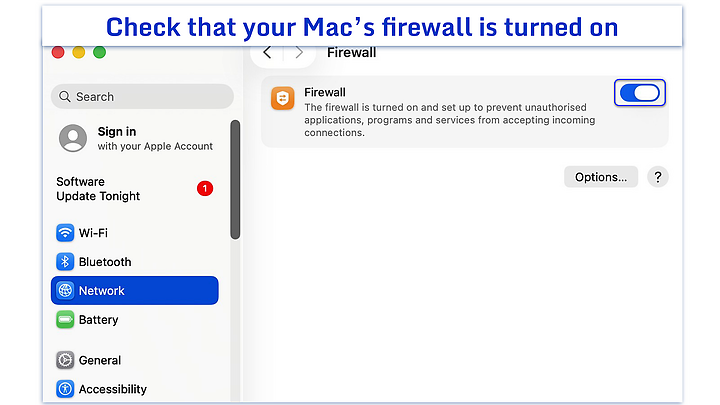
- Review the macOS firewall. The built-in firewall helps block unwanted incoming connections. You can review it under System Settings > Network > Firewall and enable it if appropriate for how you use your Mac.
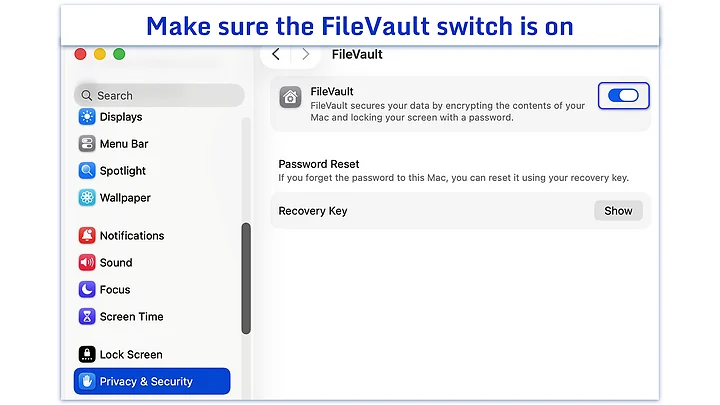
- Protect stored data with FileVault. FileVault helps prevent unauthorized access to files on your startup disk. Go to System Settings > Privacy & Security > FileVault and check that it’s on. If it’s off, turn it on and follow the setup prompts. Keep your chosen recovery method available in case you forget your password. If you write down a recovery key, store it somewhere safe and separate from your Mac.
- Control app access through Privacy & Security. Review which apps can access your camera, microphone, location, contacts, files, and screen recording. Remove permissions an app no longer needs, but remember that trusted antivirus, backup, and accessibility apps may need broad access to work. If a feature stops working after you remove a permission, you can turn it back on.
- Use Gatekeeper warnings as a reason to pause. Gatekeeper checks downloaded apps and helps prevent untrusted software from running unless you override the warning. Don’t override a warning unless you know where the app came from and trust its developer.
- Consider additional malware protection. XProtect helps detect, block, and remove malware, including through ongoing checks and behavior monitoring. Dedicated antivirus can add manual scans, scheduled scans, and detailed results you can review. No security tool catches every threat.
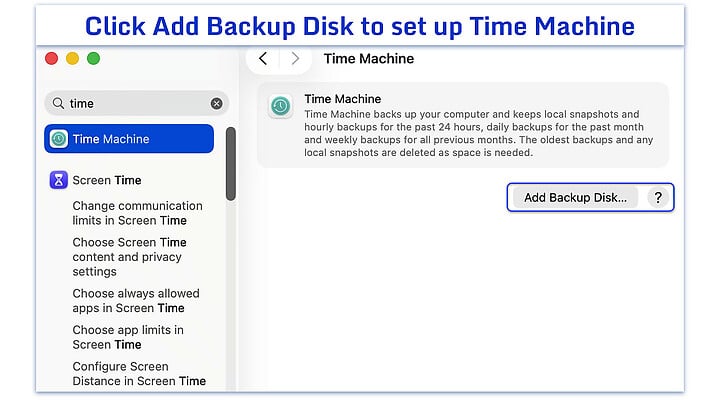
- Set up Time Machine correctly. Time Machine can automatically back up your Mac to an external drive. Disconnect the drive when it isn’t backing up, or maintain another separate copy, so malware or ransomware can’t easily reach every backup.
Cybersecurity best practices for employees and remote workers
If you work for a company, your accounts and devices are worth a lot to an attacker, because they open the door to company email, files, systems, and customer information. Working from home adds a few more things to think about: home networks, public Wi-Fi, shared spaces, and personal devices.
- Follow your company’s security policies. Use approved devices, apps, cloud services, VPNs, and remote-access tools. Don’t move work files to personal email accounts, cloud storage, messaging apps, or unapproved devices.
- Protect your work accounts. Use a different password for each account and turn on multi-factor authentication (MFA) for an extra identity check. If your employer supports passkeys, use them for sign-ins that resist phishing. A passkey can replace your password and helps protect against fake login pages.
- Slow down on anything unexpected. If a message pushes you to open a link, download a file, share sensitive information, change payment details, or act right now, treat that urgency as a reason to pause. Reach the sender another way you already trust rather than replying to the message itself.
- Keep work devices updated. Install operating system, browser, and app updates promptly, or allow your organization to manage them automatically.
- Secure your home network. Change your router’s default administrator password, use WPA2 or WPA3 security, and install firmware updates. Turn off WPS, a shortcut for connecting devices, to help reduce the risk of unauthorized access. Consider replacing your router if it no longer receives security updates.
- Take care on public Wi-Fi. Confirm the network name, disable automatic connections, and use your employer’s approved VPN when required. A personal hotspot may be safer for sensitive work than an unfamiliar network where fake hotspots or man-in-the-middle attacks are a concern.
- Limit access to shared files. Give people only the access they need, avoid public links for sensitive documents, and remove permissions when a project ends or someone changes roles.
- Protect your workspace. Lock your screen whenever you step away, prevent household members or other people from using your work device, and keep sensitive conversations, screens, and paper documents private.
- Report security incidents quickly. Tell your IT or security team immediately if you lose a device, notice an unfamiliar login, click a suspicious link, or accidentally share sensitive information. Early reporting gives the organization a better chance to contain the incident.
Cybersecurity best practices for small businesses
Most small businesses don’t have a security team, and they don’t need one to cover the basics well. A little structure goes a long way: decide who’s responsible, keep access tight, and have a plan for when something goes wrong, so nothing important gets missed.
- Give someone the job. Whether it’s an employee or an outside IT provider, one person should own updates, account security, backups, employee access, and incident response, and everyone else should know who to turn to when something’s wrong.
- Require MFA for critical accounts. Protect company email, cloud storage, financial services, and administrator accounts. NIST recommends enabling MFA wherever it’s available, making it harder for someone to access business accounts with a stolen password.
- Create a process for managing employee access. Give each person only the access required for their role. Update permissions when responsibilities change, and promptly disable accounts, recover company devices, and revoke access when someone leaves.
- Keep track of every work device. Start with a simple list of the computers, phones, and tablets that touch company information, then keep them updated and add security software, encryption, strong screen locks, and remote-management controls.
- Maintain and test backups. Back up important business data regularly, keep at least one copy separate from everyday systems, and encrypt backups containing sensitive information. Test the restoration process periodically to confirm that the data can be recovered.
- Train employees and make reporting easy. Teach staff to recognize phishing, suspicious downloads, unexpected payment requests, and unsafe data-sharing practices. Provide a clear contact and encourage employees to report mistakes immediately.
- Create a written incident-response plan. Document who should be contacted and what initial steps to take after a compromised account, lost device, malware infection, data exposure, or fraudulent payment request. Keep a copy accessible if normal systems become unavailable.
How to tell whether a cyber threat affects your Mac
Security news can sound alarming, but a headline that mentions Apple, a popular app, or the internet doesn’t always mean your Mac is affected. Before you worry, work out what the attack actually targets, then check whether your device, software, or accounts are part of it.
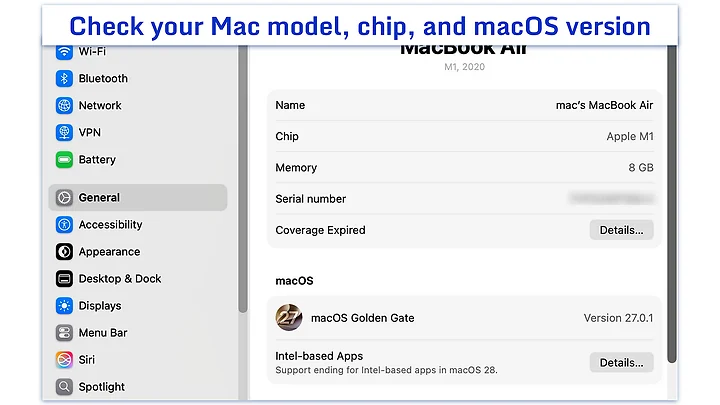
- macOS vulnerability: Open System Settings > General > About and look under macOS for your version number. Compare it with the versions named in the security advisory, then check Apple’s security releases page for an available fix.
- Browser threat: Determine whether the issue affects Safari, Chrome, Firefox, a browser extension, or stored session data. Compare your browser and extension versions with those listed in the security advisory.
- Account attack: Phishing, credential theft, and suspicious sign-ins can affect an online account without infecting your Mac. Check whether the incident involves a service you use and look for unfamiliar logins, account changes, or security notifications.
- Cross-platform app vulnerability: An app available on several operating systems may have a security flaw that affects its Mac version too. Compare the affected versions with the version installed on your Mac.
- Malicious download: Check whether the attack requires someone to download, open, or install a file. Determine whether you encountered or interacted with the file described in the advisory.
- Hardware or platform-specific threat: A vulnerability affecting Windows, Android, iPhone, or a particular processor may not apply to your Mac. Check which devices and models are actually affected before you do anything.
What to do if you think you’ve been compromised
An unexpected login request, an exposed password, and a malware infection need different responses. Stop following any suspicious instructions, then use the advice that matches your situation.
If a work device or company information is involved, contact your IT team immediately. Follow their response process before attempting your own cleanup.
- Unexpected MFA request: Don’t approve it. Open the official app or website directly and check recent sign-in activity.
- Exposed password or unfamiliar account activity: Change the affected password from a device you trust. Change it anywhere else you reused it, review recovery details, and sign out of unfamiliar sessions. If you can’t sign in, use the service’s official account recovery process.
- Suspected active malware or ransomware: Disconnect the affected Mac from Wi-Fi and Ethernet, and avoid connecting backup drives. This helps limit spread and access to other systems. Get trusted technical help with cleanup.
- Suspicious download: If you opened or installed it, scan your Mac with trusted security software and follow its instructions.
- Financial or personal information exposed: Contact the relevant bank or service provider promptly.
After taking action, watch for unfamiliar login alerts, password resets, account changes, and financial transactions.
Strengthen your Mac with additional security tools
Additional security tools work alongside macOS to help you manage network connections and check files for malware.
- Two-way firewall protection: Intego ONE monitors incoming and outgoing connections. It can alert you when an app requests internet access, so you can decide whether to allow or block it. This adds control over outgoing connections that the built-in macOS firewall doesn’t provide.
- A VPN for Mac and iPhone: Turn on the VPN to encrypt the traffic it carries between your device and the VPN server. This helps keep the websites you visit private from whoever runs the Wi-Fi network. They can still see that you’re connected to a VPN, and it doesn’t hide everything you do online.
- Antivirus software: Intego ONE Antivirus adds another layer of malware detection alongside Apple’s built-in protections. You can check specific files or connected drives, schedule scans, and review the results.
To run a Full Scan with Intego ONE Antivirus:
- Open Intego ONE and select Antivirus.
- Find Full Scan and click Start.
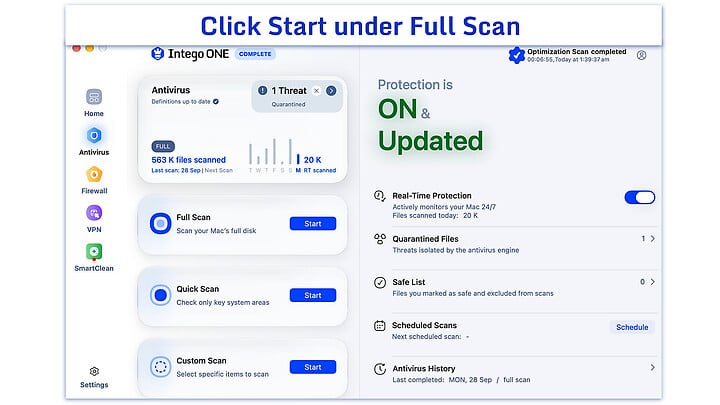
- Wait for the scan to finish, then review the results.
If the app reports missing permissions, follow its prompts to grant the access it needs. If the scan doesn’t finish, address any reported issue and run it again before relying on the results.
Follow the app’s guidance to handle any threats it finds. A completed scan with no detections means no threats were found during that scan. It doesn’t guarantee that your Mac or online accounts are secure.
A simple cybersecurity routine
Cybersecurity isn’t a one-time task. Use this schedule to look after your devices, accounts, and data without having to review every setting constantly.
| When | What to check |
| Continuously | Use automatic updates, MFA, real-time malware protection, and automatic backups. |
| Monthly | Review unfamiliar account activity, connected devices, app permissions, and pending updates. Check that your latest backup completed successfully. |
| Every few months | Remove unused apps, browser extensions, shared-file access, and old account connections. Restore a file from your backup and open it to check that it works. |
| After a data breach | Change affected or reused passwords, sign out of unfamiliar sessions, and check the account for unauthorized activity. |
| After losing a device | Lock or mark it as lost remotely, change exposed credentials, and notify your employer if it contained work data. |
Build stronger cybersecurity habits over time
Good security comes from small habits you practice regularly, such as installing updates and checking account activity. These tasks still need your attention, but a routine can make them easier to manage.
Review your security whenever you add a device, install an app, open a new account, or change how you work. This lets you spot unnecessary access, close gaps early, and respond faster when something doesn’t look right.
How we checked this guide
Frequently asked questions
What are the most important cybersecurity best practices?
The most important cybersecurity practices focus on making it harder for attackers to access your devices, accounts, and data. This means keeping software updated, protecting accounts with strong unique passwords and multi-factor authentication, being cautious with unexpected links and downloads, and regularly backing up important data. Using these protections together is more effective than relying on any single security measure.
What is Zero Trust, and does it apply to individuals?
Zero Trust is the principle that users, devices, and requests shouldn’t be trusted automatically. Instead, access should be verified and limited to what’s needed. While Zero Trust is primarily designed for organizations, individuals can follow the same principle by using MFA, checking unexpected requests, limiting app permissions, and securing each account and device separately.
What is the principle of least privilege?
The principle of least privilege means giving a person, account, or app only the access it needs to perform its task, and no more. For example, an app shouldn’t have access to your contacts, microphone, or files unless it needs them to work.
What are the best cybersecurity practices for Mac users?
Keep macOS and apps updated, make sure FileVault is on, review app permissions, use strong account security, install apps from trusted sources, and maintain regular backups. These practices complement the security protections built into macOS.