What is XProtect, and how does it protect my Mac?
Posted on
by
Kamso Oguejiofor-Abugu


XProtect is Apple’s built-in malware protection for macOS. It works in the background to help detect, block, and remove known Mac malware, without needing you to install or open a separate app.
Most Mac users never need to use XProtect directly. There’s no app icon in your Applications folder, no manual scan button, and no dashboard to check. Instead, Apple updates XProtect through macOS security updates so it can help your Mac respond to known threats.
This guide explains what XProtect does, how it fits into Apple’s built-in Mac security, what it can’t do, and when dedicated Mac antivirus software may still be useful.
What is XProtect on Mac?
XProtect is one part of the security Apple builds into every Mac. Apple describes it as antivirus technology, but it works differently from the antivirus apps most people are used to.Instead of giving you a separate app to manage, XProtect runs as part of macOS. It works alongside other Apple security features, including Gatekeeper and app notarization, to help reduce the risk of known malicious software opening or running on your Mac.
How does XProtect protect your Mac?
XProtect is one of Apple’s built-in security features that helps protect your Mac from malware. In macOS 10.15 or later, it checks apps for known malicious content when they’re first launched, when they’ve been changed, or when XProtect signatures are updated.
If known malware manages to run, XProtect can also help remediate certain infections after Apple has delivered the relevant updates.
Apple updates XProtect automatically through background security updates, so supported Macs can receive updated malware protection without waiting for a full macOS version update.
XProtect works alongside Notarization, Apple’s process for checking apps distributed outside the App Store for known malware, and Gatekeeper, which helps verify that downloaded apps come from identified developers and haven’t been altered.
Together, these tools help reduce the risk of malicious software reaching and running on your Mac.
Is XProtect the same as antivirus software?
No, not exactly. While Apple describes XProtect as an antivirus technology, it doesn’t work like a traditional antivirus app that you open, manage, and use manually.
XProtect runs quietly in the background as part of macOS, so you may never even know it’s there. There is no dashboard to look at, no button to start a scan, and no detailed report if it finds a problem on your Mac.
Dedicated antivirus software is something you can see and interact with. In addition to detecting malware, these programs let you start a scan whenever you like, decide what to do with suspicious files, and see what’s happening through security alerts and logs.
That doesn’t mean XProtect is ineffective. It helps protect Macs from known malware, but it offers limited user control, limited visible reporting, and fewer options for manually checking files than a dedicated antivirus app.
If you prefer to check files yourself or see regular security reports, you can add dedicated Mac antivirus software to work alongside XProtect.
| Feature | XProtect | Dedicated Mac antivirus software |
| Installation | Built into macOS | You download and install it yourself |
| Visibility | Runs quietly in the background | User-facing dashboard and controls |
| Malware detection | Uses Apple’s malware detection rules and updates | Uses the security provider’s own detection technologies and updates |
| Manual scans | No way to start a scan yourself | Lets you run or schedule scans anytime |
| Reports and alerts | Limited visible reporting | Detailed alerts, logs, and tools to manage files |
| Updates | Apple updates it automatically | The software provider handles updates |
Does XProtect replace antivirus software?
Not exactly. Apple describes XProtect as antivirus technology, but it works differently from a dedicated antivirus app. XProtect runs automatically in the background, while dedicated antivirus software typically provides manual scans, detailed alerts, and a user-facing dashboard.
Where is XProtect on my Mac?
XProtect is built directly into macOS, so you won’t find it in your Applications folder like a normal app. It’s part of Apple’s built-in security system and is designed to work automatically.
Most people will never need to look for XProtect or change how it works. Apple designed it to stay out of sight, helping protect against known malware without requiring any setup or ongoing management.
While XProtect does exist as part of macOS system files, it’s best not to delete, move, or modify anything connected to it. Changing these system parts can make your Mac less stable and may interfere with the safety features you rely on.
Instead, focus on keeping your Mac updated and making sure security updates and security responses remain enabled.
This way, your Mac continues receiving the latest XProtect updates and other security improvements automatically.
How to check if XProtect is running
You won’t find a dedicated app or a toggle for XProtect; it’s designed to work quietly on its own. However, you can confirm your Mac is configured to receive the security updates XProtect relies on:
- Open System Settings on your Mac.
- Go to General > Software Update.
- Click the information button (the small “i”) beside Automatic Updates.
- Make sure Install system data files and security updates is turned on.
Different macOS versions might use slightly different names for these buttons, but the goal is to ensure your system can download security files and system data on its own.
Also, for Macs using macOS Tahoe 26 or later:
- Open System Settings on your Mac.
- Go to Privacy & Security.
- Click Background Security Improvements on the right.
- Ensure Automatically Install is turned on.
These settings help your Mac receive XProtect updates and other security improvements automatically, without waiting for a full macOS version update.
Can you run XProtect manually?
You can’t run XProtect manually the way you would a dedicated antivirus scan. Instead, XProtect works automatically in the background as part of your Mac’s system.
That means there is usually nothing you need to launch or manage yourself. As long as your Mac is updated and receiving background security updates, XProtect is already running.
However, if you’re worried about a certain file or prefer a more hands-on approach to security, here are some practical steps you can take:
- Keep macOS updated: Staying up to date with macOS ensures you have the most recent security protections Apple has released.
- Allow background updates: Make sure your Mac can install security data automatically in the Software Update settings. This helps XProtect receive the latest malware detection updates from Apple.
- Avoid risky downloads: Fake updates, pirated software, and unofficial app sources are common ways malware spreads.
- Use dedicated Mac antivirus: If you want manual scans, detailed alerts, or more visibility into suspicious files, consider using Mac antivirus software alongside XProtect.
How often does Apple update XProtect?
XProtect updates are delivered separately from major macOS upgrades, so supported Macs can receive new malware protections without waiting for a full macOS version update.
To help ensure your Mac receives these updates automatically, check that “Install system data files and security updates” is turned on in Software Update settings.
What types of threats does XProtect block?
XProtect is designed to stop malware Apple has already identified, including viruses, worms, and trojan horses.
XProtect uses signature-based detection, which means it checks for known malware patterns. Apple says these rules can be broader than a single file hash, so they may catch some variants of known malware, but XProtect is still mainly focused on threats Apple has identified and added detection for.
However, this isn’t a perfect system. There’s often a short window of time where a brand-new threat might get through before Apple has had a chance to update its defenses.
It’s also worth noting that XProtect depends mainly on Apple’s malware definitions and is just one layer of macOS’s security system. That means it can help block known malware, but it won’t prevent you from landing on a deceptive website or clicking a misleading ad in your browser.
That’s why everyday caution still matters. Careful browsing, downloading software only from trusted sources, and using additional security tools can help protect against threats that built-in defenses may not always catch.
What are XProtect’s limits?
Some of XProtect’s limitations include:
- No standard manual scans: You can’t open XProtect and manually scan your Mac or a specific file the way you can with dedicated antivirus software.
- Limited user feedback: XProtect doesn’t usually provide detailed reports about suspicious files or blocked threats.
- Focus on known malware: It works best against risks Apple has already identified, so its effectiveness depends in part on receiving up-to-date threat information.
- Not a full security suite: XProtect focuses on malware detection and remediation. Other online risks (phishing scams, fraud websites, etc.) may require additional security features or safe browsing practices.
- Minimal user controls: Most of the settings are handled by macOS, leaving you with very few ways to adjust how it works or customize your protection.
This doesn’t make XProtect ineffective; it’s still a useful background protection. However, some people may prefer additional security tools, like a complete Mac security suite, that offer manual scans, detailed alerts, and real-time protection.
Is XProtect enough to protect your Mac?
XProtect provides a solid baseline level of protection against Mac malware. If you mainly download apps from the App Store, keep macOS updated, and use other built-in Apple protections, XProtect can help reduce your exposure to common malware threats.
However, XProtect focuses on malware detection and remediation. Other risks, such as phishing scams, deceptive websites, or fraudulent pop-up warnings, may require additional security features and safe browsing habits.
If you prefer a more hands-on tool that lets you scan your Mac, monitor threats, or review suspicious activity yourself, consider adding dedicated Mac antivirus software.
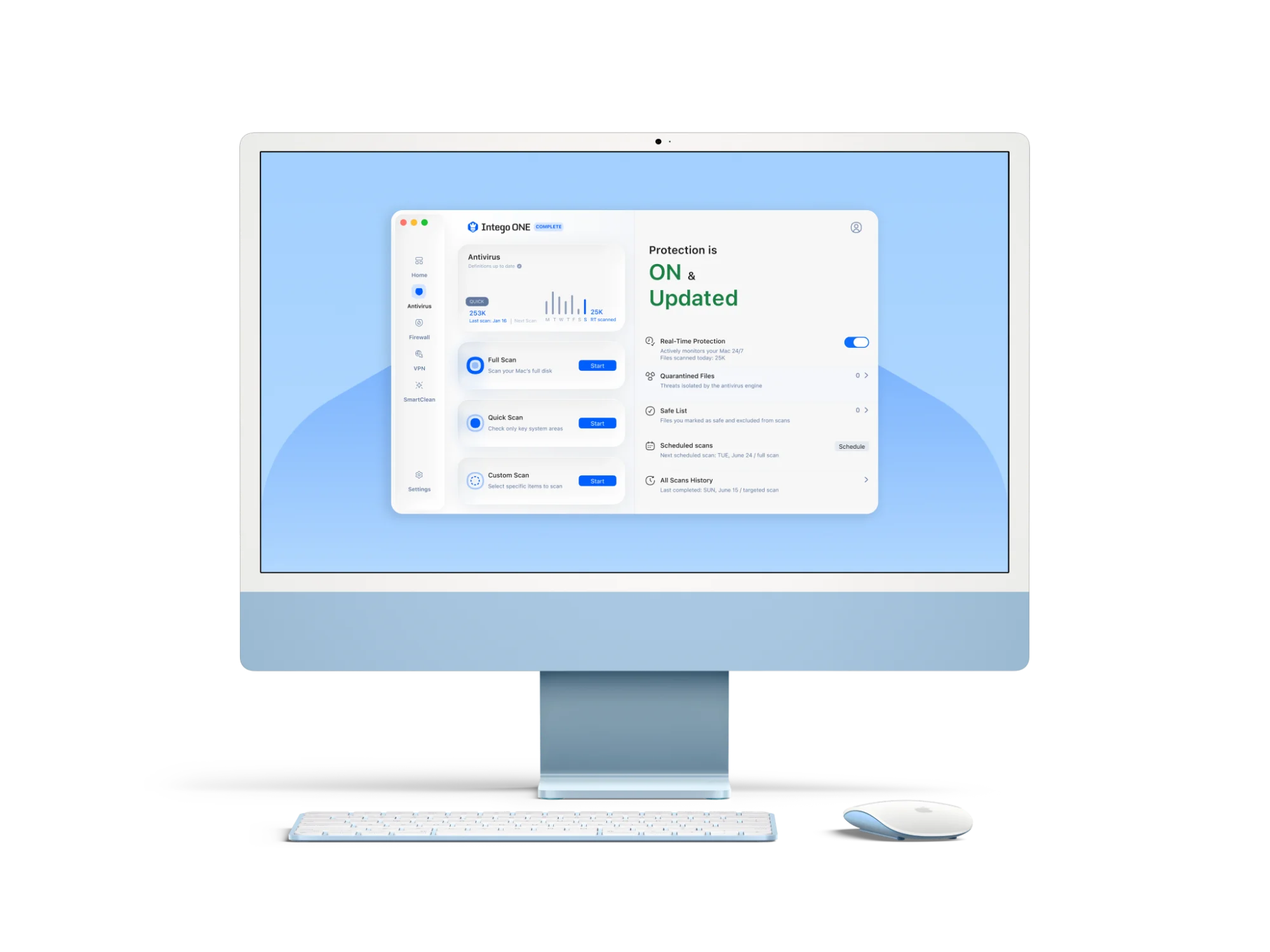
Intego ONE can work alongside XProtect and Apple’s built-in protections. Its Antivirus tools let you run manual scans, review detections, manage quarantined items, and get clearer visibility into your Mac’s security activity.
How Intego works alongside Apple’s built-in Mac protection
Apple’s XProtect works quietly in the background, checking apps for known malware at key points. However, it doesn’t give you much control or visibility into what’s happening on your Mac.
Intego ONE lets you run manual scans whenever you want, whether that’s a quick check, a full system scan, or a targeted scan of specific folders or files. You can also review what’s been detected and manage quarantined items directly.
Depending on your plan, Intego ONE also includes a firewall that gives you visibility into network activity, helping you see and manage which connections your Mac is making.
How to keep your Mac protected
XProtect is an important part of Mac security, but keeping your Mac protected works best as a layered approach rather than relying on a single feature alone. Here are some of the most effective ways to keep your Mac secure:
-
- Keep macOS updated: Apple regularly releases security improvements for macOS, including XProtect updates. Installing updates promptly helps ensure your Mac has the latest protections available.
- Leave background security updates enabled: XProtect and other Apple security systems rely on background updates to receive the latest malware definitions and security data automatically. Disabling these updates can leave your Mac less protected against newer threats.
- Download apps from trusted sources: Try to download software from the Mac App Store or official vendor websites. Unofficial downloads, cracked software, and fake installers are common ways malware spreads.
- Watch for fake update prompts and scams: Many Mac threats today rely on social engineering rather than technical hacking. Be cautious with fake software update prompts, pop-ups claiming your Mac is infected, suspicious email attachments, and unexpected tech support warnings.
- Use strong passwords and two-factor authentication: Strong, unique passwords help protect your Apple account and other online services. Enabling two-factor authentication adds another layer of protection if your password is ever compromised.
- Back up your Mac regularly: Even with good security habits, accidents and infections can still happen. Keeping regular backups with Time Machine or another backup solution helps protect your files if something goes wrong.
- Consider dedicated Mac antivirus software: If you want manual scans and detailed security reports, antivirus software can work alongside XProtect and Apple’s built-in protections.
Frequently asked questions
What types of threats does XProtect block?
XProtect helps block known Mac malware, including threats like trojans, worms, and other malicious software Apple has added detection for. It can also help with some variants of known malware, but it isn’t designed to protect against every online risk. Scam websites, fake pop-ups, phishing emails, and deceptive ads still require safe browsing habits and, in some cases, additional security tools.
How often does Apple update XProtect?
Apple updates XProtect when it releases new malware detection or removal information. These updates are delivered through background security updates and are separate from major macOS version updates, so supported Macs can receive new protections without waiting for a full macOS upgrade. To help this work properly, keep automatic security updates turned on in your Mac’s settings.
Does XProtect run in real time or only during scans?
XProtect runs automatically in the background rather than through manual scans. Apple says XProtect checks apps for known malicious content when an app is first opened, when an app has changed, or when XProtect signatures are updated. So there’s no scan button, but XProtect still works as part of macOS security.
Can I see XProtect alerts on my Mac?
Yes, you may see an alert if XProtect blocks known malware. In those cases, macOS can show a Finder alert and stop the app from running. However, XProtect doesn’t have a dashboard, scan history, or detailed reports you can review later. If you want more visible scan results and alerts, dedicated Mac antivirus software gives you more control.
Does XProtect replace antivirus software?
No, XProtect doesn’t replace dedicated antivirus software for users who want manual scans, clearer alerts, quarantine tools, or detailed scan results. It gives your Mac built-in malware protection, but it’s best to think of it as one layer of Mac security, not the whole security setup.
How does XProtect stop malicious downloads?
XProtect stops malicious downloads by checking apps against Apple’s malware detection rules. If an app matches known malware, macOS can block it from running and move it to the Trash. This helps stop known malicious apps before they can do damage, but it still depends on Apple having detection for that threat.
Can XProtect remove malware automatically?
Yes, XProtect can remove certain known malware automatically after Apple has delivered the right detection and removal updates. This is helpful if malware has already managed to run, but it doesn’t mean XProtect can undo every possible change or remove every threat.
Is XProtect enabled by default on every Mac?
Yes, XProtect is enabled by default on supported versions of macOS. You don’t need to install it, open it, or turn it on yourself. The most important thing you can do is keep macOS and background security updates enabled so XProtect can stay current.