How to stop Apple Music from automatically playing
Posted on
by
Kamso Oguejiofor-Abugu

If you use Apple devices, you have likely experienced this: you get into your car, put on your headphones, or open your Mac, and a song starts playing automatically before you have even opened Apple Music.
To fix this, find exactly where the trigger is. Usually, it’s caused by Autoplay, Bluetooth accessories, CarPlay, Handoff, Siri Suggestions, or startup settings on your Mac.
The good news is standard device settings almost always cause this behavior rather than a deeper flaw with your software or account. Once you notice exactly when the music tends to start, adjusting the setting is usually straightforward.
We’ve gathered the steps to check these settings across your iPhone, Mac, car stereo, and Bluetooth devices so you can choose when your music starts playing.
How to stop Apple Music from automatically playing similar songs
When an album or playlist finishes, Apple Music can keep the music going with similar tracks. This setting is called Autoplay, and you can easily turn it off.
Turning Autoplay off on one device turns it off across every device signed in with the same Apple ID, so you only need to do this once.
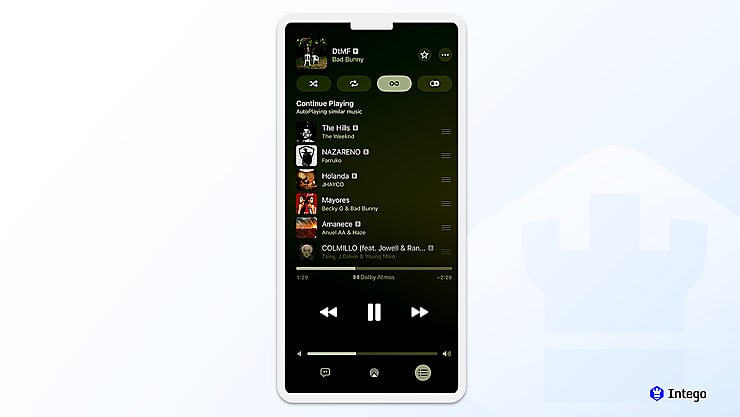
Note that the infinity symbol only appears once you’re playing a song from your library and have opened the upcoming queue. If you’re listening to a radio station, or you’re not an Apple Music subscriber, you won’t see it.
On iPhone or iPad:
- Open the Music app and play a song.
- Tap the player bar at the bottom of the screen to open the full now-playing view.
- Tap the Playing Next button, which looks like a list, in the bottom-right corner.
- Look for the infinity symbol at the top of your upcoming track list and tap it to turn Autoplay off.
On Mac:
- Open the Music app and start playing any song.
- Click the Playing Next icon in the top-right corner of the window.
- Click the Autoplay button (the infinity symbol) at the top of the queue to turn it off.
How to stop Apple Music from automatically playing in the car
Apple doesn’t have a specific switch to turn this behavior off. Instead, the issue usually comes from the car itself. It may send a command to your phone to start playing audio as soon as the two devices connect.
The first thing to try is stopping your iPhone from handing audio to the car on its own:
- Go to Settings > General > AirPlay & Handoff (called AirPlay & Continuity on newer iOS versions).
- Set Automatically AirPlay to Ask.
This tells your iPhone to check before sending audio to the car, so it won’t start the moment you connect.
Results vary by vehicle. If that doesn’t help, disconnecting and re-pairing your phone can help determine whether the connection itself is causing the problem. You can do this either by removing the Bluetooth pairing or the CarPlay connection. You can connect them again later, only when you actually want to listen to something.
Follow these steps to remove the CarPlay connection:
- On your iPhone, go to Settings > General > CarPlay.
- Tap your car’s name.
- Tap Forget This Car.
If your vehicle relies on a standard Bluetooth connection rather than CarPlay, the process is similar:
- Go to Settings > Bluetooth.
- Tap the (i) icon next to your car’s name.
- Select Forget This Device.
While this means you’ll have to take a moment to pair your phone again when you want to hear a song, it ensures your car will stay quiet when you first start the engine.
Keep in mind that some vehicles and stereos have built-in features designed to pick up right where your music left off, which may bypass the changes you make on your iPhone.
If your music is still playing automatically after trying these steps, a quick look through your car’s own screen menus or manual should point you toward a built-in media setting you can turn off.
How to stop Apple Music from automatically playing through Bluetooth devices
If you want to prevent music from playing when you connect your headphones or a speaker, you can usually fix it by adjusting a specific earbud setting, or by disconnecting the Bluetooth device.
AirPods and some other earbuds are designed to pause your music when you take them out and start it back up when you put them in. Here’s how you can change this setting:
- Make sure your earbuds are connected to your device.
- On an iPhone or iPad: Open Settings and tap the name of your earbuds near the top of the menu, then switch off Automatic Ear Detection.
- On a Mac: Open System Settings, click your earbuds’ name in the left sidebar, and turn off Automatic Ear Detection.
If you’re using regular headphones or a standalone speaker, the issue could be that pressing the play button sends a command to start music. When that happens, your iPhone or Mac takes it as a cue to automatically open Apple Music or whatever app it usually uses for songs.
Apple doesn’t offer a setting to change which app responds to those Bluetooth signals. One option is to remove the Bluetooth pairing and reconnect it later. To do this:
- Go to Settings > Bluetooth (or System Settings > Bluetooth on Mac).
- Find the accessory and select the (i) icon next to it.
- From there, tap Forget This Device.
Does Handoff or AirPlay trigger Apple Music automatically?
Yes, both can. Handoff syncs activity across devices signed into the same Apple ID, which includes Apple Music, so playback can resume on another device on its own. AirPlay can automatically connect to nearby speakers and start playing from your iPhone or iPad.
To turn off Handoff:
- Open Settings on your iPhone or iPad.
- Go to General.
- Select AirPlay & Handoff (called AirPlay & Continuity on newer iOS versions).
- Turn off Handoff.
If your music suddenly starts playing from a speaker, TV, or HomePod you didn’t mean to use, your device is likely just reconnecting to something you’ve used before. You can easily stop this from happening:
- Open Settings on your iPhone or iPad.
- Go to General > AirPlay & Continuity (called AirPlay & Handoff on some older iOS versions).
- Tap Automatically AirPlay.
- Select Never.
How to stop Apple Music from automatically opening on iPhone
If Apple Music keeps opening on its own on your iPhone without you tapping it, the issue might be Siri Suggestions rather than a glitch with Autoplay. Your iPhone tries to predict what you want to listen to, which is why the app sometimes appears on your Lock Screen or opens right after you connect your headphones.
If Music tends to appear when you plug in headphones, turn off Show Listening Suggestions:
- Open Settings and tap Apple Intelligence & Siri (or Siri, depending on your iOS version).
- Scroll to the Siri Suggestions section and turn off Show Listening Suggestions.
To stop suggestions for the Music app more broadly:
- Open Settings.
- Tap Apple Intelligence & Siri (or Siri, depending on your iPhone model).
- Tap Apps, then tap Music.
- Turn off the suggestion-related toggles on that screen.
Once these are off, your iPhone should stop bringing the Music app up on your screen when you plug in your headphones or wake up your phone.
If you ask Siri to play a specific song, it sometimes keeps the music going with similar tracks after that first song finishes.
How to stop Apple Music from automatically opening on Mac
If Apple Music keeps opening when your Mac starts up or after you log in, it usually happens for one of two reasons: the app was mistakenly set to open every time you turn on your computer, or your Mac is simply trying to bring back the windows you were using before you shut it down.
Start by checking whether the app has permission to open on its own when you start up your Mac:
- Open System Settings.
- Go to General > Login Items & Extensions.
- Review the list of apps under Open at Login.
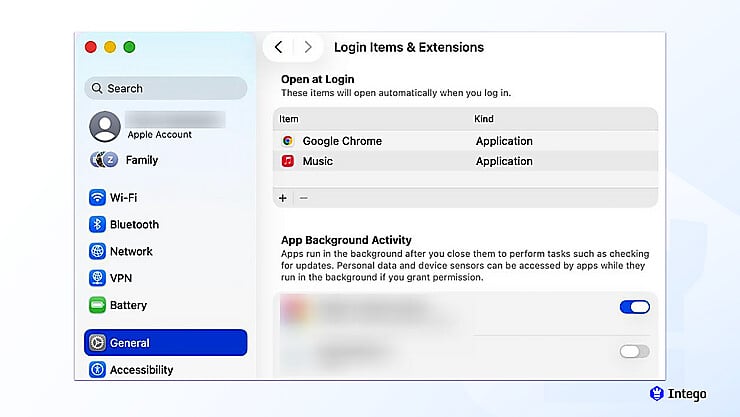
- If Music appears in the list, select it and remove it.
If you don’t see it there, the app might just be reopening because it was still running when you last turned off your Mac. A simple way to prevent this is to fully close the app by selecting Music > Quit Music from the menu bar at the top of your screen before you shut down.
You can also change this behavior during shutdown. The next time you restart or turn off your Mac, a small confirmation box will appear. Just look for the option that asks to reopen windows when logging back in, and uncheck it.
If the app still opens unexpectedly, it’s worth checking for any pending software updates. Keeping your Mac up to date often clears up these kinds of small, unusual quirks with built-in apps.
What to do if Apple Music keeps taking over other apps
When Apple Music cuts in while you’re trying to listen to Spotify, YouTube, or a podcast, it usually means a connected device or a media shortcut is triggering the wrong app.
It helps to notice exactly when this happens. For instance, does it start the moment you put on your headphones, plug into your car, or hit play on your keyboard? Pinpointing that moment makes it much easier to solve.
If you notice this happening with Bluetooth, try disconnecting the device to see if the issue stops. Some headphones and car stereos are programmed to automatically wake up the default music app the moment they connect.
If you’re using a Mac, pressing your keyboard or headphone’s play button might be sending a play signal. These controls may accidentally wake up Apple Music, even if you already have a different app playing.
You can also try closing the Apple Music app entirely while you use other services. While this isn’t always necessary, it can keep the app from answering those accidental play commands.
If this started happening out of nowhere, check for updates on your devices and your audio apps. A recent software bug could be causing the confusion, and a quick update often clears it up.
If you have adjusted your settings and Apple Music still interrupts other apps, try restarting your device. Unpairing your Bluetooth accessories and connecting them again from scratch can also help clear out these persistent glitches.
What to do if Apple Music still behaves strangely
When Apple Music starts up on its own, it rarely means there is anything wrong with your Mac or iPhone.
That said, if the app is opening alongside disruptions like unexpected pop-ups, fake software update alerts, or new apps you don’t remember installing, it’s a good idea to look a little closer.
Automatic playback is usually caused by Apple Music or your device settings. However, if it’s happening alongside fake update alerts, unexpected pop-ups, or unfamiliar apps, it’s worth checking your Mac for unwanted software and malware.
A good place to start is by looking through your recent downloads and browser extensions, and deleting anything you don’t recognize or no longer need.
Next, scan your Mac for unwanted software. Intego ONE can scan for and remove adware and malware, which clears up the pop-ups, fake update alerts, and unfamiliar apps that can come with it.
Frequently asked questions
Why does Apple Music start playing automatically on my Mac?
By default, macOS may launch Apple Music when it receives a play command from your keyboard or connected headphones. The app might also be set to open automatically every time you start up your Mac.
How can I stop Apple Music from launching when I plug in headphones?
If you use AirPods or supported earbuds like Beats, you can stop this by turning off Automatic Ear Detection in your settings. For other wireless headphones, you might need to remove the device from your Bluetooth list and reconnect it only when you need it.
How do I turn off Autoplay in Apple Music settings?
To turn off Autoplay on iPhone, start playing a song, then tap the player at the bottom of your screen to open the now-playing view. From there, open your upcoming queue and tap the small infinity symbol to turn the feature off.
Can I disable Apple Music from opening with Bluetooth devices?
Apple doesn’t provide a direct setting to turn this off. The most dependable approach is to disconnect from the device in your Bluetooth settings when you’re done using it, then reconnect when you want to use it again.
How do I stop Apple Music from playing on startup?
You can prevent this by taking the app off your Mac’s startup list. Click the Apple logo at the top-left corner of your screen and go to System Settings > General > Login Items & Extensions. From there, just look for Music in the list and remove it.
Does Handoff or AirPlay trigger Apple Music automatically?
Both can. Handoff can resume Apple Music on another device signed into your Apple ID, and AirPlay can automatically connect to speakers or TVs you’ve used before. You can turn either off in Settings > General > AirPlay & Handoff (called AirPlay & Continuity on newer iOS versions).
Can I stop Apple Music from connecting to my car via Bluetooth?
Yes, you can. Go to Settings > Bluetooth, tap the (i) icon next to your car’s name, and select Forget This Device.
How do I stop Apple Music from taking over when using other apps?
Start by checking whether a Bluetooth accessory is triggering it. If it keeps happening, closing or quitting the Music app can prevent it from responding to playback signals in the background.