Apple security updates: what they mean for Mac and iPhone privacy
Posted on
by
Kate Hawkins

Apple security updates are easy to ignore because they usually arrive quietly. But those small update prompts can fix issues that affect privacy, stored data, browser security, and the way your device handles information in the background.
A recent iPhone and iPad update fixed a privacy issue involving deleted notification data. At the same time, Mac threat research shows attackers still rely on fake meeting errors, copied-command instructions, and routine-looking prompts to get people to run unsafe files or scripts.
The takeaway isn’t that your Mac or iPhone is unsafe. It’s that privacy risks are often quieter than people expect. They can come from stored notifications, app permissions, browser connections, fake meeting errors, or system behaviors most people rarely notice.
Here’s what changed, why it matters, and what Mac and iPhone users can do now.
At a glance: what changed
Apple security updates fixed a privacy issue where some deleted notification data could be left behind on iPhones and iPads.
Mac threat research also showed attackers using fake meeting errors, fake updates, and copied-command instructions to trick users into running unsafe files or scripts.
For most users, the practical advice is simple: keep your devices updated, limit sensitive notification previews, avoid copied “fix this” commands, and review what apps and browser extensions can access.
Apple fixed an iPhone privacy issue involving deleted notifications
Apple recently released iPhone and iPad updates to fix a privacy issue that could leave some deleted notification data behind on a device. The issue affected Notification Services, meaning notifications marked for deletion could sometimes be retained. The fix improves how that data is removed.
This matters because notification previews can contain sensitive information. A message preview may show part of a private chat, a verification code, an account alert, a banking notice, or a personal update. Even after the original message was deleted, some notification data may have remained on the device.
Several reports linked the issue to forensic recovery of deleted Signal message previews from iPhones. This does not mean someone could remotely read every deleted message. The concern is more specific: deleted notification data could remain locally on the device and, in some cases, be recovered with forensic tools.
For most people, this isn’t a reason to panic. But it is a useful reminder that privacy is not only about the apps you use. It also depends on what your device stores in the background.
Why notification previews deserve more attention
Notification previews are convenient. They let you glance at a message without opening the app. But that convenience also creates extra places where private information can appear.
For example, a notification preview might show:
- part of a private message
- a one-time login code
- the name of a contact
- a delivery or banking alert
- a work-related message
- a personal update from a family member
That information may seem small on its own. But even small pieces of data can reveal patterns about your accounts, contacts, work, habits, or personal life.
This is especially relevant for shared family devices, iPhones or iPads that haven’t been updated, and for people who rely heavily on messaging apps for work, banking, or personal communication.
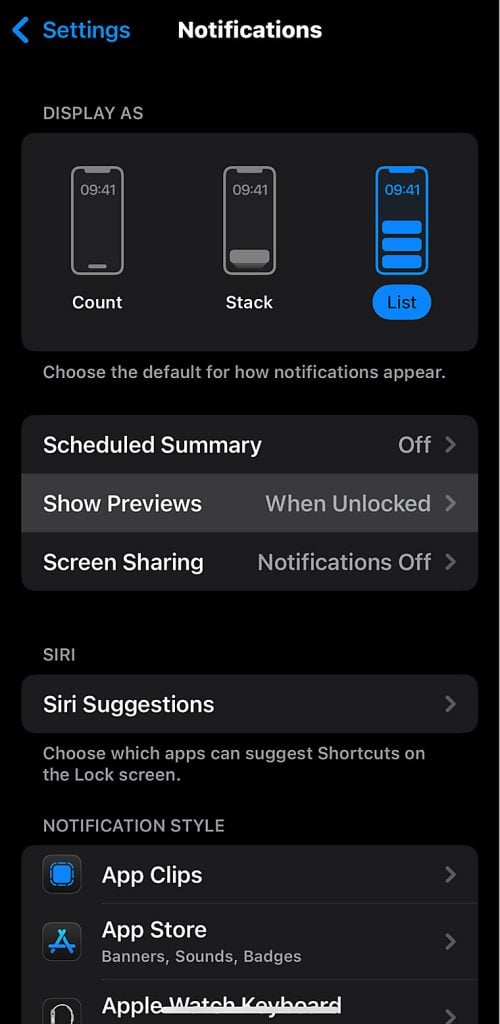
A simple privacy check can help. On iPhone, go to Settings > Notifications > Show Previews and choose a more private option, such as When Unlocked. You can also adjust notification settings app by app.
Mac attacks are becoming more about trust than technical tricks
Mac threats are not always obvious. They don’t always look like a suspicious file with a strange name. Increasingly, attackers try to make unsafe actions feel routine.
Recent research from Microsoft described a macOS-focused campaign linked to Sapphire Sleet, a North Korean threat actor. Instead of relying only on software flaws, the attackers used social engineering — tricking users into manually running malicious files by making the process look like a legitimate update or setup step. The goal was to steal passwords, cryptocurrency assets, and personal data.
SecurityWeek also reported on attacks using AppleScript and ClickFix-style tactics against macOS users, including people in financial organizations. These attacks often show a fake error or connection problem, then tell the user to copy, paste, or run a command to “fix” it.
This matters because the attack depends on getting the user to take the next step. The Mac may not be broken into in the dramatic way people often imagine. Instead, the attacker convinces the person to take an action that gives the malware a way in.
That’s why fake Zoom errors, fake Teams issues, fake recruiter messages, fake update prompts, and fake troubleshooting steps can be so effective. They only need to look routine enough for someone to follow the instructions.
Be careful with “copy this command to fix the problem” instructions
One of the clearest warning signs is a website, message, or pop-up that tells you to copy and paste a command into Terminal, Script Editor, or another system tool.
Most everyday Mac users should not need to run copied commands to join a meeting, fix a browser issue, complete an interview process, or open a shared document.
Be especially cautious if the instruction comes from:
- a fake meeting page
- a recruiter or stranger you have only spoken to online
- a browser pop-up
- a download page you reached through an ad
- a message saying your Mac needs a manual fix
- a page that creates urgency or pressure
If you are not sure whether a prompt is real, pause and check the app directly. Open Zoom, Teams, Slack, or your browser from your Applications folder or the official website instead of following instructions from the page.
Legitimate apps can still raise privacy questions
Not every security concern involves malware. Sometimes, the question is whether an app is clear about what it installs, what it connects to, or what permissions it uses.
A recent discussion around Claude Desktop for macOS shows how this can get complicated. Malwarebytes reported on a security researcher’s claim that the app installs Native Messaging host files for Chromium-based browsers. Native Messaging is a legitimate browser mechanism, but it can create a connection between a browser extension and a local desktop app. That raised questions about transparency, browser access, and how clearly this setup was explained to users.
This does not mean every app that uses this kind of connection is spyware. That would be too strong. But it does show why Mac users should pay attention to what apps install and how they interact with browsers.
A simple way to think about it: if an app adds browser extensions, background tools, login items, or system-level helpers, it should be clear why those components are needed.
Apple’s built-in protection matters, but updates still matter too
Apple does a lot of security work behind the scenes. The April iPhone and iPad update is a good example — a quiet data-handling issue was found and fixed. On Mac, Apple also uses Background Security Improvements to deliver some security fixes between larger software updates.
That’s a good thing. But it also means you need to keep your devices updated and install security updates when they’re available.
On iPhone or iPad, go to:
Settings > General > Software Update
On Mac, go to:
System Settings > General > Software Update
On macOS Tahoe 26 or later, you can also check Background Security Improvements under System Settings > Privacy & Security > Background Security Improvements.
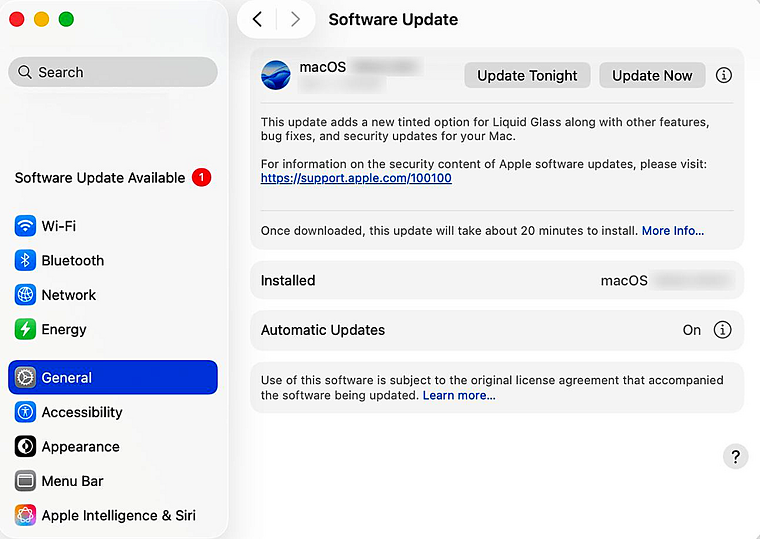
Make sure automatic updates are enabled where possible. It’s also worth checking this manually from time to time, especially after major Apple security news.
What Mac and iPhone users should do now
You don’t need to overhaul your whole digital life because of one update. But a few small changes can reduce risk.
First, update your iPhone, iPad, and Mac. Apple’s security updates only help once they’re installed.
Next, review your notification previews. If messages, banking alerts, or verification codes appear on your lock screen, consider limiting previews to when the device is unlocked.
Be careful with copied commands. Don’t paste commands into Terminal, Script Editor, or other system tools just because a website or message tells you to. That is one of the clearest signs of a social engineering attack.
Install apps from trusted sources. When possible, use the App Store or the developer’s official website. Avoid download links from ads, random pop-ups, or unfamiliar messages.
Review browser extensions and app permissions. Remove extensions you no longer use, and check which apps have access to files, folders, contacts, camera, microphone, and login items.
Use security software that’s built for Mac. Apple’s built-in protections are important, but dedicated Mac security software can add another layer — helping to detect malware, unsafe files, suspicious behavior, and threats that rely on tricking users rather than breaking into the system directly.
The bigger lesson: privacy risks are often quiet
The most important lesson from Apple’s recent security updates is not that Mac and iPhone users should be afraid — it’s that privacy risks are not always obvious.
Sometimes the issue is a deleted notification that wasn’t fully removed. Sometimes it’s a fake meeting error that asks you to run a script, or an app that installs more browser access than you expected.
Good security does not mean never trusting your devices. It means keeping them updated, knowing which prompts deserve caution, and using trusted Mac security software like Intego ONE where it makes sense.
Macs and iPhones are still strong choices for privacy and security. They just work best when users treat security as something active, not something automatic.
FAQs
Are Macs and iPhones still safe to use?
Yes. Macs and iPhones are generally strong choices for privacy and security, especially when they are kept up to date. But no device is risk-free. Security updates, safe browsing habits, careful app choices, and added protection can all help reduce your risk.
Do iPhones get viruses?
Traditional iPhone viruses are uncommon because iOS is tightly controlled. However, iPhones can still be affected by privacy bugs, unsafe profiles, phishing, malicious links, scam messages, suspicious apps, and data exposure through notifications or account compromise.
Can Macs get malware?
Yes. Macs can get malware, including spyware, adware, trojans, browser hijackers, and malicious scripts. Attackers often rely on tricking users into installing something, approving permissions, or running commands rather than forcing their way in.
Can deleted iPhone notifications be recovered?
A recent Apple update fixed an issue where notifications marked for deletion could be unexpectedly retained on a device. Keeping your iPhone updated helps reduce this risk. You can also limit notification previews so sensitive message content is less likely to appear on the lock screen.
Should I turn off notification previews?
You do not have to turn them off completely, but it’s safer to limit previews on the lock screen. On iPhone, go to Settings > Notifications > Show Previews and choose When Unlocked or Never. This helps keep private messages, codes, and alerts from appearing where others can see them.
Do I need antivirus software for my Mac?
Apple includes strong built-in security, but Mac antivirus software can add another layer of protection. It can help detect malware, suspicious files, unsafe downloads, and threats that rely on social engineering. This is especially useful if you download apps, use your Mac for work, manage family devices, or want clearer visibility into potential threats.