How to fix “Safari can’t establish a secure connection” on Mac
Posted on
by
Kamso Oguejiofor-Abugu

You’re browsing along, click a link, and instead of the page loading, Safari stops you cold: “Safari can’t establish a secure connection.” It can happen on hotel or café Wi-Fi, or even at home. No context, no obvious cause, and to make it more confusing, the same site might load fine in Chrome or Firefox.
This error usually means Safari tried to verify that the connection to a site is secure and couldn’t confirm it. Sometimes the issue is just an old temporary file or an outdated browser extension, while other times it stems from the website’s own security certificate or a setting in your network.
Most of these causes are straightforward to check, and you can resolve them safely without needing to force your way past Safari’s security warning.
This guide takes you through that process: what the error actually means, quick checks to rule out the obvious, and the safest ways to fix it on your Mac.
What does “Safari can’t establish a secure connection” mean?
When Safari shows this message, sometimes shown in full as “Safari can’t establish a secure connection to the server”, it’s telling you it couldn’t confirm that the connection to the site is secure. Normally, your browser and a website exchange a security certificate behind the scenes. Safari checks that it’s valid, matches the site, and hasn’t expired.
If any part of that check fails, or if something on your Mac is interfering with the connection before it even gets that far, Safari blocks the page rather than let you load something it can’t verify.
The issue usually stems from:
- The website itself: The site’s security certificate (the digital ID that confirms the site is who it says it is) might have expired, or the site owners didn’t set it up correctly.
- Your Mac’s settings: If your Mac is outdated, has an incorrect date and time, or if its network settings are slightly off, it can affect the security check.
- Safari itself: Sometimes old saved data, cookies, or a browser extension can get in the way of a clean connection.
- Security software: A VPN, antivirus, or firewall can sometimes look so closely at your internet traffic that it accidentally interrupts the connection.
While it can be frustrating, it’s usually best not to force the page to load anyway. The warning is there to protect you, and it’s worth figuring out what is causing the hitch, especially if you plan on typing passwords or payment details into that website.
Quick checks before changing settings
Before changing any settings, it’s worth checking a few simple things first. These steps only take a minute or two, and they might save you from trying to fix a problem that isn’t actually there:
- Reload the page and double-check the URL: A small typo or an extra symbol in the address bar can cause an error that has nothing to do with your Mac or the site’s certificate.
- Open the site in a private Safari window: You can open a private Safari window by pressing Command + Shift + N. This lets you see the site fresh, without any saved cookies or cached data interfering.
- Try the same site in another browser: If it opens normally there, it means the website is fine and the glitch is likely specific to Safari.
- Switch networks or devices if you can: If the page works on your phone or a different Wi-Fi connection, then it’s possible the issue is from your MacBook or the network you’re on.
- Check whether the site is down for everyone: An online status checker can tell you if the entire website is down. If it is, the best option is to wait for the owners to fix it.
How to fix the Safari connection error on Mac
If those quick checks didn’t help, you can try the steps below. Start with the simplest solutions first, then move on to the more advanced ones if the error persists.
Check your date, time, and time zone
Sounds unrelated, but it isn’t. Security certificates are time-sensitive, and if your Mac’s clock is even slightly off, Safari might assume a certificate is expired or invalid and block the page.
You can check this by going to System Settings > General > Date & Time. Make sure Set time and date automatically is switched on, then close and reopen Safari to see if the page loads.
Update macOS and restart
Apple updates Safari as part of the main Mac operating system rather than through the App Store. If you’re behind on macOS updates, you could be running an outdated Safari without realizing it.
To check for Apple’s updates, go to System Settings > General > Software Update. Install any available updates, and then restart your Mac to let the changes take effect.
Clear Safari’s cache, cookies, and website data
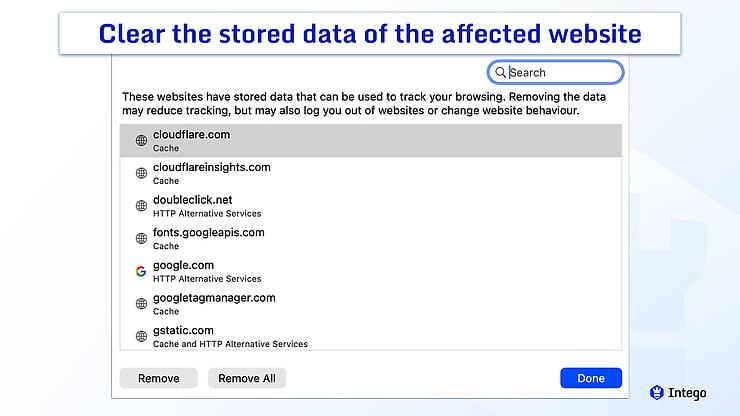
If the problem only affects one site, try removing its stored data:
- Open Safari.
- Click Safari in the top-left corner of your screen and select Settings.
- Click the Privacy tab.
- Select Manage Website Data.
- Search for the affected website, select it, and click Remove.
- Reload the website.
If you’re having trouble with multiple websites, you can choose to clear all website data at once by clicking Remove All. Just note that this will log you out of most accounts and reset things like custom page layouts, so you’ll need to sign back in afterward.
Turn off extensions temporarily
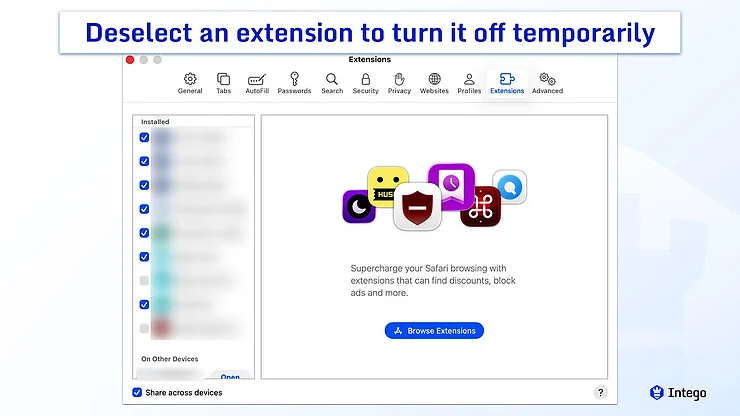
You can check if an extension is causing the trouble:
- Open Safari.
- Click Safari in the top-left corner of your screen and select Settings.
- Click the Extensions tab.
- To turn off an extension, uncheck the checkbox next to it.
- Reload the website after each change.
If the page works normally after turning one off, that extension is probably the culprit. From there, you can keep it turned off, see if it has an update available, or look at its settings to see what might be interfering.
Review Safari’s privacy and security settings
Your privacy and security settings can also affect whether a page loads. Some websites rely on specific cookies to load your information, while others might struggle to connect if a content blocker is active.
To temporarily allow third-party cookies:
- Open Safari.
- Click Safari in the top-left corner of your screen and select Settings.
- Go to the Advanced tab and uncheck Block all cookies.
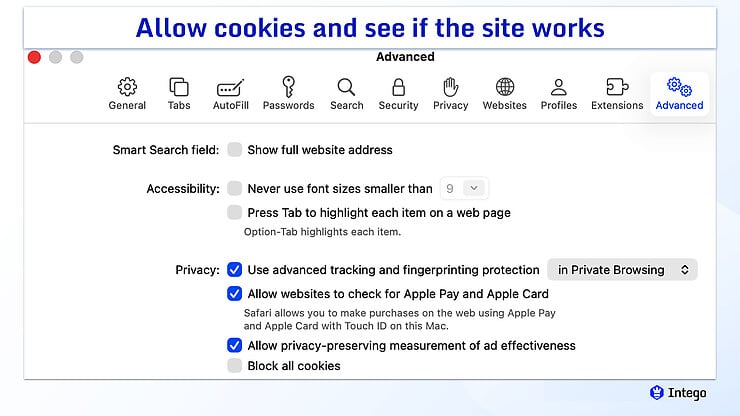
- Next, go to the Privacy tab and uncheck Prevent cross-site tracking.
To remove content blockers:
- Right-click the website URL in the address bar and choose “Settings for This Website.”
- Uncheck the box next to Enable content blockers to disable them for this particular site.
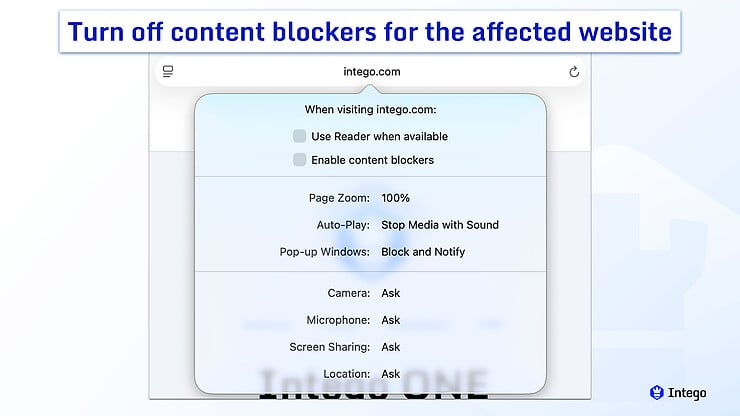
- Reload the page to see if that solves it.
Check iCloud Private Relay
It’s also worth looking at iCloud Private Relay. When this feature is active, it protects your privacy by encrypting your traffic, but it can sometimes interfere with how certain websites load.
You can find this by opening your System Settings, clicking on your name, and selecting iCloud. Try pausing Private Relay for a moment to see if the page comes up.
Check DNS and proxy settings
Finally, look at your network settings. Open System Settings > Network, and check your DNS and proxy configurations.
If you previously set these up, try returning them to their automatic, default settings to see if things clear up. Old or incorrect network addresses can sometimes stop Safari from opening a website.
Could a VPN, antivirus, firewall, or security app cause this error?
Yes, sometimes. Apps that monitor, filter, or reroute your internet traffic can interfere with Safari’s ability to establish a secure connection. That doesn’t necessarily mean the app is faulty — it could just be handling traffic in a way that prevents Safari from completing its own security checks.
You can test this by turning your VPN off temporarily, or switching to another server, and refreshing the page. If the site loads, the VPN is likely the reason Safari is stopping you.
If turning it off makes no difference, turn it right back on, especially if you are working from a café, airport, or hotel. These networks are usually unencrypted, so keeping your VPN running shields your activity from others on the same network.
If you don’t have one, Intego VPN is a natural fit for Mac users who work, travel, or browse on shared networks.
Just keep in mind that a VPN can’t fix problems with the website itself. It won’t resolve an expired certificate, correct your Mac’s date and time, or repair a server that has been set up incorrectly.
You can do the same thing with your antivirus or firewall. Pausing the software for a minute can show you whether it’s blocking Safari. If the error stays under those conditions, turn your protection back on and look at other possible causes.
How to check if Intego Firewall is blocking Safari
If Intego ONE is running on your Mac, you can check the firewall settings directly:
- Open Intego ONE and go to the Firewall module.
- Go to the Network Rules section.
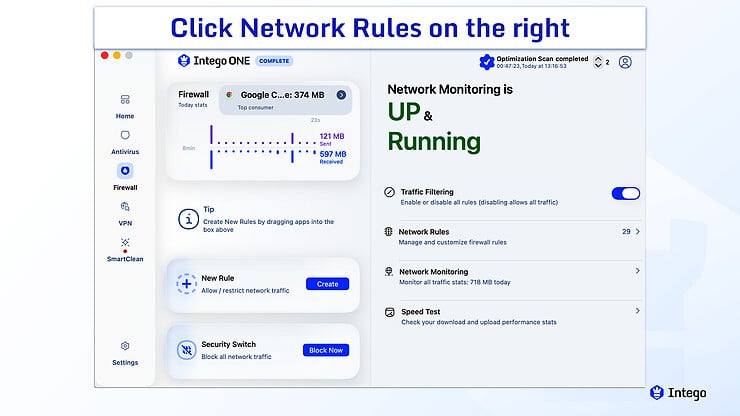
- Look for Safari in the list. The verdict beside it shows Allow or Deny.
- If Safari is set to Deny, click the three dots on the right side of the Safari entry and select Allow Verdict.
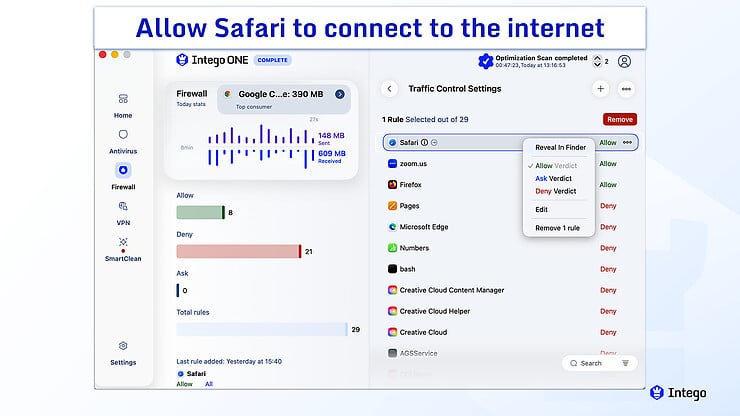
- Reload the page in Safari to see if it goes through.
Don’t turn off your firewall entirely just to get past a connection error, as this leaves your Mac open to security risks. Likewise, if you see an unfamiliar application asking for permission to connect to the internet, first look up what it does before you grant access.
What if the site’s certificate is expired or not trusted?
Sometimes the cause isn’t your Mac or your network at all. It’s the website. Every site needs a valid security certificate to load safely in Safari. That certificate can fail if it’s expired, wasn’t issued correctly, doesn’t match the site’s domain, or comes from an untrustworthy source.
When Safari flags a site, it’s best to pause, especially if you were about to type in a password, your credit card number, or any personal details.
A warning doesn’t always mean the website is malicious, but it does mean Safari can’t verify who or what is on the other end of the connection. Without that confirmation, it’s safer not to proceed.
Your Mac does allow you to look at these certificates and manually approve them using the Keychain Access app. You should only do this, however, if you already know exactly why the certificate failed and have a specific reason to bypass the error.
For most people, changing these settings is rarely a good idea. Forcing your Mac to trust a broken certificate can leave your connection open to being intercepted if the site has been compromised.
The safest approach is simply to close the page and send a note to the person who runs the website to let them know their security certificate needs attention.
Why can’t Safari establish a connection when Chrome or Firefox can?
When a website loads normally in Chrome or Firefox but shows “Safari can’t establish a secure connection” in Safari, it’s easy to assume Safari is broken. In reality, different browsers just have their own ways of handling website security and saved data.
Every browser keeps its own history of cookies, cached files, and security preferences. If Safari’s saved data for a specific site becomes corrupted or outdated, Chrome and Firefox won’t be affected by that glitch.
Safari also has settings and features that Chrome and Firefox don’t share. A content blocker, an extension, or a Safari-only feature like iCloud Private Relay can stop a page from loading in Safari while other browsers open it without trouble.
When a page opens everywhere except Safari, it narrows things down. It tells you that the website itself and your internet connection are likely fine, and you can focus your attention on specific solutions relating to Safari.
How to browse more safely after fixing the issue
With the error sorted out, a few small habits can help keep your browser running smoothly and securely from here on out:
- Keep your Mac updated: Staying current ensures your browser has the latest protections and fixes built right in.
- Take security warnings seriously: If Safari tells you it can’t verify a website, it’s best to take its advice. Avoid bypassing these alerts just to get to a page.
- Be careful on public Wi-Fi: If you have to log into personal accounts on a network you don’t manage, using a VPN encrypts your connection.
- Check your browser extensions: Being selective about the extensions you download, removing any you no longer need, and keeping the rest updated keeps your browser light and clutter-free.
- Scan your Mac: If this error started happening right after you downloaded a new app or clicked a strange link, the trouble might not be Safari itself. Running a malware scan with Intego ONE virus scanner can find and remove malicious software that might be affecting your browser or network settings.
Frequently asked questions
How can I open a site that Safari says is not secure?
Check that you’ve entered the correct URL, reload the page, or try opening it in a private window or another browser. If you’re still seeing the warning, it usually means the website’s own security certificate has expired or has an error. It’s best to hold off on entering any passwords or card details until the site owners fix it.
How do I check if my Mac’s date and time affect secure connections?
Go to System Settings > General > Date & Time and confirm whether Set time and date automatically is turned on. If you had to turn it on, try reloading the website to see if that clears things up.
Can antivirus or VPN software cause Safari connection errors?
Yes. VPNs, firewalls, and other security apps can occasionally get in the way of how Safari communicates with a website over a secure connection.
How do I clear cache and cookies to fix Safari connection issues?
Open Safari > Settings > Privacy, then click Manage Website Data. You can remove data for a specific website or clear all stored website data. Just remember that doing this will likely log you out of most sites you use regularly.
Why does Safari show this error but Chrome or Firefox works fine?
Each browser uses its own method to store data, check security certificates, and manage privacy. So if a page loads everywhere except Safari, the problem is usually with Safari itself, often its saved data or settings, and not the website or your connection.
Can expired SSL certificates cause the Safari secure connection error?
Yes. If a website’s security certificate has expired or isn’t set up correctly, Safari can refuse to establish a secure connection to protect your data.
