What to do with old iPhones and iPads before you sell, recycle, or dispose of them
Posted on
by
Doris Muthuri

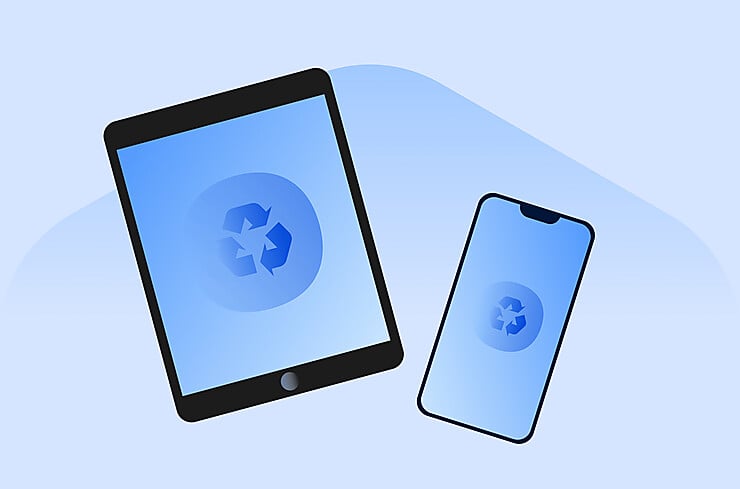
Deciding what to do with an old iPhone or iPad is the easy part. Doing it safely takes a few steps. Before you sell it, give it to someone else, recycle it, or dispose of it, remove your personal information and prepare the device first. That keeps your accounts, photos, and other private data off the device.
Don’t worry if you’re not sure where to start. This guide walks you through each step, from backing up your data to erasing the device, so you can part with it knowing your personal information is gone.
What to do with an old iPhone or iPad
If you plan to keep it, remember that older devices may no longer receive Apple’s latest security updates. They’re still useful for offline activities like reading, watching downloaded videos, or playing games, but it’s best to avoid using unsupported devices for banking, shopping, or storing sensitive information.
If you’re giving the device to someone else, selling it, or trading it in, erase all your personal data first. You’ll also need to sign out of your Apple Account. That turns off Activation Lock, so the next owner can set up the device.
If the device is too old, badly damaged, or has no resale value, recycle it through Apple or a certified electronics recycling program instead of throwing it in the trash. iPhones and iPads contain batteries and other materials that need safe handling to reduce environmental impact.
Back up your iPhone or iPad first
A backup lets you keep your photos, videos, messages, contacts, app data, settings, and other important information. If you’re moving to a new Apple device, you can use the backup to restore your information. Without one, you could lose anything you haven’t saved elsewhere once you erase your iPhone or iPad.
There are two ways to back up your iPhone or iPad. You can use iCloud, or you can back up the device to a Mac or Windows PC. If you use iCloud, make sure you have enough available storage. If you prefer to keep a local copy of your data, you can back up the device to your Mac or PC instead.
Backing up to iCloud is the easiest option for most people. You can find step-by-step instructions in this article. The same guide also explains how to back up your iPhone or iPad to a Mac using Finder. If you’re using a Windows PC, Apple recommends using the Apple Devices app to back up your device. If your computer doesn’t support the Apple Devices app, you can still use iTunes.
Before you move on, check that the backup is finished. Confirm that you can see the date and time of your latest backup so you know your data was saved before you continue.
Sign out, unpair, and disconnect your device from your Apple account
Before you erase your iPhone or iPad, disconnect it from your Apple Account and any Apple services linked to it. This keeps your personal information off the device, so the next owner can set it up without account or Activation Lock problems.
- Unpair your Apple Watch (if you have one): Open the Watch app on your iPhone, tap My Watch > All Watches, then tap the information button next to your watch. Tap Unpair Apple Watch and follow the prompts.
- Sign out of your Apple Account: Go to Settings, tap your name, tap Sign Out, and enter your Apple Account password if prompted. This also signs you out of iCloud.
- Turn off Find My: Signing out turns off Find My and removes Activation Lock, so the next owner can activate the device.
- Review your AppleCare plan: Transfer it to the new owner if eligible, or cancel your AppleCare plan for a possible refund.
- Turn off iMessage if you’re switching to Android: Go to Settings > Apps > Messages and turn off iMessage before moving your phone number to your new device. This helps make sure text messages reach your new phone.
Once you’ve completed these steps, you’re ready to erase your iPhone or iPad.
Erase your iPhone or iPad before selling, giving away, or recycling it
- Open Settings > General > Transfer or Reset iPhone (or Transfer or Reset iPad).
- Tap Erase All Content and Settings.
- Review the information on the screen, then tap Continue.
- Enter your device passcode if prompted.
- Enter your Apple Account password if prompted. This turns off Activation Lock as part of the erase process.
- If your device uses an eSIM, choose to erase the eSIM when prompted. Make sure you’ve transferred your mobile service first, and follow any instructions from your carrier or trade-in provider.
- Wait for the device to restart. The Hello setup screen means the erase finished.
If you don’t remember your Apple Account password or can’t turn off Activation Lock, resolve that before giving away or recycling your device. The next owner won’t be able to activate the iPhone or iPad until Activation Lock has been removed.
What to do with old iPhones that don’t work
If your old iPhone doesn’t work, don’t throw it away. Even if the screen is cracked, the battery won’t hold a charge, or the phone has other hardware problems, you can often still repair, trade in, or recycle it safely.
If the iPhone still turns on, follow the steps earlier in this guide to back up your data, disconnect it from your Apple Account, and erase it before you sell, trade in, or recycle it. For an iPhone that won’t turn on at all, see whether a repair would let you erase your personal data first. If that isn’t possible, ask Apple or your trade-in or recycling provider how they handle devices that can’t be erased.
Never put a broken iPhone in your household trash or curbside recycling. iPhones contain lithium-ion batteries and other electronic components. Recycle them through an approved electronics recycling or trade-in program.
If the battery is swollen, leaking, punctured, or becomes unusually hot, stop using the phone immediately. Don’t charge it or try to remove the battery yourself. Instead, take the device to Apple or a certified electronics recycling facility that can safely handle damaged lithium-ion batteries.
Where to recycle, trade in, sell, or donate an old iPhone or iPad
Once you’ve prepared your iPhone or iPad, the next step is deciding what to do with it. The best option depends on its condition, age, and whether it still has any resale value.
- Trade it in with Apple: Get credit toward a new Apple product if your device is eligible, or free recycling in many regions if it isn’t.
- Trade it in through your carrier or a retailer: Many accept used iPhones and iPads, even older or slightly damaged ones, for a credit, a gift card, or cash.
- Sell it if it still has value: A reputable buyback or private sale can pay more. Compare offers before you decide, and erase your data before you hand it over.
- Donate it to someone who can use it: Give a working device to a family member, friend, school, or charity. Sign out of your Apple Account and erase the device first so they can set it up as their own.
- Recycle it if it has no resale value: Send it to Apple or a certified local e-waste recycling program rather than the trash.
After disposal, check the devices and accounts you still use
Once your old iPhone or iPad is gone, it’s worth spending a few minutes checking the devices and accounts you still use. This helps you confirm everything works and spot anything that doesn’t look right.
- Review your trusted devices: Open your Apple Account settings and check the list of devices. If you still see your old iPhone or iPad, remove it.
- Check your accounts and apps: Confirm that you can sign in on your new device and that your security settings and trusted phone numbers are correct.
- Be cautious of unexpected messages: Ignore emails, texts, or calls claiming there’s a problem with your trade-in or asking you to verify your Apple Account. This is a common phishing scam. Always sign in through the official website or app, never through links in unexpected messages.
Prepare your old iPhone or iPad before it leaves your hands
Frequently asked questions
What should I do with old iPhones that still work?
A working iPhone can be sold, traded in, donated, given to a family member, or kept as a backup device. Before it leaves your hands, back up your data, sign out of your Apple Account, and erase the device so your personal information goes with you.
What should I do with old iPhones that don’t work?
Don’t throw away an old iPhone just because it no longer works. If it still turns on, follow the steps in this guide to back up your data and erase the device. For an iPhone that won’t turn on, ask Apple or your recycling or trade-in provider how they handle devices that can’t be erased, then recycle it through a certified e-waste program instead of putting it in the household trash.
Should I erase an iPhone before recycling it?
Yes. If your iPhone still turns on, erase it before recycling it to remove your personal information. If it won’t turn on, ask Apple or your recycling provider how they handle devices that can’t be erased.
Can I sell an old broken iPhone for cash?
Yes, in many cases. Even a broken iPhone can be worth something if it can be repaired or used for parts. The amount you receive depends on the model, its condition, and whether it still turns on. Before you sell it, erase the device if possible to remove your personal information.
Is it safe to give an old iPad to a child?
Yes. An old iPad can work well for a child if it still receives Apple security updates. If it no longer receives updates, limit it to offline or low-risk activities rather than using it for browsing, messaging, shopping, or accounts containing personal information. Erase it first, then set it up through Family Sharing and enable suitable parental controls.