Email security: How to keep your email account safe
Posted on
by
Kamso Oguejiofor-Abugu

Your email inbox holds far more than everyday messages. It’s where password resets, bank alerts, receipts, and sign-in codes arrive. So much of your digital life links back to your inbox, so keeping it safe goes a long way toward protecting everything else.
You don’t need to be a security expert to keep intruders out of your email account. Simple habits like setting a strong password, switching on two-factor authentication, and learning to spot suspicious emails can make a huge difference. This guide walks you through email security steps you can start taking today to help secure your inbox.
What is email security?
Email security means protecting your email account, and the messages inside it, from people who shouldn’t have access. It mainly covers three things: who can sign in to your account, who can read your messages while they travel, and what the emails reaching your inbox are trying to get you to do.
On your end, that means locking your account with a strong password, being able to recognize phishing emails, and keeping your devices and mail apps updated. Behind the scenes, your email provider handles a good deal as well. Most providers support encryption on their apps and servers, providing a way to keep messages safer as they travel back and forth.
Why your email account is worth protecting
If someone gains access to your inbox, they may be able to use it to take over other accounts. Many services, including banks, shops, and social platforms, let you reset a password by sending a recovery link to your email address. Anyone who controls the inbox can receive that link.
Some services add extra checks, such as a code from an authenticator app, which can stop a reset even when the email is compromised. But any account that relies on email alone for recovery is at risk if that email isn’t secure.
Attackers who get into your inbox also gain access to what sits inside your messages. These could include personal conversations, attached documents, purchase records, travel itineraries, and links to other accounts.
From there, they can send messages using your real address. People are far more likely to trust those messages because, as far as anyone can tell, they came directly from you.
How to keep your email secure
Securing your email account comes down to a few basic settings and simple routines. You can follow these in order, or jump straight to the steps you haven’t taken yet.
Use a strong, unique password for your email account
Your email needs its own password, one you don’t use for any other account. When a website gets hacked, attackers take the stolen login details and try them across dozens of popular sites. This is called credential stuffing, and it only works when people reuse passwords.
If, for instance, you use the same password for email and a streaming account, a security issue on that streaming site leaves your inbox vulnerable.
That’s why it’s important you use a secure password for your email account, one that’s long and unique. Avoid predictable phrases and personal details such as names or birthdays. A passphrase made from randomly chosen words can also be a strong choice. If keeping track of different passwords feels overwhelming, a password manager can create and keep them for you.
Turn on two-factor authentication
Passwords are a great start, but adding a second check when you sign in makes your email much harder to access without your permission.
Most email services give you a few ways to do this, such as using an app that generates a temporary code, a physical security key, or a text message sent to your phone.
These methods don’t offer the same level of protection. A FIDO security key, for example, provides stronger protection against phishing because it’s tied to the account’s app or website.
Authenticator codes are generally a safer choice than SMS since they don’t travel over the phone network. This makes it harder for an attacker to redirect or intercept the code while it’s in transit. These codes can still be stolen if you enter them on a fake sign-in page. However, receiving a code by SMS text is still a worthwhile option if it’s the only one available.
The important thing is to enable 2FA on your email account if your provider offers it. That way, even if someone manages to find or guess your password, they’ll still need to get past another form of authentication to get into your inbox.
To turn it on, open your email provider’s account-security settings and look for two-factor authentication or two-step verification. The exact steps depend on your service. Follow the setup instructions for Gmail, Outlook, iCloud Mail, or your email provider.
If your provider offers backup codes, save them somewhere you can reach outside of your inbox, such as a password manager or a printed copy in a safe place. You’ll need them if you lose your phone or can’t use your usual sign-in method.
Use an email alias to hide your main email address
Every online service you sign up for keeps your address on file. Over time, those lists can be shared, leaked, or targeted by marketing teams. Limiting where your actual address ends up reduces how much unwanted email or suspicious messages end up in your inbox.
An email alias acts as a forwarding mask. Services like Apple’s Hide My Email generate a unique address for you to use on a website, and any incoming mail gets automatically passed along to your primary inbox.
This works well for newsletters, online accounts, or store sign-ups that don’t truly need your actual email address. By using a distinct alias for each account, you can simply turn off any single address if it starts receiving spam.
To create Hide My Email addresses, you need iCloud+, either through your own subscription or Family Sharing. On your Mac, open System Settings, click your name, go to iCloud > Hide My Email, and click the Add (+) button at the bottom to set it up.
You can also hide your address with Sign in with Apple when you sign in to a supported app or site. It’s a free feature.
It’s worth noting that aliases only help prevent your email address from being exposed. They don’t encrypt your emails, nor do they take the place of a reliable password and two-factor authentication on your account.
Keep your email apps and devices updated
Software updates fix security flaws across your operating system, web browser, and email tools. Even if your email account has a strong password and two-factor authentication, an outdated system can still give someone a backdoor into your information.
Making sure your devices and apps are up to date helps maintain that protection. If automatic updates are available, consider turning them on so you don’t have to remember to check manually.
Learn how to spot phishing emails
Phishing emails are designed to trick you into taking action before you have time to think. That could mean sharing account details, opening a harmful attachment, or transferring money. They often pretend to come from places you already trust, like your bank, a delivery company, or a coworker.
While some phishing emails are easy to spot, others look remarkably authentic. A few patterns tend to show up most often:
- Fake urgency: The sender presses you to act right away to fix a problem or prevent a negative outcome. They rely on panic so you skip double-checking the details.
- Unexpected account alerts: You receive a notice about an issue with an account, accompanied by a direct link to log in. It’s almost always safer to avoid that link entirely.
- Unrecognized billing requests: An email asks you to settle an unfamiliar invoice or verify your payment information for a purchase you don’t remember making.
- Package status updates: You get a notice saying a shipment is on hold until you confirm personal details or pay an unexpected fee.
- Mismatched senders: The display name might say it’s from your bank or a friend, but tapping or hovering over the actual address reveals a completely unrelated email address. This is known as email spoofing.
- Unsolicited files: A message prompts you to download or open a file that you never requested. This could be an invoice, receipt, or work document containing malware.
- Misleading links: Text might display a familiar web address, but hovering over it reveals it points to a different website altogether. It helps to check where a link actually goes before clicking.
Take extra care whenever an email asks for passwords, payment details, or personal information.
The simplest habit is to bypass the email altogether. Go directly to the official website or app you normally use to see if there’s a real notice waiting for you. Lastly, keep security codes to yourself. Reputable organizations will never reach out to ask for a verification code you just received.
Scan email attachments before opening them
Email attachments are a common way for malware to reach a Mac. If an email contains an unexpected or suspicious attachment, confirm it with the sender through another trusted channel before you download it. A quick phone call or a message in an app you already use is enough. If you do choose to download the file, scan it before you open it.
On your Mac, Intego ONE’s Antivirus lets you check a specific file or folder with a custom scan:
- Open Intego ONE and go to the Antivirus tab.
- Choose Custom Scan.
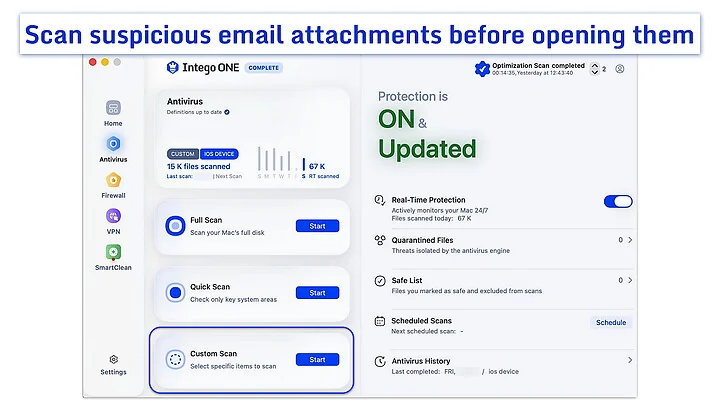
- Select the downloaded file or folder you want to check and start the scan.
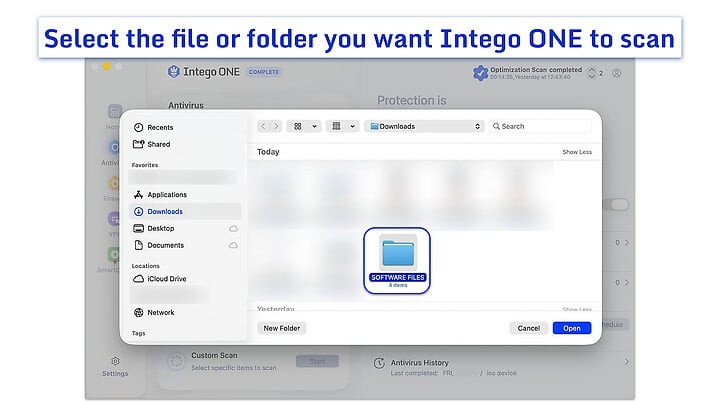
- When it finishes, review the results. If Intego ONE finds something harmful, it quarantines it, and you can remove unwanted items or restore ones you trust.
A scan checks the selected files on your Mac for known malware threats. It doesn’t secure your email account or recognize a phishing message for you, so a strong password, two-factor authentication, and careful reading of unexpected emails still matter. A clean result also can’t guarantee a file is safe, so stay cautious with anything you weren’t expecting.
Understanding email security protocols
You may have seen acronyms like TLS, SPF, DKIM, and DMARC. If you use a typical personal email provider, it handles these settings for you, but it helps to know what they do.
Transport Layer Security (TLS) encrypts your data while it travels, but only when it’s enabled and used. When it is, it can protect your messages and login details between your email app and its server. It can also protect messages as they travel between email servers, as long as both servers support it.
TLS only protects data while it’s moving, which means the email providers handling the message may still be able to read its contents. That’s different from end-to-end encryption, where the message remains locked to everyone except the sender and recipient.
Sender Policy Framework (SPF), DomainKeys Identified Mail (DKIM), and Domain-based Message Authentication, Reporting, and Conformance (DMARC) are sender checks. Each one does a different job.
SPF checks whether a server is allowed to send email for a domain. DKIM checks a domain’s digital signature. It also checks whether the signed parts of the message changed.
DMARC checks whether a sender domain passed an SPF or a DKIM check and whether it matches the domain shown in the “From” address. DMARC also sets a policy for how receiving services should handle messages that fail these checks.
Together these checks verify that an incoming email genuinely came from the domain listed in the sender’s address. This makes it harder for someone to impersonate a legitimate domain or fake who an email is from.
That said, authenticating the sender doesn’t guarantee the message itself is safe. A legitimate domain can still be compromised, and a harmful email can still pass these checks.
What to do if your email account is compromised
If you think someone has accessed your email account, act quickly. If you can’t sign in, start by following the official account recovery instructions for your Gmail, Outlook, iCloud Mail, or other email account.
If you can still sign in, work through these steps to secure the account and check whether anything else was affected:
- Change your email password: Create a new, strong password that you don’t use for any other account. If you reused your old email password elsewhere, update those as well so those accounts stay safe.
- Check where you’re signed in: Open your email security settings and look at the list of devices and locations logged into your account. If you see a device or location you don’t recognize, log it out.
- Review your contact and recovery info: Make sure your backup email, phone number, and two-step verification settings still belong to you and haven’t been altered.
- Check for unfamiliar forwarding rules: An attacker may set up automatic forwarding so they can continue receiving copies of your emails. Remove any forwarding addresses or rules you don’t recognize.
- Review connected apps and services: Check which apps and services have permission to access your email account, and remove anything you don’t recognize or no longer use.
- Look through your sent folder: Check for messages you don’t remember sending, as well as any mail moved to trash or spam. If messages went out from your address while you were locked out, send a quick note to your contacts so they know to disregard them.
- Secure other accounts connected to your email: Think about which accounts use this email address for password recovery. If your inbox was compromised, those accounts may need new passwords or additional security measures.
How we checked this guide
We reviewed the steps in this guide on October 25, 2026. We carried out a custom scan on a Mac running macOS Tahoe 26.5.2 with Intego ONE 1.4.2. We scanned an ordinary test file, and the screenshots show that process with personal details removed. This check confirms the steps and menu labels in Intego ONE, not how well Intego ONE detects malware.
Frequently asked questions
How do I secure my email?
A good place to start is setting a strong password for your main inbox and turning on two-step verification. Beyond that, keeping your apps updated and learning the common signs of phishing messages goes a long way. If you want an extra layer of privacy, using email aliases can help keep your actual address off public lists.
How can I tell if my email has been hacked?
Your email might have been hacked if you see sent messages you never sent, sign-in alerts from unknown places, or find yourself locked out by a password that used to work. Unfamiliar forwarding rules or unexpected password reset emails are also warning signs worth looking into.
How do I know if an email is a phishing attempt?
Phishing emails usually try to hurry you into giving up passwords, payment details, or other sensitive info. A quick look at the sender’s full address, not just the display name, often reveals a mismatch. When a message rushes you to click a link or open an unexpected file, it’s worth pausing to double-check.
Is it safe to open email attachments on a Mac?
Not always. Attachments can be risky even when they appear to come from someone you know, as their email account may have been compromised. If an attachment seems unusual, check with the sender through another trusted channel before downloading it. After downloading, scan the file before opening it. A clean scan is a good sign, but it can’t guarantee that the file is safe.
Does TLS mean my emails are private?
TLS keeps your email encrypted while it travels across the internet from sender to receiver, provided your email app and the servers involved use TLS. It isn’t end-to-end encryption, so the email services on both ends could still read the message contents while storing or routing it.
Can phishing emails pass SPF, DKIM, and DMARC checks?
Yes, they can. These email security protocols check whether a message really comes from the domain it shows, but they don’t check whether the sender is trustworthy. Scammers can set up their own domains and configure them correctly, so their messages pass. They can also send from a real account they have taken over, which passes because the account is genuine. Verify unusual requests through the official app or a contact method you already trust before clicking a link or sharing information.
