What Is Email Spoofing? How to Spot and Prevent It

  • Spoofed emails can appear to come from people you trust.

  • Attackers use fake sender details to push scams or malware.

  • Mac users should verify links, attachments, and urgent requests.

  • Strong email habits and Mac protection help reduce risk.

What is email spoofing?

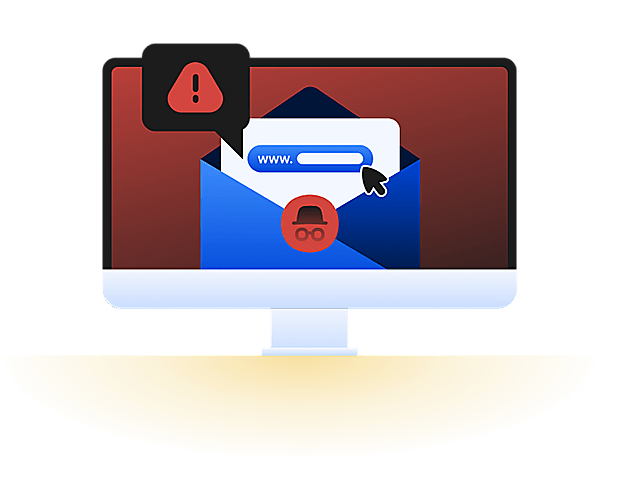
Email spoofing is when someone makes an email look like it came from a person or company you trust, even though it didn't. Scammers do this by faking the sender's email address, display name, or domain so the message looks legitimate. It might appear to come from your bank, a delivery company, your workplace, a friend, or a customer support team.

Email spoofing is often used in phishing, business email compromise, fake invoice scams, and malware campaigns. The goal is usually to make you trust the message quickly, click a link, open an attachment, share information, or approve a payment. On a Mac, the risk often starts in Mail, Gmail, Outlook, or a browser. If it leads to a fake sign-in page, a malicious download, or an unexpected approval request, your accounts or device could be at risk.

Email spoofing isn't the same as a hacked email account. With spoofing, the attacker only makes the email look like it came from someone else. They don't necessarily have access to that person's mailbox. If an email account is hacked, the attacker can send messages directly from the real account, making those messages much harder to identify as fraudulent.

Display-name spoofing

The sender name looks familiar, but the actual email address belongs to someone else. This can trick people who only glance at the name in their inbox.

Domain spoofing

The message appears to come from a real company domain, even though it wasn't sent by that organization. Attackers forge the sender's domain information to make the message look legitimate.

Reply-to spoofing

The visible sender may look normal, but replies go to an attacker-controlled address. This is common in invoice, payroll, and account-update scams.

Lookalike addresses

Attackers register similar-looking domains or addresses, such as swapped letters or extra characters, to make a fake sender seem legitimate.

How does email spoofing work?

Spoofing works by taking advantage of trust. Email systems, inbox layouts, and busy reading habits can make a forged message look more credible than it really is.

01

Choose a target

The attacker picks a person, company, customer list, or public-facing team and looks for relationships that could make a fake message believable.

02

Forge sender details

They adjust the display name, sender address, reply-to field, or lookalike domain so the email appears to come from a trusted source.

03

Create urgency

The message asks for quick action, such as paying an invoice, resetting a password, reviewing a file, or confirming account details.

04

Send the lure

The spoofed email may include a fake login link, malicious attachment, payment instruction, or request to continue the conversation privately.

05

Exploit the response

If the recipient trusts the message, the attacker may steal credentials, redirect payments, collect personal data, or deliver malware.

What are real-world examples of
email spoofing?

Email spoofing appears in many forms, from technical proof-of-concept attacks to everyday fraud. These examples show why sender details shouldn’t be trusted on their own.

Mailsploit disclosure, 2017

Security researcher Sabri Haddouche discovered a set of techniques called Mailsploit that made spoofed emails look more convincing in several popular email clients. The research showed that some email apps could display sender information in misleading ways, making fake emails harder to spot.

Chakan company fraud, 2025

Attackers used a lookalike email address as part of a business email compromise scam to impersonate a trusted vendor and send updated payment details. A bioscience company in Chakan transferred funds to the fraudulent account before the scam was discovered. The case shows how convincing spoofed emails can lead to costly payment fraud.

Connecticut Port Authority payment fraud, 2025

Attackers used a lookalike email address to impersonate a trusted vendor and request updated payment details. Believing the request was genuine, the Connecticut Port Authority sent more than $16,000 to the fraudulent account before discovering the scam. The case shows how even small changes to an email address can make a spoofed message appear legitimate.

What are the risks and
impacts of email spoofing?

A spoofed email is dangerous because it borrows trust from someone else. The damage depends on what the attacker persuades the recipient to do next.

Stolen logins

Spoofed emails often link to fake sign-in pages. Entering your password can expose email, banking, cloud storage, or work accounts.

Financial fraud

Fake invoices, payroll changes, and payment requests can redirect money to attacker-controlled accounts, especially when the message appears to come from a trusted contact.

Malware downloads

A spoofed message may include a malicious attachment or link. On a Mac, that can lead to unwanted apps, spyware, or other suspicious files.

Data exposure

Attackers may request tax forms, customer files, private documents, or internal details. Even one reply can reveal information useful for future scams.

Who is most at risk
from email spoofing?

Anyone can receive a spoofed email, but some people are more likely to act on one because of the type or volume of messages they receive and the work they do.

How can you protect yourself from email spoofing?

You can't stop every spoofed message from being sent, but you can reduce the chance of trusting one and limit the damage if one reaches your inbox. Following general cybersecurity best practices for your Mac can also help you recognize suspicious emails, avoid common scams, and stay safer online.

Check sender details

Open the full sender address, not just the display name. Watch for misspellings, extra characters, unusual domains, or unexpected reply-to addresses.

Avoid rushed action

Treat urgent requests for payments, passwords, files, or account changes with caution. Verify through a separate trusted channel before responding.

Inspect links first

Hover over links on Mac or press and hold on mobile before opening. When possible, type the official website address yourself.

Be careful with attachments

Don’t open unexpected files from a spoofed or suspicious message. If you downloaded something that raises your suspicion, scan your Mac before opening or installing it.

Use email authentication

Organizations should configure SPF, DKIM, and DMARC. These help receiving servers check whether messages are authorized to use a domain.

How Intego helps Mac users reduce spoofing risks

Email spoofing is a deception tactic, so no Mac security app can stop every spoofed message from reaching your inbox. What matters is knowing what to do if one gets through. On your Mac, that means checking suspicious downloads, scanning files before opening them, and using security tools to detect malware that may arrive through a malicious link or attachment.

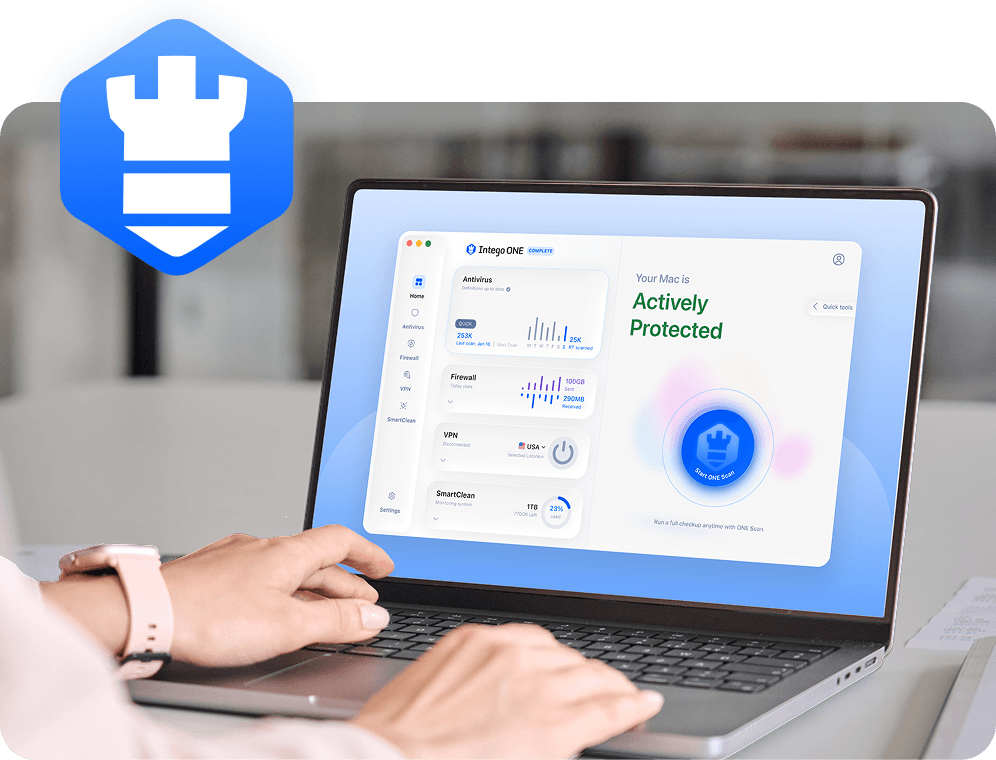
Intego ONE can help by scanning suspicious downloads, detecting known Mac malware, and protecting the device you use to open email, browse links, and manage accounts.

Suspicious download scanning

If a spoofed email leads to a file download, Intego can scan your Mac for known malware, unsafe files, and unwanted apps.

Real-time Mac protection

Real-time protection helps detect known threats from malicious attachments, risky installers, or files opened after an email scam.

Scheduled security scans

Regular scans help detect known malware and other threats that may have reached your Mac before they can cause further problems.

Broader Mac security

Intego ONE for Mac brings together Mac-focused security tools that support safer everyday use, especially when email scams lead beyond the inbox.

Frequently asked questions

Intego

Trusted. Proven. Powerful.

Driven by innovation for over 25 years, Intego has provided advanced cybersecurity solutions built to protect what matters most — your data, your privacy, and your devices.

With award-winning antivirus, firewall, VPN, and system optimization tools, Intego combines powerful defense with the simplicity and reliability Mac and PC users expect.

Money Back Guarantee Image

Get total protection and peak performance for your computer