How to check your Mac for malware (and what to do if you find it)
Posted on
by
Kamso Oguejiofor-Abugu


If your Mac is acting strangely, that alone doesn’t mean it’s infected with malware. A good first step is checking for pending macOS updates, which often fix performance issues.
If that doesn’t help, think back to what felt off, whether that was a recent download or a pop-up that wouldn’t go away. This way, you have an idea of what to look for, target, or remove. Running a malware scan can then help give you a clear view of what’s actually going on.
Your Mac does have built-in malware protections. However, those protections work in the background. They don’t let you run a manual check when something feels off or show you detailed report logs to see what was checked.
Below, we’ve laid out how to check for malware on your Mac, how to remove anything harmful you find, and simple habits to help keep your Mac protected moving forward.
Possible signs of malware on your Mac
Seeing something unusual on your Mac is usually a sign to take a closer look and make sure everything is running as it should. If you suspect malware, keep an eye on potential signs, including:
- Browsing that feels out of your control: You might notice new windows opening by themselves, web searches taking you to unfamiliar pages, or stubborn ads that stay on screen even when you try to dismiss them.
- New software you don’t remember installing: This includes small browser add-ons, unfamiliar icons in your Applications folder, or strange files that appear right after you click a link or visit a website for the first time.
- Unusual account or system alerts: Pay attention if you receive unexpected sign-in notifications for accounts you’re not currently using, message alerts from your bank, or built-in system warnings from macOS itself.
- Changes in performance or background activity: Check if your Mac runs slower than usual, feels hot, makes fan noise during light tasks, or uses too much data even when your browser and apps are idle.
How to check your Mac for malware
Before checking for malware, ensure your Mac is up to date and set to receive Apple’s latest security updates automatically. Apple regularly uses these updates to patch security gaps and keep built-in tools like XProtect up to date.
Go to System Settings > General > Software Update (or System Preferences > Software Update for macOS Monterey or earlier) to check for available updates. Click the information button (the small “i”) beside Automatic Updates and turn on Install system data files and security updates.

If you’re using macOS Tahoe 26 or later, head to System Settings > Privacy & Security > Background Security Improvements and confirm that Automatically Install is turned on.

If your Mac is fully updated but still isn’t behaving normally, here’s how you can check what’s going on:
Check for suspicious apps and extensions
Take a look through your Applications folder in Finder and your browser’s extension list for any apps or add-ons you don’t recognize. If you find something you never intended to add, go ahead and remove it. For apps, make sure you properly uninstall the app, so it doesn’t leave small background files behind.
Also, check your login items for anything unfamiliar and remove it:
- On macOS Ventura and later: Go to System Settings > General > Login Items (& Extensions)
- On macOS Monterey and earlier: Go to System Preferences > Users & Groups, click your username on the left, and select Login Items on the right.

If you can identify the file or app that caused concern, don’t open it again and remove it from the list or delete it entirely.
Use a trusted antivirus software to scan your Mac
Apple’s built-in defenses, Gatekeeper and XProtect, work behind the scenes, but they don’t give you a way to run a manual check or see a status report. Dedicated antivirus software, on the other hand, lets you run a virus scan for your Mac whenever you want a clear answer.
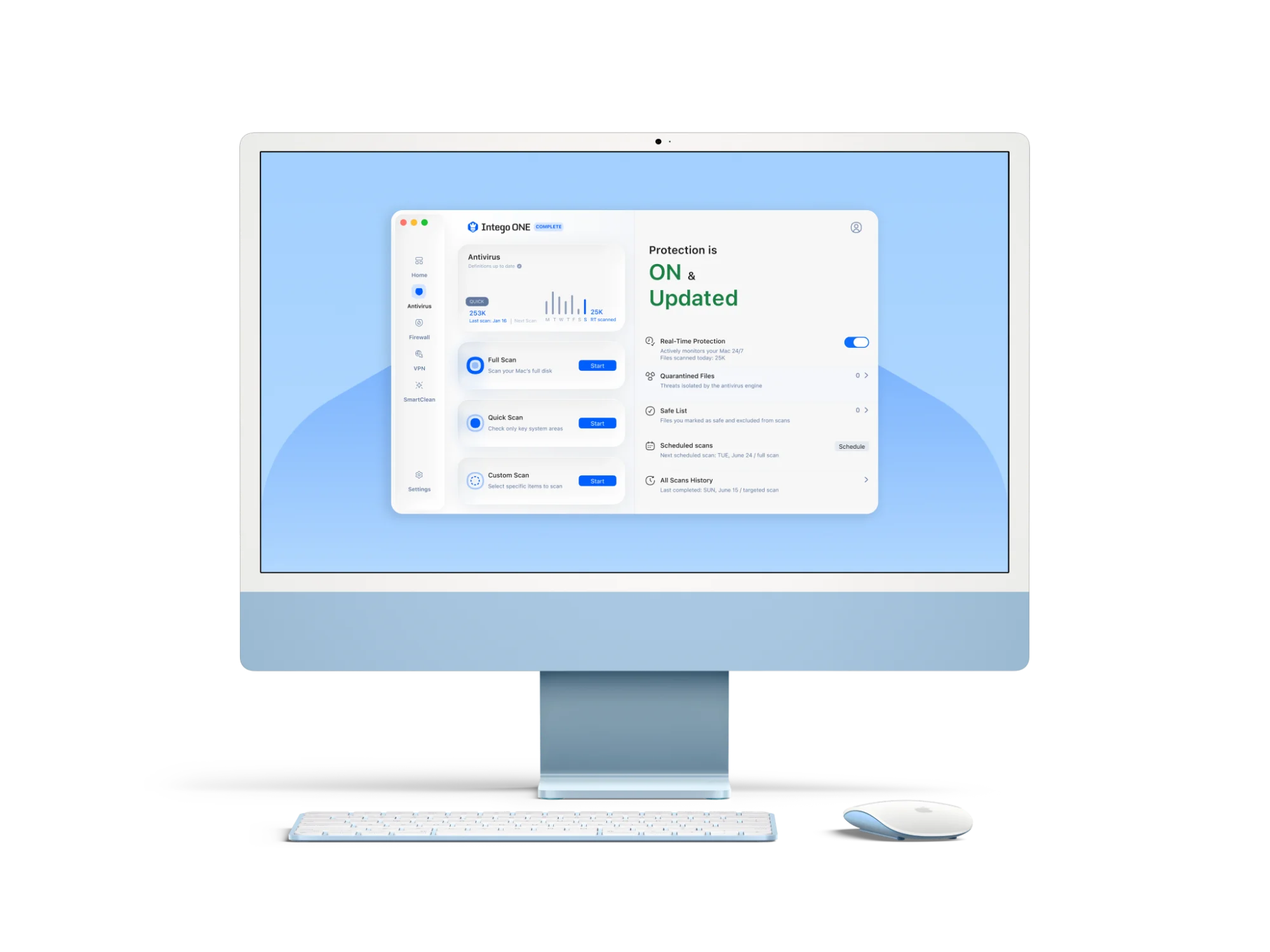
Intego ONE’s virus scanner lets you check your Mac’s entire drive or specific folders for malware. It also provides real-time protection for checking apps and files as you download or open them, helping stop threats before they affect your Mac.
Once the scan finishes, let the results guide your next move. It’s best to avoid deleting system files on a hunch, as removing an essential file can cause unexpected issues.
What to do if the scan finds malware on your Mac
Uncovering a threat is just the first step to resolving it. Here’s how to safely remove what was flagged:
- Quarantine or remove the threat: Most Mac malware scanners place suspicious files into a safe, isolated folder first so you can review and delete them without touching your other files.
- Restart and run a second scan if prompted: Some threats need a restart to fully clear, and a second scan confirms the Mac is actually clean.
- Update your Mac and apps: If the software was able to slip in through a known vulnerability, installing the latest updates fixes those weak spots so the same issue can’t happen again.
- Check your key accounts once your Mac is secure: Sign in to your email, banking, Apple Account, and other important accounts, and check their security or login activity for devices or sign-ins you don’t recognize. If anything looks suspicious, sign out of unfamiliar sessions and change your password.
- Restore from a clean backup if necessary: If the infection caused deeper issues or your security tool recommends restoring your Mac, use a backup you know was created before the malware appeared.
What to do if the scan is clean but your Mac still acts strangely
A clean scan rules out malware, but it still leaves the underlying issue to solve. If your Mac is still misbehaving, it helps to look beyond security and explore a few everyday system factors.
Unwanted pop-ups or unexpected web page redirects, for instance, usually point to a rogue browser extension or a setting that was changed. Meanwhile, slowdowns on your Mac are often caused by low storage, a particularly demanding app, or just routine background updates.
If you’ve tried everything you can and things still feel uncertain, handing it off to Apple’s support team or a qualified technician is a sensible next move. It’s better not to keep troubleshooting this on your own to avoid further issues.
How to reduce the chance of malware infection
Once you’ve checked your Mac, a few simple habits can reduce the chance of running into malware again:
- Keep your Mac and apps updated: It helps to turn on automatic updates for your Mac and apps, so you receive fixes and security patches as soon as they’re available.
- Download software from trusted sources: Stick to the App Store or a developer’s official website rather than unverified third-party app stores.
- Be careful with links and attachments: Avoid clicking links or ads, or opening attachments in emails you weren’t expecting, especially when you don’t recognize the sender.
- Pause before bypassing a macOS warning: If your Mac alerts you that it can’t verify a download, take some time to confirm where the file or app came from before choosing to open it.
- Use antivirus software with real-time protection: A trusted antivirus like Intego ONE Intego Antivirus checks new files as they land on your Mac, helping stop harmful files before they can run.
- Use strong, unique passwords: Strong passwords make it harder for attackers to take over your online accounts and use them to spread malware. Use a different password for each important account so one compromised password doesn’t put your other accounts at risk.
- Turn on two-factor authentication where available: Enabling two-factor authentication gives you a safety net, ensuring your accounts remain locked even if your password ends up exposed.
- Be cautious with USB drives and other external media: Don’t open files or run apps from unfamiliar USB drives or other storage devices unless you trust their source.
Frequently asked questions
Does Mac have built-in malware protection?
Yes. macOS has several built-in malware protections like Gatekeeper, Notarization, and XProtect that help detect and prevent known malware. However, macOS doesn’t give you a way to manually scan your Mac for malware whenever you want.
How can I tell if my Mac has malware?
Signs to watch for include sudden pop-ups, browser pages sending you elsewhere, or new apps or extensions you don’t remember installing. That said, strange behavior doesn’t always mean your Mac is infected. Running a scan with antivirus software is usually the simplest way to get a clear answer.
How do I run a virus scan on a Mac?
macOS handles most security in the background and doesn’t include an on-demand scan button. If you’d like to check your entire system manually, you can use a dedicated antivirus tool to do it.
What should I do if a scan finds malware?
Use your security app to remove the detected item, restart your Mac, and run a quick follow-up scan if the app suggests it. Moving forward, keep your Mac and apps up to date. If you’re concerned that a file or link might have compromised your personal information, change the passwords on your important accounts.
What if my Mac still acts strangely after a clean scan?
The issue might not be malware at all. An unwanted browser extension, changed browser settings, low storage space, or a specific app can all cause behavior that feels like an infection. If you still can’t find the cause, reach out to Apple Support or the team behind the app that seems to be acting up.