How to start your Mac in Safe Mode
Posted on
by
Kamso Oguejiofor-Abugu


If your Mac is running slowly, freezing, crashing, or won’t start up normally, Safe Mode can help you figure out why. It loads your Mac with only the software it needs to run, so you can see whether something that opens at startup is to blame.
How you enter Safe Mode depends on which type of Mac you have. Apple silicon Macs (such as those with M1, M2, M3, or later chips) use a different process from Intel-based Macs, so we’ll walk through both methods below.
You’ll also find how to check whether Safe Mode is active, how to leave it, and what to try next if the problem continues.
Start your Mac in Safe Mode: Step by step
Before starting your Mac in Safe Mode, check whether it uses Apple silicon or an Intel processor. The steps are different for each. If you aren’t sure which one you have, here’s how to check:
- Click on the Apple logo in the top-left corner of your screen, then select About This Mac.
- Look for either Chip or Processor in the window that opens.
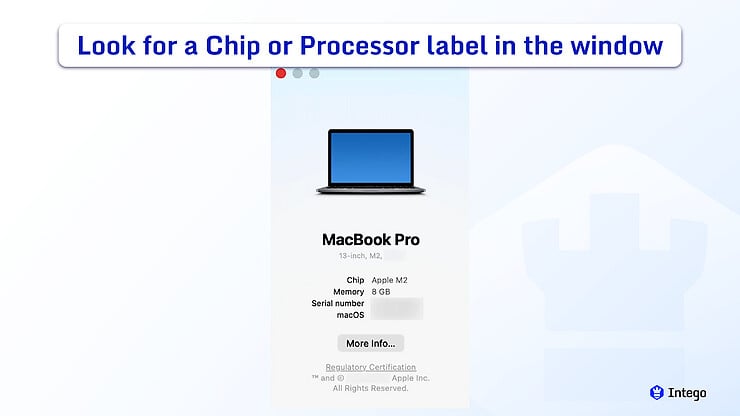
- If you see “Chip” followed by a name like Apple M1, M2, M3, M4, or later, your Mac uses Apple silicon.
- If you see “Processor” followed by a name like Intel Core i5 or i7, you’re working with an Intel-based Mac.
How to start an Apple silicon Mac in Safe Mode
- Click on the Apple logo in the top-left corner of your screen, then select Shut Down.
- Wait for your Mac to completely shut down.
- Press and hold the power button until you see “Loading startup options,” followed by your startup disk (usually named Macintosh HD) and an Options icon.
- Select your startup disk, press and hold the Shift key, then click Continue in Safe Mode.
- Release the Shift key. Your Mac will restart on its own and finish starting in Safe Mode. Log in when the login window appears.
How to start an Intel Mac in Safe Mode
- Turn on or restart your Mac. Immediately after it begins to power up, press and hold the Shift key, keeping it down until the login screen appears.
- Log in to your Mac. You may be asked to enter your details a second time, but your Mac should already be in Safe Mode by then.
How to tell if your Mac is in Safe Mode
When your Mac finishes starting up and reaches the login window, look at the top-right corner of the menu bar. If Safe Mode is active, you’ll see the words “Safe Boot” there.
If that label isn’t showing, or if you just want to be sure, you can look a little deeper after logging in:
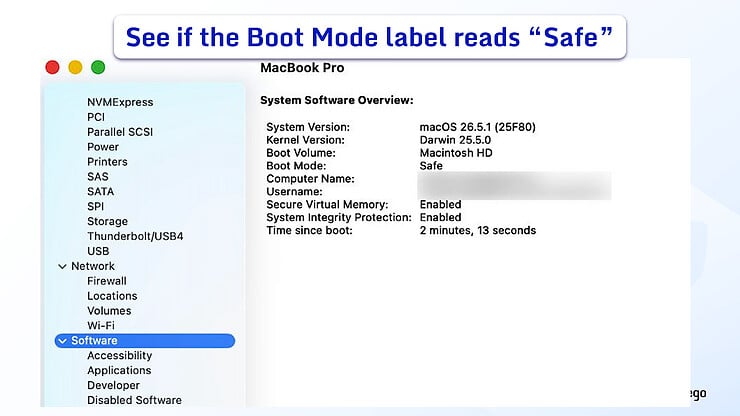
- Press and hold the Option key, then click the Apple logo in the top-left corner of your screen, and choose System Information.
- In the sidebar, select Software.
- On the right, find the line labeled Boot Mode.
- Safe means your Mac is in Safe Mode.
- Normal means it isn’t.
While you’re using Safe Mode, graphics may look less smooth than usual and your Mac may respond more slowly. That’s normal for Safe Mode and isn’t a sign anything is wrong.
How to exit Safe Mode on a Mac
To leave Safe Mode, you just need to restart your computer. Click on the Apple logo in the top-left corner of your screen, then select Restart. Then, let your Mac turn on normally without pressing any keys.
If things looked or felt different in Safe Mode, that’s normal. After restarting normally, your regular apps and startup settings should load again.
What is Safe Mode on Mac?
Mac Safe Mode is a way of starting your Mac that helps you figure out if a software issue is causing trouble.
When you use it, your Mac turns on with only the essential software it needs to run. It leaves out the extra apps, login items, and background plug-ins that usually open on their own.
It also runs a quick check on your internal drive, so you may notice your Mac takes a little longer than usual to reach the login screen.
It helps to think of Mac Safe Mode as a way to find a problem, rather than a fix-all button. It won’t remove malware or repair deep system errors on its own, but it does let you rule out what isn’t working so you know what to do next.
You don’t need to worry about your data, either. Starting in Safe Mode won’t change your personal settings or delete any of your files and apps.
What is Mac Safe Mode used for?
Safe Mode helps you check whether the problem comes from software that loads when your Mac starts. If the problem goes away in Safe Mode, a background app, login item, or extension is the likely cause. If it continues, the cause is probably elsewhere. It may be macOS itself or, in some cases, your Mac’s hardware.
Safe Mode is most useful when you’re dealing with:
- Difficulty starting up: your Mac takes a long time to turn on, gets stuck along the way, or won’t reach the desktop normally.
- Slow response times: your Mac runs slowly, pauses unexpectedly while you work, or your apps stop responding.
- Trouble after a recent change: things started going wrong shortly after you installed a new app, added a browser extension, or updated macOS.
- Apps that open on their own: programs set to launch the moment you start your Mac can sometimes conflict with the system.
What to do if your Mac still has problems after Safe Mode
If the problem goes away in Safe Mode but returns after a normal restart, a login item, extension, or background app may be causing it. The next step is to track down which app or setting is responsible.
If the problem continues in Safe Mode, startup software probably isn’t the cause. It’s worth looking at macOS itself, your hardware, or running a malware scan.
Check recently installed apps and login items
A good place to start is retracing recent changes. Think back to whether you downloaded a new application, added an extension to your web browser, or ran a software update just before you noticed the glitch.
You can check these startup programs by going to System Settings > General > Login Items & Extensions. Look through the list for anything you don’t recognize, or for an app you remember installing around the time the trouble began, then remove it and see if that helps.
Disconnect unnecessary external devices
External devices like a USB hub, external drive, or older accessory can sometimes cause startup or performance issues. Disconnect anything that isn’t essential, then restart your Mac normally to see if the problem goes away.
Update macOS
An available update may include a fix for the problem you’re seeing. Open System Settings > General > Software Update to check, and if one is listed there, install it and restart your Mac.
Scan for malware if something seems suspicious
If the problem started after a suspicious download, scan your Mac for malware. The same applies if you notice an app you don’t remember installing, unexpected pop-ups, or other unusual behavior.
An antivirus app can run a full scan of your Mac, flag anything suspicious, and quarantine threats it finds, so you can see exactly what turned up and deal with it directly.
Contact Apple Support or a technician
If you have tried the steps above and things still aren’t working right, it helps to have someone else take a look. Apple Support is usually the best place to start for software trouble, while an authorized repair technician can look at the physical components inside your Mac.
What to do if your Mac only starts in Safe Mode
If your Mac keeps booting in Safe Mode, first check whether your Shift key is stuck. Holding that key down while the Mac turns on is what triggers Safe Mode in the first place, so a stuck key will do it every time. If you are using an external keyboard, unplug it before you restart; if it’s a built-in keyboard, press the Shift key a few times to make sure it isn’t sticking.
If the keys are fine, the cause might be software or an app that opens automatically when your Mac turns on. Go to System Settings > General > Login Items & Extensions to review what’s there. Then remove or turn off anything you don’t need under Open at Login and App Background Activity. Restart your Mac afterward.
It’s also worth checking for a macOS update under System Settings > General > Software Update. A known bug is sometimes behind the problem, and the fix may already be waiting for an update.
If you’re still stuck in Safe Mode, unplug any unnecessary external devices, such as storage drives, docks, or printers. A faulty accessory can interfere with how your Mac starts.
If you’ve tried all of these and nothing has changed, it’s time to have someone take a closer look. Apple Support is the best place to start, or you can take your Mac to a certified repair technician who can check for a deeper software issue or a hardware fault.
Safe Mode vs. Recovery Mode vs. Apple Diagnostics
Safe Mode isn’t the only troubleshooting tool built into your Mac. Depending on the problem, you may need to use macOS Recovery or Apple Diagnostics instead.
Think of macOS Recovery as a separate system that runs on its own, apart from your usual desktop. It gives you a clean space to reinstall the operating system, repair your startup drive, or restore your data from a Time Machine backup.
Apple Diagnostics looks at the physical parts of your Mac rather than the software. If your Mac is still misbehaving in Safe Mode, this test can point to a hardware issue, such as a failing battery or a problem with memory.
So, when to use Safe Mode?
Reach for Safe Mode whenever your Mac is slow, freezing, crashing, or acting strangely and you don’t yet know why. It’s a quick, safe first step that won’t touch your files or apps, and it quickly shows whether everyday software is behind the problem or if you need to look further.
If the trouble started with a suspicious download, an unfamiliar app, or unexpected pop-ups, scanning for malware is a sensible next step. Intego ONE Mac Antivirus can run a full scan, flag anything suspicious, and remove what it finds.
Frequently asked questions
What is Safe Mode used for on a Mac?
Safe Mode helps you figure out whether a problem with your Mac is caused by something that loads when your Mac starts up, like an app, extension, or login item.
How can I tell if my Mac is currently in Safe Mode?
You can usually tell by looking for “Safe Boot” at the top of the login screen. If you are already logged in, hold down the Option key, click the Apple logo in the top-left corner, select System Information, and look at the Software section. If it says “Safe” next to Boot Mode, you’re all set.
Can I access the internet in Safe Mode on a Mac?
Yes, you can still connect to Wi-Fi and browse the internet in Safe Mode, though some features and apps may behave differently than usual.
How do I exit Safe Mode on a Mac?
To exit Safe Mode, all you need to do is restart your Mac. Click the Apple menu at the top left, choose Restart, and let the Mac turn back on without touching the keyboard.
Why does my Mac only start in Safe Mode?
This can happen if the Shift key is stuck, a startup item is interfering, or there’s a deeper software issue affecting normal startup. Try checking login items, updating macOS, and disconnecting external devices. If it continues, contact Apple Support or a trusted technician.
Can I fix startup issues using Safe Mode?
Safe Mode doesn’t fix issues directly, but it can help you identify what’s causing them so you know what to try next.
Does Safe Mode delete any files or apps?
No, Safe Mode doesn’t delete anything on your Mac. It just temporarily limits what loads at startup.