iPhone passcode security: Why 6 digits may not be enough
Posted on
by
Doris Muthuri

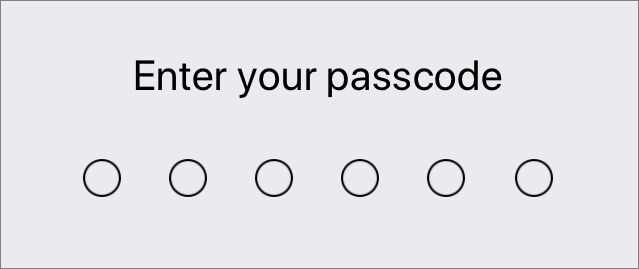
A 6-digit iPhone passcode may feel secure because it has one million possible combinations. However, someone could still obtain it by watching you enter it, in some cases using specialized passcode-cracking tools such as GrayKey, a forensic tool used by law enforcement with varying success against newer iPhones.
If a thief knows your passcode, they may be able to unlock your iPhone and target your saved passwords, email, verification codes, and financial accounts. This guide explains the risks and shows you how a longer passcode, biometric authentication, and Stolen Device Protection can make your iPhone harder to take over.
Can someone crack a 6-digit iPhone passcode?
Yes, a 6-digit iPhone passcode can potentially be cracked, but it isn’t as simple as trying every combination on the screen. A 6-digit code has one million possible combinations, from 000000 to 999999. However, iPhones limit repeated guesses by introducing delays and can erase their data after 10 failed attempts if the owner enables that option.
Specialized forensic tools such as GrayKey have been designed to extract data from locked mobile devices. These tools may use software vulnerabilities and brute-force techniques to test passcodes, although their effectiveness depends on the iPhone model, iOS version, security settings, and available exploits. They aren’t ordinary iPhone password-cracking apps that anyone can download and use.
A thief may also get your passcode without cracking it. They could watch you enter it in public, record you entering it from a distance, or pressure you into revealing it. Once they know the code and have your iPhone, they may try to access far more than the device itself.
What can happen when someone gets your iPhone passcode?
Your iPhone passcode protects more than the lock screen. If a thief knows it and has your device, they may use it to unlock the iPhone and work their way through other accounts. What they can reach depends on your settings, app protections, and whether you’ve enabled Stolen Device Protection.
Here’s how the stolen-passcode domino effect may unfold:
- They unlock your iPhone: The thief can open apps, read notifications, and look for information that may help them access other accounts.
- Next, they check your saved passwords: On current versions of iOS, saved credentials appear in the Passwords app. Without additional protection, the device passcode may be accepted if Face ID or Touch ID fails.
- Your Apple Account may be their next target: Access to your iPhone and passcode may help the thief reset your Apple Account password or change security settings, putting your iCloud data and trusted devices at risk.
- They use your email to reset other passwords: An open email account may let the thief request password-reset links for shopping, social media, and financial accounts.
- Verification codes may also become visible: Text messages, emails, and an unlocked authenticator app may expose two-factor authentication codes.
- Finally, they may target financial accounts: The thief could use saved credentials and verification codes to enter banking or payment apps. However, separate passwords, biometric checks, transaction PINs, and fraud controls may still stop them.
Apple’s Stolen Device Protection makes this chain harder to complete. When it applies, certain sensitive actions require Face ID or Touch ID without a passcode fallback, while major security changes may also require a delay. Read our full guide to setting up Stolen Device Protection to learn more.
How does Apple protect an iPhone from passcode cracking?
Apple combines your passcode with hardware and software protections that make repeated guessing much harder. According to the Apple Platform Security guide, these protections include:
- Secure Enclave: This security component checks passcode attempts and is designed to protect the encryption keys used to unlock your data.
- Increasing time delays: Your iPhone introduces longer delays after repeated incorrect guesses. This slows down a brute-force attack, even when the attacker uses automated tools.
- Device lockout: Too many incorrect attempts can make the iPhone unavailable and require the owner to reset it before it can be used again.
- Optional automatic erasure: You can tell your iPhone to erase its data after 10 consecutive incorrect passcode attempts. You’ll find this option under Settings > Face ID & Passcode or Touch ID & Passcode > Erase Data.
- Face ID or Touch ID: Biometric authentication lets you unlock your iPhone without entering the passcode where someone might see it. However, the passcode remains the device’s main security credential and is required in certain situations.
These safeguards make ordinary passcode guessing difficult, but no protection is perfect. Specialized forensic tools may exploit software or hardware vulnerabilities instead of relying only on the normal passcode screen. A thief can also avoid the cracking process entirely if they watch you enter your code, which is why using Face ID or Touch ID securely and choosing a stronger passcode still matters.
How to change your iPhone passcode
You can replace the standard 6-digit code with a longer numeric or alphanumeric passcode. Follow these steps:
- Open Settings, then tap Face ID & Passcode or Touch ID & Passcode, depending on your iPhone model.

- Enter your current passcode, scroll down, and tap Change Passcode.

- Enter your current passcode again, then tap Passcode Options above the number pad. Choose Custom Numeric Code or Custom Alphanumeric Code, enter your new passcode, and confirm it.

By default, your previous passcode still works for 72 hours after you change it, in case you get locked out. If you’re changing your passcode because someone else may know it, go back to Settings > Face ID & Passcode (or Touch ID & Passcode) and tap Expire Previous Passcode Now to disable the old code immediately.
Choose a code you can remember but other people are unlikely to guess, following Apple’s iPhone passcode instructions. Avoid birthdays, repeated digits, number patterns, and codes you already use elsewhere.
Should you use a longer numeric or alphanumeric passcode?
An alphanumeric passcode generally offers the strongest protection because it can combine letters, numbers, and symbols. However, a longer numeric passcode is still a strong and more convenient choice if you find a full keyboard difficult to use on the lock screen.
A custom numeric code with more than 6 digits has far more possible combinations than the standard 6-digit option. Its length also isn’t displayed on the lock screen, making it harder for someone watching you to know how many digits to copy.
Choose a custom alphanumeric passcode if you want the strongest practical option and don’t mind taking longer to enter it. Choose a longer numeric passcode if you want a simpler code that still improves your iPhone passcode security. In either case, avoid names, dates, repeated digits, keyboard patterns, and any password or PIN you use for another account.
How Stolen Device Protection strengthens iPhone security
Stolen Device Protection adds extra security when someone has both your iPhone and its passcode. It doesn’t replace a strong passcode, but it can limit what a thief can do with that code for certain sensitive changes.
When the feature is active, some actions require Face ID or Touch ID without the option to enter the passcode instead. These actions include viewing saved passwords and passkeys, using stored payment details, and turning off Lost Mode.
More critical changes require biometric authentication, a one-hour Security Delay, and another successful biometric check. These include changing your Apple Account password or iPhone passcode, adding or removing Face ID or Touch ID, signing out of your Apple Account, and turning off Stolen Device Protection.
By default, these extra checks apply when your iPhone is away from familiar places such as home or work. You can also set the feature to Always if you want the added protections to apply everywhere.
Stolen Device Protection may already be turned on for your iPhone. To check, or to turn it on if it isn’t:
- Make sure your iPhone uses a passcode, two-factor authentication, Face ID or Touch ID, Find My, and Significant Locations.
- Open Settings, then tap Face ID & Passcode or Touch ID & Passcode.

- Enter your passcode, scroll to Stolen Device Protection, and tap the slider next to Stolen Device Protection. Under Require Security Delay, choose Away from Familiar Locations or Always.

How to quickly disable Face ID or Touch ID
You can temporarily require your iPhone passcode if you’re worried that someone may try to unlock the device using your face or finger. According to Apple’s Face ID security guidance, initiating the power-off or Emergency SOS screen disables Face ID until the correct passcode is entered. The same button sequence also forces passcode entry on current Touch ID iPhones.
- Press and hold the side button and either volume button at the same time for about two seconds.
- Release both buttons as soon as the power-off and Emergency SOS sliders appear.
- Press the side button to lock your iPhone without moving either slider.
- Enter your passcode the next time you want to unlock the iPhone.
This doesn’t remove or reset Face ID or Touch ID. Biometric unlocking becomes available again after you enter the correct passcode.
You may also see advice to press the side button five times. Both methods can start an emergency call countdown if the matching setting is turned on, “Call with Hold and Release” for the side-and-volume method, or “Call with 5 Presses” for the five-presses method. Check Settings > Emergency SOS to see which one applies to you before you rely on either shortcut. Only enter your passcode when no one else can see your screen.
What to do if someone learns your passcode
Change the passcode immediately, even if you still have your iPhone. Someone who knows it may try to unlock the device later or use it to change other security settings.
- Go to Settings > Face ID & Passcode or Touch ID & Passcode > Change Passcode, then create a longer code that you haven’t used before.
- Return to Face ID & Passcode or Touch ID & Passcode and tap Expire Previous Passcode Now, since Apple allows the previous code to reset the new one for up to 72 hours unless you expire it manually.
- Open Settings, tap your name, select Sign-In & Security > Change Password, and replace your Apple Account password if you think the person had access to your iPhone.
- Review the devices connected to your Apple Account and remove any device you don’t recognize.
- Check the Passwords app and change the credentials for your email, financial accounts, and password manager if they may have been exposed.
- If you use Touch ID, go to Settings > Touch ID & Passcode, then remove any fingerprint you don’t recognize by tapping it and selecting Delete Fingerprint. Face ID doesn’t let you review individual faces, so if you’re unsure whether it’s still only recognizing you, go to Settings > Face ID & Passcode and tap Reset Face ID, then set it up again with only your own face.
Also enable Stolen Device Protection if it wasn’t already active. If the person has your iPhone as well as the passcode, use Find My from another device instead of waiting to see what happens.
What to do if your iPhone is lost or stolen
Act quickly, especially if someone may know your passcode. Apple recommends using Find My to locate the iPhone, lock it, and protect your information.
- Open Find My on another Apple device or go to iCloud.com/find, select the missing iPhone, and check its location.
- Select Mark as Lost to lock the iPhone and suspend Apple Pay cards and passes. If you misplaced the device, you can display contact details for someone who finds it. Don’t add personal contact information if you believe it was stolen.
- Don’t confront anyone or try to recover a stolen iPhone yourself, but give its location and serial number to local law enforcement.
- Contact your mobile carrier and ask it to suspend your line and protect your mobile account.
- Change your Apple Account password and review your account information if someone may know your passcode or you notice changes you didn’t make.
- Remotely erase the iPhone if you aren’t able to recover it, but remember that erasing it is permanent and will begin when an offline device reconnects.
Don’t remove the iPhone from Find My, even after erasing it. Removing it also removes Activation Lock, making the device easier for someone else to use or resell. If you have AppleCare+ with Theft and Loss, submit your claim and wait until Apple approves it before removing the iPhone from Find My or your Apple Account.
If Find My wasn’t enabled before the iPhone went missing, you can’t mark it as lost or erase it remotely. Change your Apple Account password, secure important accounts, contact your carrier, and report the theft instead.
Strengthen your iPhone passcode security
Your passcode may look like a small part of your iPhone’s security, but it can open the door to your saved passwords, email, verification codes, and other sensitive accounts. A longer numeric or alphanumeric code makes guessing harder, while Face ID or Touch ID reduces how often you need to enter it in public.
Keep your passcode private, enable Stolen Device Protection, and know how to force passcode entry when necessary. These simple precautions can make it much harder for someone with your iPhone to take control of your digital life.
A stronger passcode and Stolen Device Protection help secure access to your iPhone. For more ways to look after it, Intego ONE Complete includes iPhone security settings and Wi-Fi safety checks.
Frequently asked questions
How many possible combinations does a 6-digit iPhone passcode have?
A 6-digit numeric passcode has 1,000,000 possible combinations, ranging from 000000 to 999999. Predictable choices such as birthdays, repeated digits, and number patterns are easier to guess.
Should I use a numeric or alphanumeric passcode?
An alphanumeric passcode generally offers stronger protection because it can use letters, numbers, and symbols. A longer custom numeric code is a practical alternative if you want something easier to enter.
What is Stolen Device Protection, and how is it different from a strong passcode?
Stolen Device Protection adds biometric checks and, for some changes, a Security Delay to protect sensitive actions. A strong passcode makes guessing harder, while Stolen Device Protection helps if someone already knows the code.
How do I quickly force a passcode entry if I don’t want to use Face ID or Touch ID?
Press and hold the side button and either volume button until the power-off and Emergency SOS sliders appear, then release them and lock the iPhone. The next unlock will require the passcode.