Why is my Mac running slow? Common causes and how to fix it
Posted on
by
Marlene Baiton


A slow Mac is annoying, especially when it used to handle the same tasks without a problem. Apps take longer to open, the spinning beachball appears more often, Safari or Chrome feels sluggish, or your Mac gets warm during basic tasks.
In most cases, a slow Mac is not caused by one dramatic problem. It is usually the result of several smaller issues adding up over time: low storage, too many apps running in the background, old software, browser overload, unwanted software, or hardware that is starting to show its age.
The good news is that many Mac performance problems are fixable. You do not need to be a technician to start narrowing down what is slowing your Mac down.
Why is my Mac running slow?
Your Mac is usually slow because it’s running low on free space, too many apps or browser tabs are using resources, software needs updating, or unwanted software is running in the background.
Start with the simple checks: restart your Mac, free up storage, open Activity Monitor, remove login items you don’t need, update macOS and your apps, and clean up your browser. If your Mac became slow suddenly, or you’re seeing pop-ups, redirects, or unfamiliar apps, run a malware scan.
If your Mac is mainly slow when starting up, skip to the startup section and check login items, background apps, storage, and connected accessories first.
Signs your Mac is running slower than it should
A slow Mac does not always stop working completely. More often, it starts making everyday tasks feel harder than they should.
Common signs include:
- Your Mac takes longer to start up: It sits on the login screen, takes a long time to load your desktop, or feels slow for several minutes after you sign in.
- Apps take longer to open: Apps bounce in the Dock for longer than usual, or switching between windows feels delayed.
- The spinning beachball appears often: You see the beachball while opening apps, saving files, using Finder, or switching browser tabs.
- Typing or scrolling feels delayed: Text appears a moment after you type, pages stutter while scrolling, or menus take longer to respond.
- Your Mac gets hot during light use: The fan runs loudly, your MacBook feels warm, or the battery drains faster when you are only browsing, writing, or checking email.
- Your browser feels unusually slow: Safari, Chrome, or Firefox takes longer to load pages, freezes between tabs, or struggles when several tabs are open.
These signs don’t always mean your Mac is failing. More often, they point to something practical: not enough free space, too many apps open, a browser using too much memory, or a background process that needs attention.
Why your Mac might be running slow
A slow Mac usually comes down to one or more practical causes. Once you understand which one applies, it is much easier to choose the right fix.
Your Mac is low on free storage
Low storage is one of the most common reasons a Mac slows down. macOS needs free space for updates, temporary files, virtual memory, and everyday system tasks. When your drive is nearly full, even basic actions can feel sluggish.
As a general rule, try to keep at least 10–15% of your Mac’s storage free. If your Mac is almost full, clearing space should be one of the first things you try.
Too many apps are running in the background
Some apps keep running even after you close their main window. Others launch automatically every time you start your Mac. Over time, these login items, background helpers, menu bar tools, and app services can compete for memory and processor power.
This is especially noticeable on Macs with limited RAM or older processors.
Your browser is using too many resources
Modern browsers can put a lot of strain on your Mac. Dozens of tabs, streaming sites, web apps, ad-heavy pages, and browser extensions can all use memory and CPU in the background.
If your Mac feels slow mainly when Safari, Chrome, or Firefox is open, your browser may be the real problem.
macOS or your apps are outdated
Updates are not just for new features. They often include performance improvements, bug fixes, compatibility updates, and security patches.
If your Mac started feeling slow after installing a new version of macOS, it may also be completing temporary background tasks. But if performance problems continue, outdated apps or missing follow-up updates may be part of the issue.
Your Mac is under memory pressure
When your Mac does not have enough available memory for the apps you are using, macOS has to work harder to keep everything running. You may notice delays when switching between apps, opening files, or keeping several browser tabs open.
Activity Monitor can help you check whether your Mac’s memory is being used efficiently. Apple’s Memory Pressure graph is especially useful because it shows whether your Mac has enough memory for what you are asking it to do.
Malware or unwanted software is using resources
Mac malware does not always announce itself with obvious warnings. Some threats run quietly in the background, using CPU, memory, or network activity. Others inject ads, change browser behavior, or install unwanted components that make your Mac feel slower.
If your Mac became slow suddenly, started showing unexpected pop-ups, or your browser settings changed without permission, it is worth running a malware scan.
Your Mac is getting older
Older Macs can still be useful, but they may struggle with newer apps, heavier websites, and recent macOS versions. Hardware limits matter more if your Mac has limited RAM, an older hard drive instead of an SSD, or a version of macOS that no longer receives current updates.
If you have already tried the basic fixes and your Mac still feels slow, hardware may be part of the problem.
How to fix a slow Mac: Start with these 7 checks
Start with the simplest fixes first. They are safer, faster, and often enough to make your Mac feel noticeably better.
1. Restart your Mac
It sounds basic, but it helps. Restarting your Mac clears temporary memory, stops stuck processes, and gives macOS a clean start.
This is especially useful if your Mac has been running for days or weeks, or if it suddenly became slow after opening a specific app or browser session.
To restart your Mac:
- Click the Apple menu.
- Choose Restart.
- After your Mac starts again, open only the apps you need and check whether performance improves.
If a restart helps but the problem keeps coming back, something may be launching automatically or running in the background.
2. Check how much storage is free
Low storage can slow down almost everything: startup, app launches, updates, file searches, browser performance, and general responsiveness.
To check storage on your Mac:
- Click the Apple menu.
- Open System Settings.
- Go to General.
- Select Storage.
Look for large files, old downloads, unused apps, installers, videos, and files you no longer need. You can also use Apple’s built-in storage recommendations to review what is taking up space and decide what to remove.
Aim to keep at least 10–15% of your storage free. If your Mac is close to full, freeing space may make a bigger difference than any other quick fix.
3. Check for apps using too many resources
Some slowdowns come from one app using more CPU or memory than it should. Intego SmartClean can show which apps and processes are using the most CPU or RAM on your Mac, and it lets you quit selected apps from the same view.
To check CPU or RAM use in SmartClean:
- Open the Intego ONE app.
- Go to the SmartClean dashboard.
- Select CPU to see which apps and processes are using the most processing power.
- Select RAM to see which apps and processes are using the most memory.
- Review apps you recognize first, especially browsers, creative apps, backup tools, cloud sync apps, and anything you are not actively using.
- If an app you recognize is using too many resources and you do not need it open, select it and choose Quit Selected.
- Save your work before quitting an app, and avoid quitting system processes unless you know what they do.
SmartClean can also show CPU temperature, CPU load, available RAM, RAM load, and how long apps or processes have been running.
If you don’t have SmartClean yet, you can use Activity Monitor, which is built into macOS. Open Applications > Utilities > Activity Monitor, then check the CPU and Memory tabs. Look for apps using a high percentage of CPU for several minutes, or check the Memory Pressure graph to see whether your Mac is struggling with available memory.
4. Remove unnecessary login items and background apps
Login items open automatically when you start your Mac — these are linked to your user account. Some are useful. Others quietly add to startup time and keep using resources long after you forget they are there.
To check login items:
- Open System Settings.
- Go to General.
- Select Login Items & Extensions.
- Remove apps you do not need to launch automatically.
Be cautious with tools you rely on, such as backup software, password managers, or security tools. But if you see old apps, unused launchers, or software you no longer recognize, remove them from startup.
This can make your Mac feel faster after login and reduce background strain during normal use.
5. Update macOS and your apps
Outdated software can cause slowdowns, crashes, compatibility issues, and unnecessary resource use. Updating macOS and your apps gives your Mac the latest fixes available for your device.
To check for macOS updates:
- Open System Settings.
- Go to General.
- Select Software Update.
Then update your apps through the App Store or directly from the app developer, depending on where you installed them.
If your Mac feels slow right after a major macOS update, give it time to finish background tasks like indexing, photo analysis, or file syncing. If the slowdown continues for more than a day or 2, check for app updates and follow-up macOS updates.
6. Clean up browser tabs, extensions, and cache
If your Mac mainly feels slow while browsing, start with your browser. Safari, Chrome, and Firefox can all become heavy when too many tabs, extensions, or cached files build up.
Try these fixes:
- Close tabs you are not using.
- Remove extensions you no longer need.
- Clear browser cache and site data.
- Restart the browser.
- Check whether one website or web app is causing the slowdown.
Browser extensions deserve special attention. Some run on every page you visit, and a poorly built or outdated extension can make browsing feel slow even when your Mac is otherwise fine.
7. Scan for malware and unwanted software
Malware and unwanted software can slow down your Mac by running hidden background processes, showing ads, changing browser settings, or using CPU and network resources without a clear reason.
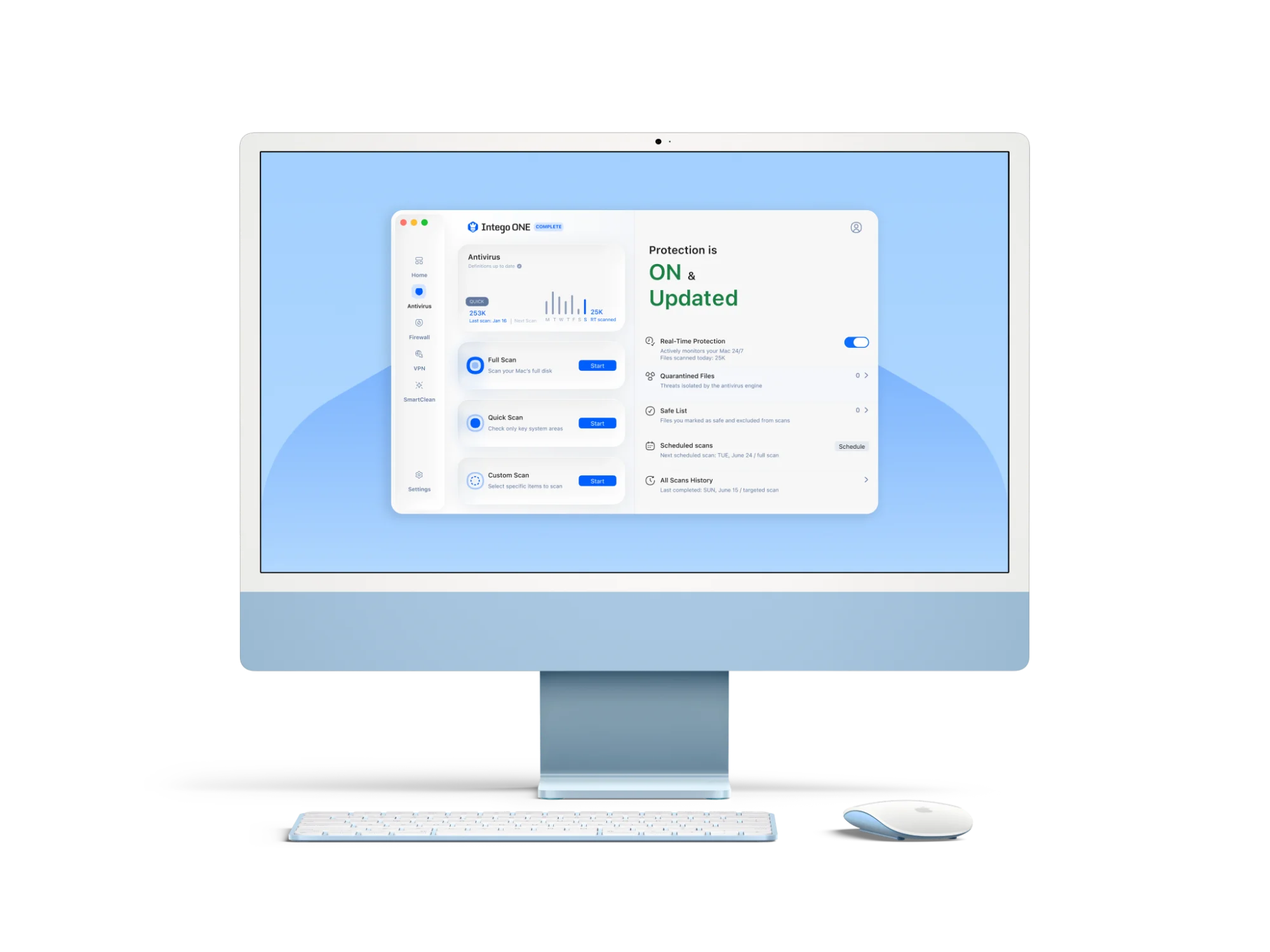
Run a malware scan with a trusted antivirus like Intego ONE if:
- Your Mac became slow suddenly.
- You see pop-ups or ads that were not there before.
- Your browser homepage or search engine changed.
- Apps open by themselves.
- Activity Monitor shows unfamiliar processes using a lot of CPU or memory.
- Your Mac feels slow even after you close apps and restart.
A malware scan will not fix every performance problem, but it helps rule out one of the more important causes — especially if the slowdown is recent or unusual.
Why your Mac is slow to start up
A slow startup usually happens because your Mac is loading too much at once. This can include login items, menu bar apps, background helpers, cloud sync tools, old extensions, or software that has not been updated properly.
To fix slow startup:
- Remove login items you do not need.
- Free up storage.
- Update macOS and apps.
- Disconnect unnecessary external drives or accessories.
- Restart and check whether the delay improves.
- Check which apps are running after login.
If your Mac is older and still uses a traditional hard drive, startup will usually be much slower than on a Mac with an SSD. In that case, cleanup can help, but the hardware itself may still limit how fast your Mac can start.
Can malware make your Mac slow?
Yes. Malware and unwanted software can make a Mac slow, even if you do not see an obvious warning. Some threats run hidden processes in the background. Others affect your browser, inject ads, monitor activity, or create network traffic.
You may notice:
- Your Mac gets hot during normal use.
- The fan runs more often.
- Your browser redirects to unfamiliar pages.
- Pop-ups appear even on trusted websites.
- Apps or settings change without permission.
- Activity Monitor shows unfamiliar processes using resources.
Slow performance does not always mean malware is present. But if your Mac slows down suddenly, or if performance issues appear alongside strange browser behavior, a malware scan is a sensible next step.
Used alongside basic maintenance, a scan gives you a better way to check whether something unwanted is quietly using your Mac’s resources.
How Intego ONE can help when your Mac feels slow
If you’ve checked the basics and your Mac still feels slow, Intego ONE can help you look at 2 common causes: unwanted software and avoidable clutter.
Intego’s antivirus tools can scan for malware, suspicious files, and potentially unwanted software that may be affecting your Mac. That’s especially useful if the slowdown started suddenly, or if you’re also seeing pop-ups, redirects, browser changes, or apps you don’t recognize.
Intego SmartClean helps with the maintenance side. It can show CPU and RAM use, help you identify apps using too many resources, let you quit selected apps or processes, and help you review large files, junk files, app leftovers, and other clutter taking up space.
It won’t fix an old Mac that has reached its hardware limits, but it can help clear avoidable issues that build up over time and make a healthy Mac feel slower than it should.
When a slow Mac may be too old to fix properly
Most slow Macs can be improved, but not every Mac can be brought back to a satisfactory performance level. Sometimes, the issue is not clutter or settings. It is hardware.
Your Mac may be reaching its limits if:
- It can’t run a supported version of macOS.
- It has very limited RAM.
- It still uses an older hard drive instead of an SSD.
- It overheats or slows down during basic tasks.
- Apps you rely on no longer support your macOS version.
- Repairs or upgrades cost more than the Mac is worth.
On some older Macs, replacing a traditional hard drive with an SSD can make startup, app launches, and file access feel much faster. But many newer Macs don’t allow internal storage upgrades, so check your exact model before planning a hardware upgrade.
If your Mac can still receive updates and handle your daily tasks, cleanup and maintenance are usually worth trying first. But if your Mac is no longer supported, struggles with basic browsing, or cannot run the apps you need, replacement may be the more practical long-term option.
Best habits to keep your Mac running smoothly
Once your Mac is running better, a few simple habits can help keep it that way.
- Restart your Mac regularly, especially if it has been running for several days.
- Keep macOS and apps updated.
- Leave enough free storage for macOS to work properly.
- Remove apps you no longer use.
- Review login items every few months.
- Keep browser tabs and extensions under control.
- Run malware scans when something feels off.
- Pay attention to fan noise, heat, and sudden changes in performance.
Mac maintenance does not need to be complicated. The goal is simply to prevent small issues from piling up until your Mac feels slow again.
Why most slow Macs are fixable
A slow Mac is frustrating, but it is rarely a mystery once you know where to look. In many cases, the cause is something practical: low storage, too many apps running in the background, browser overload, outdated software, or unwanted software using resources quietly.
Start with the basics. Restart your Mac, check storage, look at Activity Monitor, remove unnecessary login items, update your software, clean up your browser, and run a malware scan if anything feels suspicious.
If your Mac still feels slow after that, the problem may be hardware-related. But for many people, a careful cleanup and a few better habits are enough to make a Mac feel noticeably more responsive again.
Frequently asked questions
How do I fix a slow Mac?
Start by restarting your Mac, freeing up storage, checking Activity Monitor, removing unnecessary login items, updating macOS and apps, cleaning up your browser, and running a malware scan. If your Mac is still slow after those steps, check whether older hardware is limiting performance.
What is the fastest way to speed up a Mac?
The fastest way to speed up a Mac is to restart it, close unused apps and browser tabs, free up storage, and check which apps are using the most CPU or RAM. Intego SmartClean can show resource-heavy apps and let you quit apps you recognize from the same view.
If you don’t have SmartClean yet, you can use Activity Monitor to check CPU and memory manually. If the slowdown started suddenly, or you’re also seeing pop-ups, redirects, or unfamiliar apps, run a malware scan.
Why is my Mac so slow all of a sudden?
A Mac can become slow suddenly because of a stuck app, a heavy browser session, a recent update, low storage, unwanted software, or a background process using too many resources.
Check resource use while the slowdown is happening. Intego SmartClean can show which apps are using the most CPU or RAM and let you quit apps you recognize from the same view. If you don’t have SmartClean yet, you can use Activity Monitor to check CPU and memory manually.
If the slowdown comes with pop-ups, redirects, browser changes, or unfamiliar apps, run a malware scan.
Why is my Mac slow after an update?
A Mac may feel slow after an update while macOS finishes background tasks like indexing, syncing, or updating system files. This is usually temporary. If the problem continues, update your apps, free up storage, restart your Mac, and check SmartClean or Activity Monitor for anything using too many resources.
Does low storage make a Mac slow?
Yes. macOS needs free storage for updates, temporary files, virtual memory, and normal system tasks. When your Mac is almost full, apps may open slowly, system tasks may lag, and overall performance can drop.
How much free space should I keep on my Mac?
Try to keep at least 10–15% of your Mac’s storage free. This gives macOS room to manage temporary files, updates, and memory-related tasks without putting extra strain on your system.
Can malware make a Mac slow?
Yes. Malware and unwanted software can slow down a Mac by running background processes, using CPU or memory, injecting ads, changing browser behavior, or creating network activity. A trusted security suite like Intego ONE can help find threats that are not obvious from your Applications folder.
How do I check what is slowing down my Mac?
Intego SmartClean can show which apps and processes are using the most CPU or RAM on your Mac. Open Intego ONE, go to SmartClean, then check the CPU and RAM sections. If an app you recognize is using too many resources and you do not need it open, SmartClean lets you quit it from the same view. Save your work first, and avoid quitting system processes unless you know what they do.
If you don’t have SmartClean yet, you can use Activity Monitor, which is built into macOS. Open Applications > Utilities > Activity Monitor, then check the CPU and Memory tabs.
Does closing apps speed up a Mac?
Closing unused apps can speed up a Mac if those apps are using memory, CPU, or background resources. It is especially helpful on Macs with limited RAM or when several heavy apps and browser tabs are open at the same time. Save your work before quitting an app, and focus on apps you recognize rather than system processes.
Why is my Mac slow even with few apps installed?
Your Mac can be slow even with few visible apps if background processes, login items, browser extensions, cloud sync tools, outdated software, or unwanted software are using resources.
Intego SmartClean can help you see which apps and processes are using the most CPU or RAM. If you don’t have SmartClean yet, you can use Activity Monitor to check what is running behind the scenes.
Can upgrading to an SSD speed up an old Mac?
Yes, if your Mac supports an SSD upgrade. Replacing an older hard drive with an SSD can significantly improve startup time, app launches, file access, and overall responsiveness. Many newer Macs do not allow internal storage upgrades, so check your model before planning an upgrade.
Why is my Mac slow when I have enough storage?
Your Mac can still feel slow even if it has enough free storage. Check which apps are using the most CPU or RAM, review login items, close heavy browser tabs, update macOS and your apps, and scan for unwanted software if the slowdown feels sudden or unusual.
Intego SmartClean can help you check resource-heavy apps and clean-up tasks in one place. If you don’t have SmartClean yet, you can use Activity Monitor to check CPU and memory manually.