How to lock or hide apps on iPhone and iPad
Posted on
by
Doris Muthuri


If you occasionally share your iPhone or iPad, you may not want other people opening certain apps or even seeing that they’re installed. Apple lets you lock supported apps behind Face ID, Touch ID, or your passcode, and you can also move eligible downloaded apps into the Hidden folder in your App Library.
This guide covers how to hide apps on iPad and iPhone, lock apps without hiding them, find the Hidden folder, and reverse either setting. We’ll also cover which apps can’t be locked or hidden and where traces of hidden apps can still appear.
What’s the difference between locking and hiding an app?
| Option | What happens | Best for |
| Lock an app | It stays visible, but requires Face ID, Touch ID, or your passcode to open. | Preventing others from opening a sensitive app. |
| Hide an app | It’s locked and moves to the Hidden folder in App Library. | Keeping an eligible downloaded app out of view. |
| Remove from Home Screen | It leaves the Home Screen but remains accessible through App Library and Search. | Reducing clutter without restricting access. |
Choose Lock if you don’t mind people seeing the app. Choose Hide if you also want to remove an eligible app from the Home Screen, Search, and the visible sections of App Library. Neither locking nor hiding syncs to your other devices through iCloud.
How to lock apps on iPhone or iPad
To lock an app:
- Go to the Home Screen and find the app you want to lock.
- Touch and hold the app icon until the quick actions menu opens.
- Tap Require Face ID, Require Touch ID, or Require Passcode, depending on your device.
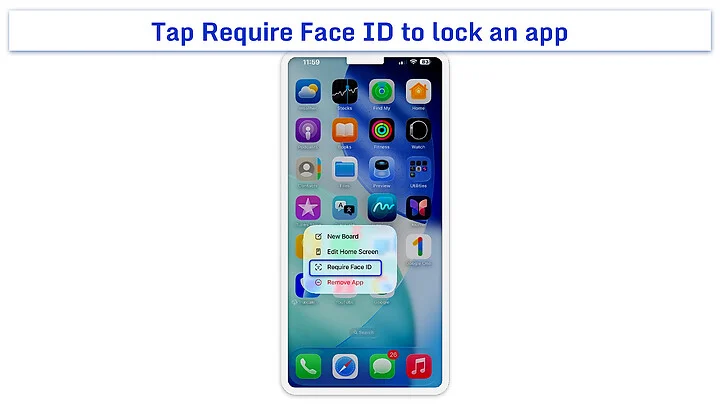
- Tap the same option again, then authenticate to confirm.
The app will ask for authentication each time you open it and will lock again after you quit it. However, locking doesn’t necessarily make an app biometric-only. Your device passcode can be available as a fallback, so someone who knows it could still open the app. We’ll explain later how Stolen Device Protection can change this behavior on iPhone.
Locking also limits where information from the app appears. According to Apple’s guidance, its content won’t appear in places such as notification previews, Search, Siri suggestions, or call history. The app itself remains visible on the Home Screen and in App Library.
Which built-in apps can’t be locked?
Apple doesn’t let you lock several built-in apps, including:
- Calculator
- Camera
- Clock
- Contacts
- Find My
- Maps
- Shortcuts
- Settings
Other built-in apps, including Messages, Mail, Photos, and Notes, can be locked if the authentication option appears in their quick actions menu. If you don’t see that option for another app, check that your iPhone or iPad is running current software and that Face ID, Touch ID, or a device passcode is set up.
How to hide apps on iPhone or iPad
Hiding an app automatically locks it and moves it to the Hidden folder in the App Library. This option is available only for eligible apps you downloaded separately.
To hide an app:
- Go to the Home Screen and find the app you want to hide. Touch and hold the app icon until the quick actions menu opens.
- Tap Require Face ID, Require Touch ID, or Require Passcode.
- Tap Hide and Require Face ID (or the matching Touch ID or Passcode option).
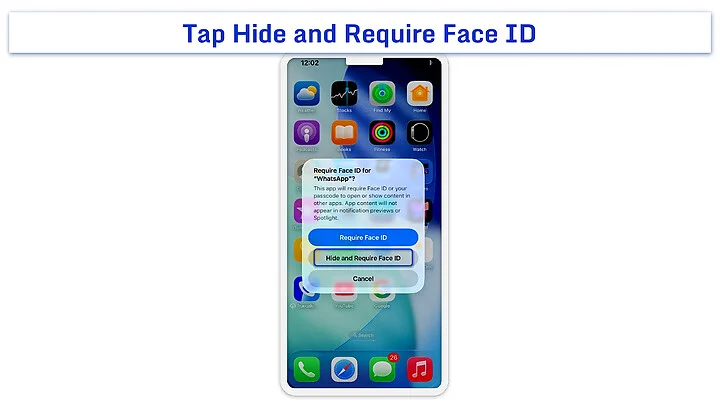
- Authenticate, then tap Hide App to confirm.
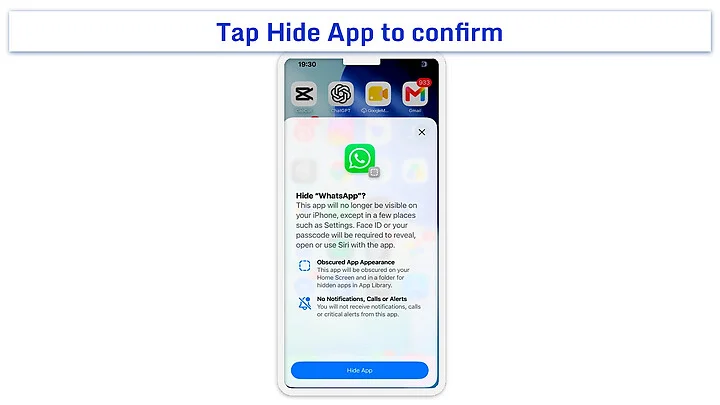
The app disappears from the Home Screen, Search, and the visible sections of App Library. Its data remains on your device, and you can still open it from the Hidden folder after authenticating. Apple provides the current steps for both iPhone and iPad.
Which apps can’t be hidden?
You can’t hide:
- Apps that came installed on your iPhone or iPad
- An app you’ve selected as your default web browser
- A default app marketplace in the EU
If Hide and Require Face ID, Touch ID, or Passcode doesn’t appear for a downloaded app, check whether the app is set as a default and make sure your device software is current. Don’t use Remove from Home Screen as a substitute: that option leaves the app accessible through Search and the regular App Library.
Where is the Hidden folder on iPhone and iPad?
On both iPhone and iPad, you’ll find the Hidden folder at the bottom of the App Library. It doesn’t appear as a regular Home Screen folder, and the app icons inside remain concealed until you authenticate.
To find and open it:
- Swipe left past all your Home Screen pages to reach the App Library.
- Scroll to the bottom and tap Hidden.
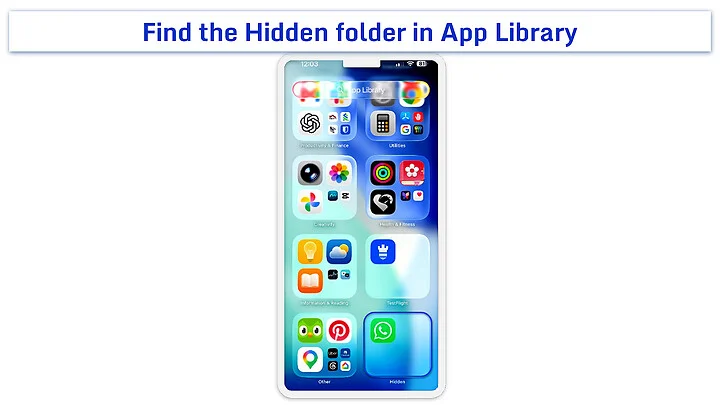
- Use Face ID, Touch ID, or your device passcode to open the folder.
- Tap the app you want to use and authenticate again to open it.
The app remains hidden after you close it, so you’ll need to return to the folder and authenticate the next time you want to open it.
You can also review your hidden apps under Settings > Apps > Hidden Apps. This list requires authentication and provides another way to confirm which apps are hidden, but you’ll still use the Hidden folder in App Library to open them.
How to unlock or unhide an app
Unlocking removes the authentication requirement but leaves the app in its current location. Unhiding removes the app from the Hidden folder and also turns off its authentication requirement.
How to unlock an app
To stop requiring Face ID, Touch ID, or your passcode:
- Find the app on your Home Screen or in App Library.
- Touch and hold its icon until the quick actions menu opens.
- Tap Don’t Require Face ID, Don’t Require Touch ID, or Don’t Require Passcode.
- Authenticate to confirm.
The app remains in place, but you can now open it without authenticating separately. You can follow the same unlocking process on iPhone and iPad.
How to unhide an app
To remove an app from the Hidden folder:
- Swipe left past all Home Screen pages to open the App Library.
- Tap Hidden, then authenticate to open the folder.
- Touch and hold the app you want to unhide.
- Tap Don’t Require Face ID, Don’t Require Touch ID, or Don’t Require Passcode.
- Authenticate to confirm.
The app leaves the Hidden folder and becomes visible in the App Library again. It won’t automatically return to the Home Screen or to its previous position. If needed, touch and hold the app in the App Library and tap Add to Home Screen.
What can people still see after you hide an app?
Hiding an app makes it harder to notice or open, but it doesn’t erase every record of the app being installed or used. How exposed each trace is depends on where you look.
Anyone with access to your unlocked device can see the app’s name in a couple of places, with no extra authentication:
- Screen Time: app activity can show how long the hidden app was used. A Screen Time passcode locks changes to Screen Time settings, but it doesn’t hide the usage report from view.
- Battery settings: battery usage can identify the app if it drew power during the selected period.
The app can also surface in records tied to your Apple Account:
- App Store purchase history: hiding an app from the device doesn’t automatically hide it from your purchase list.
- Subscriptions and purchases: charges or active subscriptions associated with the app can remain visible in your Apple Account billing.
Under Family Sharing, a parent or guardian can see that a child downloaded the app, how much time it was used, and can restrict access through Screen Time.
One place that sounds like an exposure but isn’t: the Hidden Apps list under Settings > Apps > Hidden Apps. It’s protected by the same Face ID, Touch ID, or passcode as the Hidden folder, so it works as a self-service way for you to review what you’ve hidden, not as a gap someone else can walk through.
The hidden app won’t normally appear on the Home Screen, in Search, or in the visible sections of App Library. However, anyone who can authenticate with your Face ID, Touch ID, or device passcode can open the Hidden folder and see its contents.
How locked apps work with Stolen Device Protection
Normally, you can open a locked app with Face ID, Touch ID, or your device passcode. This means someone who knows your passcode could still open it if biometric authentication fails.
If you enable Stolen Device Protection on your iPhone, locked apps require Face ID or Touch ID with no passcode fallback when you’re away from familiar locations, such as home or work. If you set Stolen Device Protection to Always, this biometric-only requirement applies regardless of your location.
This protection also applies to hidden apps because hiding an app automatically locks it. Opening a locked or hidden app doesn’t trigger the one-hour Security Delay that Stolen Device Protection adds before some sensitive changes, but you’ll need to pass Face ID or Touch ID before the app opens.
Stolen Device Protection is available on iPhone, not iPad. On an iPad, the device passcode can still serve as a fallback for locked and hidden apps.
Can children lock or hide apps?
Children under 13 in a Family Sharing group can’t lock or hide apps. Family members aged 13 to 17 can use these features, but a parent or guardian can still:
- See that your child downloaded the app
- View how much time they spent using it
- Restrict access through Screen Time
The applicable minimum age varies by country or region. Although Family Sharing and Screen Time can reveal that the app is installed or being used, they don’t automatically give the parent or guardian access to information stored inside it.
Why can’t you lock or hide an app?
If the expected option doesn’t appear when you touch and hold an app, check these possible causes:
- The app isn’t eligible: Some built-in and default apps can’t be locked or hidden. Check the earlier lists to confirm whether the feature supports the app.
- Your software is outdated: App locking and hiding require iOS 18 or iPadOS 18 or later. Go to Settings > General > Software Update to check for an update, or review how software updates work on iPhone and iPad.
- Authentication isn’t set up: Your device needs a passcode before you can lock or hide an app. Set one under Settings > Face ID & Passcode, Touch ID & Passcode, or Passcode, depending on your device.
- Age restrictions apply: Children under 13 in a Family Sharing group generally can’t lock or hide apps, although the minimum age varies by country or region.
- The device is managed: A work or school administrator can restrict available settings. Check Settings > General > VPN & Device Management or contact the organization managing the device.
Also make sure you’re choosing the correct option. Remove from Home Screen only moves an app to the regular App Library; it doesn’t lock the app or place it in the Hidden folder.
Does locking or hiding an app make its data completely private?
No. Locking or hiding an app adds a barrier on that particular iPhone or iPad, but it doesn’t separately encrypt the app’s data or remove it from your accounts, backups, or other devices. The setting doesn’t sync through iCloud, so the same app may remain unlocked and visible on another device signed in to your account.
Anyone who knows your device passcode can open a locked or hidden app unless Stolen Device Protection requires biometric authentication. Because your passcode controls access to many parts of your device, use a strong iPhone or iPad passcode.
For stronger protection, use a unique device passcode, turn on Stolen Device Protection where available, enable the app’s own security controls, and protect important accounts with two-factor authentication. Locking and hiding are useful privacy tools, but they shouldn’t be your only safeguards for highly sensitive information.
Keep sensitive apps under your control
Locking and hiding apps can limit casual access when you share your iPhone or iPad. Lock an app when you only want to restrict who can open it, or hide an eligible app when you also want to remove it from the places people normally look.
Before relying on either option, consider what remains visible through Screen Time, purchase records, Family Sharing, or another device. That way, you can choose the right level of privacy without assuming the app and its data are completely invisible.
Frequently asked questions
Can you hide apps on the iPad?
Yes. On an iPad running iPadOS 18 or later, you can hide eligible apps downloaded from the App Store. Touch and hold the app, tap Require Face ID, Require Touch ID, or Require Passcode, then select the matching Hide and Require option and confirm. The app moves to the protected Hidden folder in the App Library. Built-in Apple apps and apps set as your default browser or app marketplace can’t be hidden.
Can you lock apps with Face ID on an iPhone?
Yes. Touch and hold a supported app, tap Require Face ID, then tap Require Face ID again and authenticate. The app remains visible but requires authentication each time you open it. Your passcode may be available as a fallback unless Stolen Device Protection requires Face ID with no passcode fallback.
Where is the Hidden folder on the iPhone?
The Hidden folder is at the bottom of the App Library. Swipe left past all your Home Screen pages, scroll down, and tap Hidden, then authenticate with Face ID, Touch ID, or your passcode to view the apps inside.
Why can’t I hide an app?
You can’t hide an app if it came installed on your device, is set as your default browser or app marketplace, or your iPhone or iPad isn’t running iOS 18 or iPadOS 18 or later. Children under the applicable age in a Family Sharing group also can’t hide apps. Only eligible apps downloaded separately can be moved to the Hidden folder.
Can someone still see that I have a hidden app?
Yes, in some places. A hidden app’s name can still appear in Screen Time, Battery settings, App Store purchase history, subscription records, or Family Sharing information. The app also appears under Settings > Apps > Hidden Apps, but authentication is required to view that list.
How do I unhide an app on iPhone or iPad?
Open the App Library, tap the Hidden folder, and authenticate. Touch and hold the app, tap Don’t Require Face ID, Don’t Require Touch ID, or Don’t Require Passcode, then authenticate again. The app returns to the App Library, but you may need to add it back to the Home Screen manually.