How To + Malware + Security & Privacy
Think your Mac has been hacked? How to tell and what to do
Posted on
by
Doris Muthuri


If you suspect your Mac has been hacked, don’t assume the worst. While Macs can be compromised, a pop-up, slow performance, or an unfamiliar app doesn’t automatically mean someone has gained access to your Mac. The problem could be malware, a compromised online account, a fake security warning, or even a normal software issue.
If the warning is in your browser, don’t click it or call the number shown. If you see signs of active remote access, disconnect your Mac from the internet. Use another trusted device to secure important accounts, then scan the Mac for malware. The checks below will help you tell a false alarm from a real problem.
How to tell if your Mac has been hacked
A slow Mac or a single pop-up doesn’t necessarily mean it’s been hacked. Instead, look for changes you didn’t make yourself. The signs below are stronger evidence that someone may have accessed your Mac, installed unwanted software, or compromised one of your accounts.
- Your Apple Account shows activity you don’t recognize: Apple will often alert you if someone signs in to your Apple Account from a new device. You can also review the devices linked to your account in System Settings > Apple Account. If you see an unfamiliar device or receive sign-in alerts you don’t recognize, someone may have access to your account. Remove the device, change your password, and make sure two-factor authentication is turned on.
- Someone has enabled remote access without your permission: macOS includes features such as Screen Sharing, Remote Login, and Remote Management that let someone connect to your Mac remotely. If one of these features is turned on without your knowledge, someone else may be able to access your Mac. Check these settings in System Settings > General > Sharing.
- Your Mac contains apps or settings you didn’t add: Malware and other unwanted software can install apps, browser extensions, login items, or configuration profiles without your permission. Open System Settings > General > Login Items & Extensions and look for anything you don’t recognize. It’s also worth checking your browser extensions and installed apps for software you don’t remember adding.

- Apps have permissions you didn’t grant: Some malicious apps try to access sensitive features such as your camera, microphone, Full Disk Access, or Accessibility. Review these permissions in System Settings > Privacy & Security. If you find an unfamiliar app with sensitive permissions, investigate it before continuing to use your Mac.

- Your antivirus keeps finding malware: One malware detection doesn’t necessarily mean your Mac has been hacked. However, if malware keeps coming back after you’ve removed it, it may not have been fully removed or your Mac may still be compromised. Run another full scan to confirm the threat has been removed.
- Files or accounts change without your knowledge: If files disappear, become encrypted, or change without your permission, or you notice emails, messages, or other account activity you didn’t create, your Mac or one of your accounts may have been compromised.
- A new user or administrator account appears: Open System Settings > Users & Groups and look for an account you didn’t create. An unfamiliar account may allow someone to sign in to your Mac and make changes. If you find one, first check that it doesn’t belong to someone who shares your Mac. If the account is unauthorized, click the Info button next to it, select Delete User, and change your Mac login password.
Don’t rely on performance problems alone. A slow Mac, a noisy fan, battery drain, or occasional crashes usually come from everyday software or hardware issues, not hackers. Activity Monitor shows you which apps are using the most CPU, memory, or energy, but don’t delete a process only because its name looks unfamiliar. Many legitimate macOS processes have technical names, and removing the wrong one can cause problems.
What to do if you think your Mac has been hacked
If you think your Mac has been compromised, follow these steps in order to secure your accounts, check your Mac, and recover safely.
- Disconnect your Mac from the internet: If you think someone is actively accessing your Mac or malware is sending data, turn off Wi-Fi or unplug the Ethernet cable. This can help stop further communication while you investigate.
- Secure your important accounts from another device: Use a trusted phone or computer to sign in to your Apple Account, primary email, banking, and other important accounts. Don’t rely on the potentially compromised Mac for this step.
- Review your account security: Remove any devices or sign-in sessions you don’t recognize. Check that no unfamiliar recovery email address or phone number was added, and ask your mobile carrier to confirm that SMS forwarding hasn’t been turned on. Then change affected passwords and enable two-factor authentication if you haven’t already.
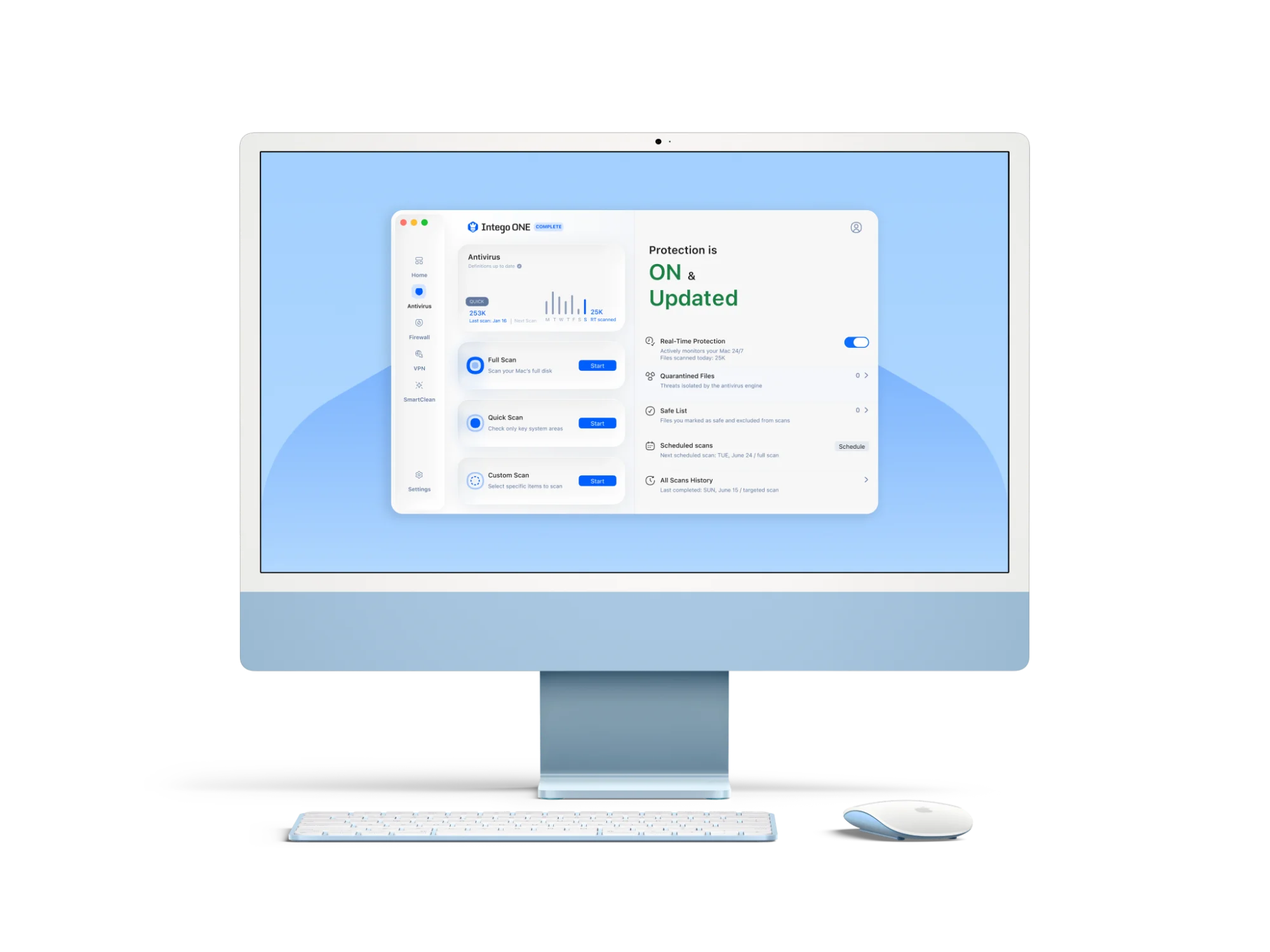
- Run a full malware scan: Scan your Mac with up-to-date antivirus software and remove or quarantine any threats it finds. Intego ONE Antivirus runs an on-demand Full Scan and lets you review or quarantine what it detects.

- Review your Mac’s security settings: Check for anything that shouldn’t be there, such as unfamiliar user accounts, apps, browser extensions, login items, configuration profiles, or remote-access features that have been turned on.
- Install the latest updates: Once it’s safe to reconnect, update macOS and your apps. Security updates can fix vulnerabilities that attackers may have exploited.
- Keep watching your accounts: Continue monitoring your email, banking, and other important accounts for suspicious activity. If you think financial or personal information has been exposed, contact the relevant provider as soon as possible.
What to do if a browser says your Mac has been hacked
If your browser suddenly says your Mac has been hacked, don’t assume it’s true. These warnings are usually scareware or deceptive websites trying to frighten you into calling a fake support number, downloading unwanted software, or paying for a service you don’t need. Safari may warn you about a suspected fraudulent website, but it won’t use a web page to claim that your Mac has been hacked.
If you see one of these warnings:
- Don’t click the warning: Don’t click any buttons, call the phone number, download the suggested software, or enter payment details. These actions could make the situation worse.
- Close the web page: Close the browser tab or window itself rather than clicking the close button inside the warning, which can be fake. If the page won’t close normally, force quit your browser with Command + Option (Alt) + Esc, then reopen it. If the warning appears again, don’t interact with it.
- Check your browser: Review your browser’s notification permissions and installed extensions. Remove any notifications or extensions you don’t recognize, as they may be responsible for repeated pop-ups.
- Scan your Mac if you downloaded anything: If you clicked the warning or installed software before realizing it was fake, run a full malware scan. This can help detect and remove any unwanted software that may have been installed.
Can a Mac be hacked remotely?
Yes, a Mac can be hacked remotely, but attackers usually need a way to access it first. They can’t normally take control of a fully updated Mac simply because it’s connected to the internet. Instead, they need to find or create an opportunity to get in.
They may gain access if you install malware, someone steals your password or tricks you into sharing it, someone had physical access to your Mac earlier, or a remote-access feature is enabled without your knowledge. They may also exploit a known security vulnerability if your Mac or an app isn’t up to date.
While no computer is completely immune to attacks, most remote compromises happen because an attacker first finds a way in. Following a few good habits makes it much harder for someone to gain remote access to your Mac.
When to reinstall macOS or get expert help
Reinstalling macOS isn’t usually the first step when you suspect a compromise. In many cases, you can remove malware and secure your accounts without reinstalling. If the problem persists, get expert help to decide whether to reinstall macOS or erase the Mac. Reinstalling through macOS Recovery normally keeps your apps and personal data; erasing the disk is a separate step. Back up your Mac first.
You should consider getting expert help if:
- Malware keeps coming back: If your antivirus removes malware but it keeps returning, your Mac may still be compromised or the infection may not have been completely removed.
- You can’t regain control of an important account: If you can’t access your Apple Account, email, banking, or other important accounts after following the recommended recovery steps, contact the account provider for help securing the account.
- Sensitive information may have been exposed: If you think personal, financial, legal, or business information has been stolen, contact the relevant organization as soon as possible. For example, notify your bank if payment details may have been exposed.
- Your Mac is managed by your employer: If your Mac belongs to your workplace or is managed by an IT department, report the problem instead of trying to fix it yourself. They may need to investigate or follow company security procedures.
- You think you’re being specifically targeted: Most people won’t need this level of protection. However, if you believe you’re the target of a sophisticated attack, such as because of your work, role, or public profile, seek expert assistance before making major changes to your Mac. Apple also offers Lockdown Mode for people who face these rare, highly targeted threats, but it isn’t intended for everyday malware or scam protection.
If you do decide to reinstall macOS, follow Apple’s current instructions rather than older guides, as the recovery steps differ between Apple silicon and Intel Macs and may change with new macOS releases.
How to help prevent another compromise
You can’t eliminate every security risk, but a few good habits can make your Mac much harder to compromise. These steps also help protect your accounts and personal information if someone tries to target you in the future.
- Keep macOS and your apps up to date: Install security updates as soon as they’re available. They fix known vulnerabilities that attackers may try to exploit.
- Turn off remote-access features you don’t use: Features such as Screen Sharing, Remote Login, and Remote Management should stay off unless you intentionally need them. Leaving remote access off reduces the number of ways someone could access your Mac remotely.
- Download software from trusted sources: Install apps from the App Store or directly from trusted developers. Avoid software from unknown websites, as it may contain malware or other unwanted programs.
- Back up your Mac regularly: Keep regular backups with Time Machine or another trusted backup solution. If something goes wrong, you’ll have a recent copy of your files.
- Use real-time antivirus protection and a firewall: Keep real-time malware protection on, and use a firewall to review and control which apps connect to the internet.
- Use strong, unique passwords and two-factor authentication: Use a different password for every important account, and turn on two-factor authentication whenever it’s available. This makes it much harder for someone to sign in, even if they obtain your password. That’s especially important because modern hacking often relies on stolen credentials rather than malware.
Scan your Mac and stay protected with Intego ONE
If a suspicious download or unfamiliar app raised the alarm, Intego ONE gives you a practical way to check your Mac. Run a Full Scan, review what it detects, and quarantine known malware. Real-time antivirus protection keeps checking for known threats, while Smart Firewall lets you review which apps connect to the internet.
A malware scan can’t tell you whether someone accessed your Apple Account or email. Keep the account checks above in your recovery plan, then choose protection for your Mac.
Frequently asked questions
Does a pop-up saying my Mac has been hacked mean it is true?
No. Most pop-ups claiming your Mac has been hacked are fake. Don’t click the warning, call the phone number, or download the suggested software. Close the page instead, and run a malware scan if you downloaded or installed anything.
Will changing my password remove a hacker from my Mac?
No. Changing your password protects your account, but it doesn’t remove malware or stop someone who already has access to your Mac. To remove the threat, scan your Mac with up-to-date antivirus software, remove any malware it finds, and check for unauthorized apps, user accounts, or remote-access settings.
Should I erase my Mac if I think it has been hacked?
Not usually. First, scan for malware and secure your accounts. If the problem keeps coming back or you can’t remove the malware, get expert help to decide whether erasing the Mac is necessary. Reinstalling macOS on its own normally keeps your apps and personal data.
Can Apple tell whether my Mac has been hacked?
Not always. Apple may alert you to suspicious Apple Account activity, but it can’t confirm whether your Mac has been hacked. If you think your Mac has been compromised, check for signs of unauthorized access and run a full malware scan.
Is a malware scan enough to confirm that my Mac is safe?
No. A clean malware scan doesn’t always mean nothing is wrong. Someone could still have access to one of your online accounts, or there may be unauthorized changes that aren’t caused by malware. Check your Apple Account and other important accounts, review your Mac for unfamiliar apps or settings, and install the latest security updates.