How to enable and configure the macOS firewall
Posted on
by
Kamso Oguejiofor-Abugu


The macOS firewall takes only a moment to turn on, and once it’s on, it blocks unwanted incoming connections from other devices and the internet. You’ll find it in your System Settings, under Network.
It’s usually best to stick with the standard setup at first. Turning on stricter options, like Block all incoming connections, can sometimes stop your everyday apps from working as you’d expect.
Below, you’ll see how to turn on the macOS firewall, what the different settings mean for your daily use, and when a more advanced firewall is worth considering.
What does the macOS firewall do?
The macOS firewall controls which incoming network connections are allowed to reach your Mac. It watches for connection attempts from other devices, but it won’t notice or warn you if an app on your Mac shares information back out to the internet. It isn’t a replacement for antivirus software.
For example, when you join a shared network at a coffee shop, you’re on the same network as everyone else connected to it. The firewall stops another device on that same network from connecting to yours and looking through your files.
The macOS firewall is a software firewall, meaning it runs directly on your Mac and manages connections to that device. That is different from the hardware firewall built into your home internet router, which stands guard over every device connected to your network at the same time.
How to turn on the macOS firewall
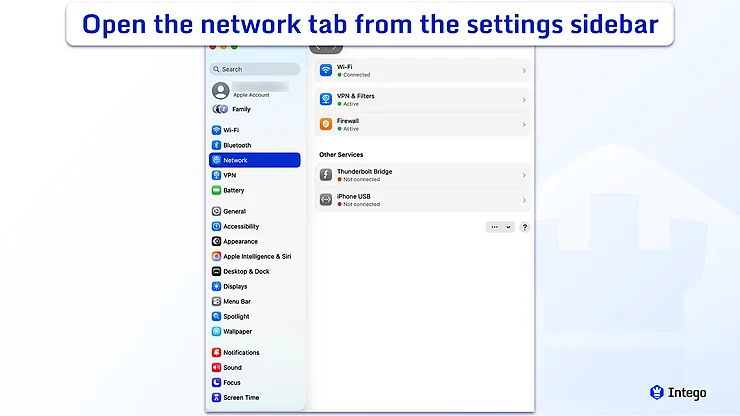
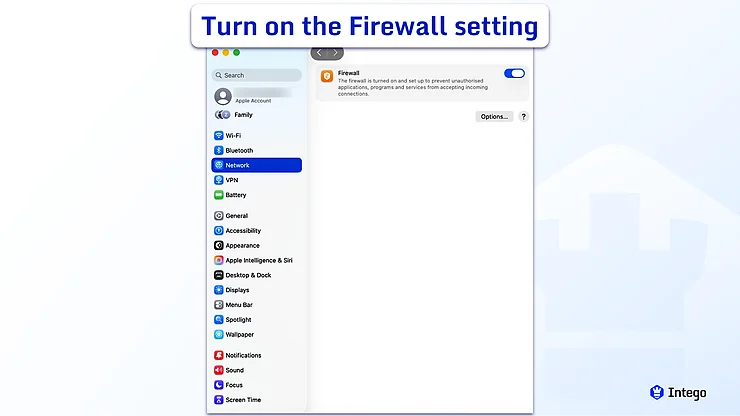
To turn on the macOS firewall, go to System Settings > Network > Firewall, then switch it on. Here’s the full path:
- Click the Apple menu in the top-left corner of your screen and select System Settings.
- Select Network in the sidebar.
- Click Firewall. (You may need to scroll down to find it.)
- Turn the firewall switch on. That’s it.
What the macOS firewall settings mean
Once the firewall is on, you can click Options to see additional settings. Here’s what each one means.
Block all incoming connections
This turns up the security to its highest level. It blocks incoming connections to apps and services that aren’t essential, while basic network and internet services keep working. In practice, that means features like file sharing and screen sharing stop working.
Unless you’re on an untrusted public network, you’ll want to keep this setting turned off.
Allow specific apps and services
You can decide which apps are allowed to accept incoming connections. There’s a list that shows you what already has permission, and you can add or remove apps from it as your routines change.
Automatically allow built-in software
This tells the firewall to trust apps that come pre-installed with macOS, such as Messages or FaceTime, and allow them to receive incoming connections without asking you each time. For most users, leaving this on helps Apple features work as expected.
Automatically allow downloaded signed software
This applies the same rule to installed apps that have been digitally signed by recognized developers. If you leave this checked, you won’t see repetitive prompts pop up when a familiar app tries to accept an incoming connection.
Stealth mode
When you turn on stealth mode, your Mac ignores network pings, the small signals other devices use to check whether your Mac is reachable. It makes your Mac harder to spot on public networks, though you generally won’t need it at home or in a standard office.
How to allow or block specific apps through the macOS firewall
Some apps need to receive incoming connections to work properly. This is usually true for things like video calling tools, apps you use to share files, and some multiplayer games.
If you need to change the settings for a specific app, here is how:
- Click the Apple menu in the top-left corner of your Mac.
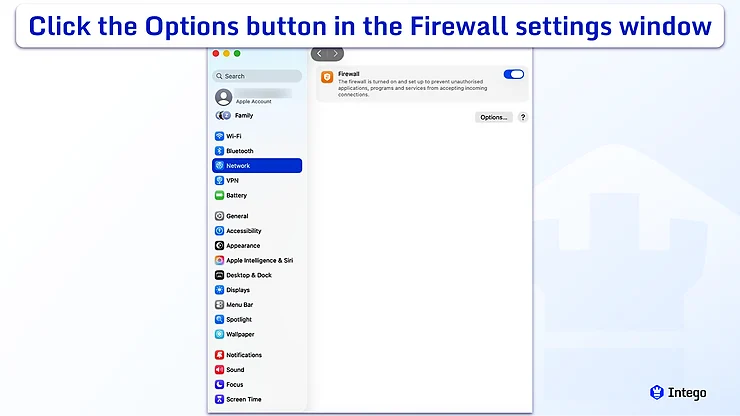
- Go to System Settings > Network > Firewall.
- Click Options.
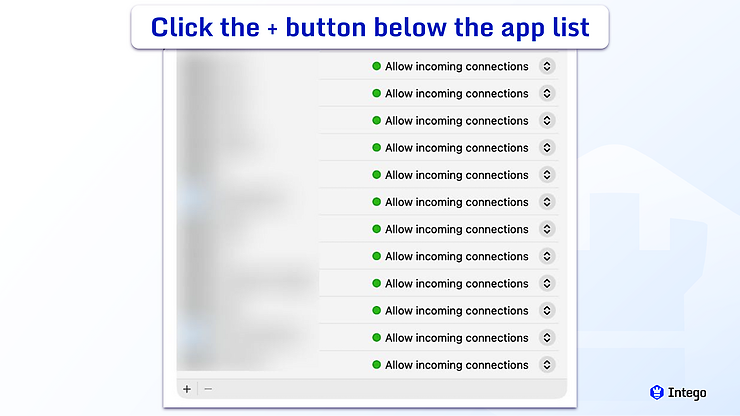
- Click the + button below the app list.
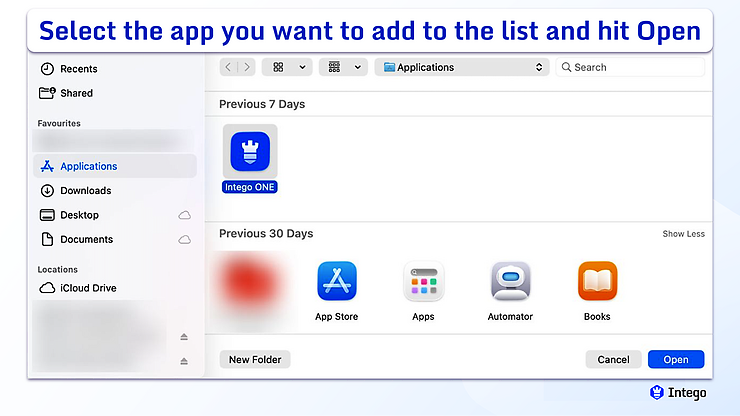
- Find and select the app you want to allow, then click Open.
- Make sure the app is set to Allow incoming connections in the list.
To block an app instead, follow the same steps and select Block incoming connections from the dropdown next to the app’s name.
Most of the time, you won’t need to change these settings at all. If your firewall is set to automatically trust built-in software and signed downloaded apps, it’ll take care of your everyday apps on its own.
Does the macOS firewall block outgoing connections?
No, it doesn’t. The built-in macOS firewall is designed primarily to manage incoming connections, not outgoing ones. This means it blocks other devices or services from connecting to your Mac without your permission.
However, it won’t tell you when an app connects to the internet, show you where that data is going, or let you set specific restrictions on how apps send out data.
It’s also worth noting that a firewall is different from antivirus software. It can’t scan your files for malware or remove threats that may already be on your Mac.
macOS firewall vs. third-party firewall protection
Apple’s built-in firewall is usually all you need to keep uninvited connections out. Because it’s already part of macOS, you simply turn it on and let it run in the background without worrying about configuration or network jargon.
However, it won’t show you much detail about what your apps are doing online, or give you much say in how they connect.
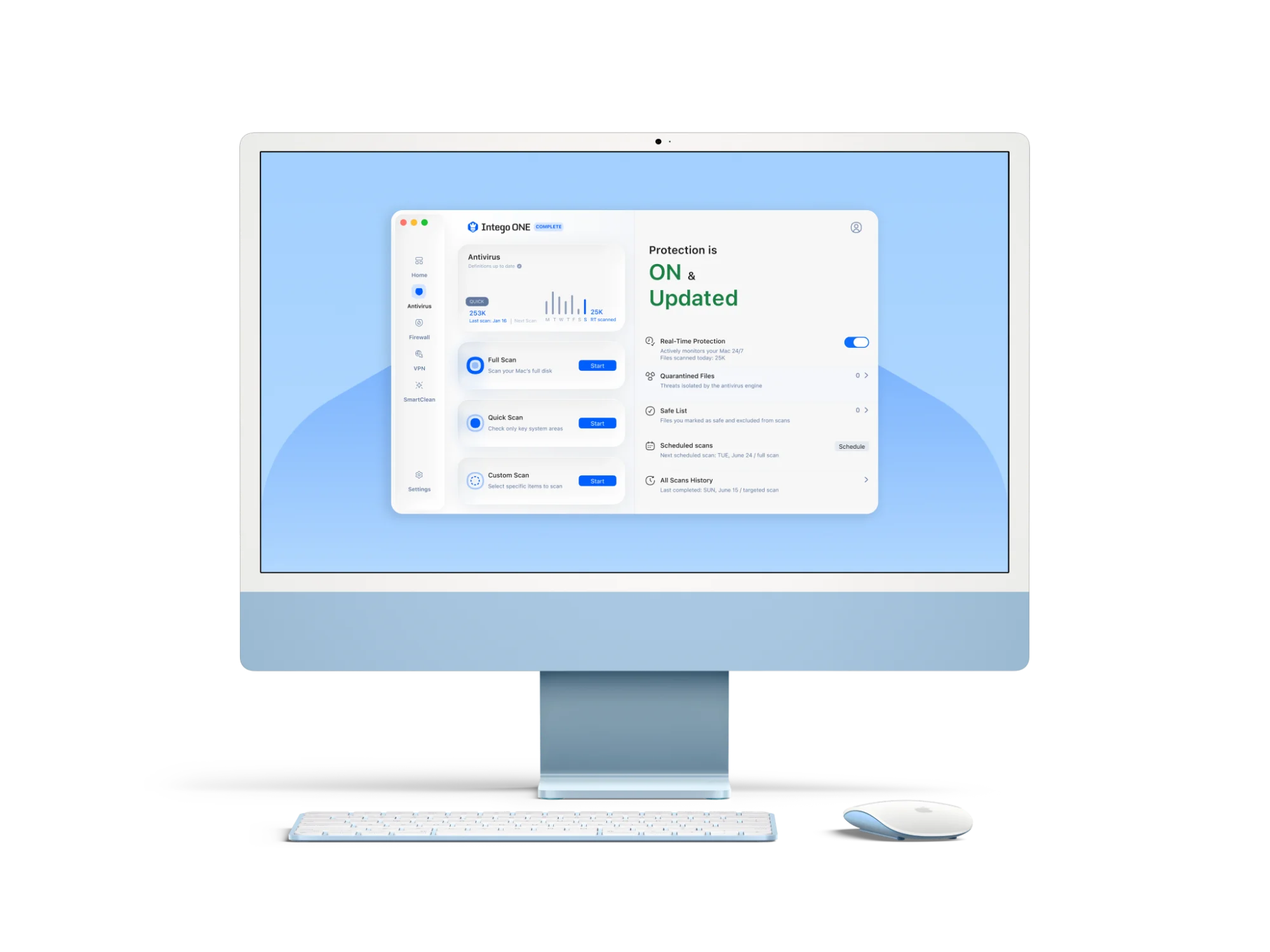
If you prefer to see and control exactly what is coming in and out of your Mac, Intego ONE Firewall opens up that view and lets you decide how each connection behaves.
To help you decide which approach fits your routine, here is how they differ:
| Feature | macOS firewall | Intego ONE Firewall |
| Built into macOS | ✅ | ❌ |
| Designed specifically for Macs | ✅ | ✅ |
| Blocks incoming connections | ✅ | ✅ |
| Blocks outgoing connections | ❌ | ✅ |
| Simple on/off setup | ✅ | ✅ |
| Allow or block specific apps | ✅ | ✅ |
| Custom firewall rules | Basic | More advanced |
| Network statistics and connection monitoring | ❌ | ✅ |
A note for longtime Intego users
If you have used Intego’s firewall in the past, you might remember it as NetBarrier. That firewall protection is now part of Intego ONE. It does the same job, giving you a straightforward way to see which apps are connecting to the internet, control those connections, and keep an eye on your network traffic through a cleaner, updated design.
Advanced macOS firewall options
Most everyday Mac users will never need to go beyond the settings covered in this guide. The options in System Settings give you enough control to run a secure firewall without touching anything else. However, if your work requires a more specific setup, there are deeper capabilities you can access.
macOS firewall command line
macOS includes command-line tools that let advanced users write custom rules for how your Mac handles network traffic. This means working in the Terminal, which isn’t necessary for a standard home or office Mac.
If you are managing a network of company Macs and find the standard settings too limiting, you can check Apple’s developer guides for how to write and deploy these custom rules safely.
macOS firewall logs
macOS keeps firewall logs that record connection activity on your Mac. You can find these logs in the Console app, though they are mostly raw data and can be difficult to make sense of without a technical background.
These records exist mainly for advanced users and administrators. Most everyday Mac users won’t need to review them during normal use.
macOS firewall rules
While the built-in firewall lets you block or permit incoming connections for specific apps, it doesn’t let you build highly specific or complex rules. If you need closer control over your network, like blocking specific websites or specific ports, a separate Mac firewall might be a better fit.
Should you turn on the macOS firewall?
Yes, you should. It blocks unexpected incoming connections without interrupting your day-to-day work, so you rarely need to change the standard setup.
The one setting to look out for is the option to block all incoming connections. Turning this on adds extra security, but it stops helpful tools like file sharing or screen sharing from working.
If you want to see which apps are connecting to the internet and have more control over outgoing traffic, Intego ONE Firewall is worth exploring. It’s designed for Mac, works alongside your existing macOS settings, and gives you clearer insight into your Mac’s network activity than the built-in firewall offers.
You should also keep in mind that a firewall has a specific job: it manages network connections. It can’t scan for malicious software or warn you about phishing websites.
A firewall is only one layer of Mac security. For a steadier security foundation, it works best alongside reliable Mac antivirus software and safe browsing habits.
Frequently asked questions
Where do I find the firewall settings on macOS?
You can find the macOS firewall settings in System Settings > Network > Firewall. In newer versions of macOS it lives under Network, not Security & Privacy, which is where older versions kept it (System Preferences > Security & Privacy > Firewall).
Is the macOS firewall on by default?
No. macOS ships with the firewall turned off, so you need to turn it on yourself. In most cases that’s worth doing: it blocks unwanted incoming connections and runs quietly in the background without affecting everyday tasks like browsing, streaming, or email.
What does Block all incoming connections actually do?
This setting blocks most connections trying to reach your Mac, so features like file sharing and screen sharing stop working. Your everyday browsing, streaming, and email aren’t affected, since those start from your Mac.
How do I allow a specific app through the firewall?
To allow a specific app, go to System Settings > Network > Firewall > Options, click the + button below the app list, and select the app you want to allow. Then make sure it’s set to Allow incoming connections in the list.
Does the macOS firewall block outgoing traffic?
No. The built-in macOS firewall is focused on incoming connections, so it doesn’t monitor or control which apps on your Mac connect out to the internet.
Does enabling the firewall affect internet speed?
In everyday use, it won’t. The macOS firewall is lightweight, so turning it on won’t slow down your connection or interrupt what you are doing online.
Can I monitor firewall connection logs?
Yes, though it’s not something most people will find immediately intuitive. You can find them in the Console app on your Mac. Most people will never need to look here, but if an app is being blocked or repeatedly trying to connect, the logs can show you what the firewall is allowing or blocking.
Should businesses use a different firewall setup?
If you use a Mac provided by your employer, your IT team has likely already set up the firewall for you using their management software. For business environments with specific security requirements, Apple’s official documentation offers a good place to start.
How do I reset the macOS firewall to default settings?
macOS doesn’t have a one-click reset for the firewall, so you undo your changes manually. Open System Settings > Network > Firewall > Options, remove any apps you added by selecting them and clicking the minus button, and turn off any options you switched on, like Block all incoming connections or stealth mode.