What is macOS Gatekeeper and how do you use it?
Posted on
by
Kamso Oguejiofor-Abugu


If you’ve ever downloaded an app from outside the App Store, you’ve probably seen Gatekeeper in action. You don’t usually need to set it up yourself because macOS keeps it enabled by default.
Its job is to make sure downloaded apps come from a trusted source, haven’t been altered, and don’t match known malware checks. If an app doesn’t pass these checks, Gatekeeper may warn you, block it, or ask you to confirm that you want to open it.
This guide explains what Gatekeeper does, how to review its settings, what to do if it blocks an app you trust, and how it compares with dedicated Mac antivirus software.
What is macOS Gatekeeper?
Gatekeeper is a built-in macOS security feature that checks downloaded apps before they open. It helps make sure the software comes from a trusted source and can be verified by macOS.
Whenever you download software from outside the App Store, Gatekeeper checks whether it was signed by an identified developer and whether macOS can verify the app.
It also checks whether Apple has notarized the app. Notarization means Apple has scanned the software for known malicious content and confirmed that the developer signed it for distribution outside the App Store.
If the app hasn’t been notarized, has been altered since it was signed, or fails other security checks, Gatekeeper may block it or show a warning before it runs.
When you open a downloaded app for the first time, Gatekeeper may ask you to confirm that you want to proceed. This extra step keeps you from accidentally opening software you didn’t intend to run.
You don’t need to set up Gatekeeper manually. It’s enabled by default on your Mac and is designed to work automatically in the background.
What does Gatekeeper check on a Mac?
When you first open a downloaded app, Gatekeeper checks whether macOS can verify the app, whether it has been altered, and whether it matches known malware checks.
First, it checks whether the app was signed by an identified developer. This helps macOS verify the source of the app and check whether it has been altered since it was signed.
It also looks to see if the app has been notarized. This means Apple has already checked the software for known malicious content before allowing it to be shared outside the App Store.
Gatekeeper also checks whether Apple has flagged the app for known malware or revoked the developer’s signing certificate. If macOS can’t verify the app, or Apple’s checks identify a known safety issue, Gatekeeper may block the software from opening.
Gatekeeper doesn’t continuously scan your whole Mac like dedicated antivirus software. It mainly checks downloaded software when you open it, making it a useful first layer of protection rather than a full malware scanner.
How to check Gatekeeper settings on your Mac
To check your Gatekeeper settings:
- Open System Settings.
- Select Privacy & Security from the sidebar.
- Scroll down to the Security section.
- Look for Allow applications from.
This is where you can see which app sources macOS allows by default. The exact wording depends on which version of macOS you are running, but you’ll generally see two choices:
- App Store: This allows apps downloaded from the App Store only.
- App Store and identified developers: This allows App Store apps as well as software from identified developers.
What app sources does Gatekeeper allow by default?
By default, most Macs allow apps from the App Store and identified developers.
Apps from the Mac App Store go through Apple’s review process before they’re made available for download. Gatekeeper also allows apps from identified developers whose software has been signed for distribution outside the App Store.
Many legitimate Mac apps are distributed outside the App Store, so downloading software directly from a developer’s website is often a normal part of using a Mac. Just ensure you stick to official sources and pay attention to any Gatekeeper warnings.
While Apple’s signing and notarization systems verify app sources and check for known threats, they don’t guarantee an app is completely safe. Dedicated antivirus software can help detect threats that Gatekeeper isn’t designed to catch.
What to do when Gatekeeper blocks an app
When Gatekeeper stops an app from opening, it doesn’t always mean the software is dangerous. Often, it means the app can’t be verified, isn’t signed or notarized in a way macOS expects, or the system can’t confirm its origin.
At the same time, it’s best not to bypass the warning without checking a few things first. You can usually assess whether the app is trustworthy by looking at a few details:
- Verify the source: Did you download the app directly from the developer’s official website, or did you find it on an unverified download site?
- Research the developer’s reputation: Look for reviews, user feedback, or information from trusted Mac communities to see how others have experienced the software.
- Check for a newer version: Visit the creator’s website or the Mac App Store to see if they have released a more recent update, which might resolve the warning entirely.
In the current versions of macOS, you can review the options in System Settings > Privacy & Security and choose to open the app if you’re satisfied it comes from a source you trust. Using these built-in permissions on an app-by-app basis is much safer than turning off your Mac’s security protections entirely.
How to open a trusted app Gatekeeper has blocked
Follow these steps to open a trusted app that Gatekeeper blocks:
- Go to System Settings > Privacy & Security.
- Scroll down to Security and look for a notification that says “[App name] was blocked to protect your Mac.”
- Click the Open Anyway button next to it, then type your password or use Touch ID to confirm.
- Click Open on the final warning prompt if you still want to proceed.
Apple periodically updates how these approval workflows work, so the exact prompts and options may vary depending on your version of macOS.
Try to avoid changing your system-wide security settings just to install a single app. Overriding these protections should be something you do only for software you genuinely trust and have verified yourself.
How do you open an app Gatekeeper blocked?
If Gatekeeper blocks an app, first verify that you trust the developer and the download source. If you’re sure the app is legitimate, go to System Settings > Privacy & Security, scroll down to the Security section, click the Open Anyway button, and enter your password to authorize the app.
Can you temporarily disable Gatekeeper?
Yes, Gatekeeper can be disabled, but most users shouldn’t do this. It removes an important app-checking layer from macOS and can make it easier to run unsafe software by mistake. If you trust a specific app, use the one-time Open Anyway option instead of changing your Mac’s system-wide security settings.
However, for everyday users, the safest approach is to leave Gatekeeper enabled, verify the source of any blocked app, and only approve software you trust.
Does Gatekeeper block malware?
Gatekeeper can help block some known malicious or unverified apps before they open, but it isn’t a full antivirus tool. It doesn’t continuously scan your whole Mac, monitor every file, or remove all types of malware. For broader protection, use Gatekeeper alongside built-in macOS security features and dedicated Mac antivirus software.
Gatekeeper vs antivirus software: What’s the difference?
Gatekeeper is a built-in macOS security feature that helps verify downloaded apps before they open. It checks things like developer signatures, notarization status, and known malware indicators when you try to launch the app the first time.
Antivirus software works a bit differently by looking at the bigger picture. Rather than just checking an app when you first open it, these programs regularly scan files on your Mac, monitor activity on your device, and let you know if something seems wrong.
Using both together gives you a more complete safety net. Gatekeeper acts as a first layer of protection by checking apps before they open, while antivirus software scans your files and checks activity for signs of malware.
| Feature | Gatekeeper | Dedicated Mac antivirus software |
| Included with macOS | Yes | No |
| Main focus | App launch protection | Malware detection and scanning |
| What it checks | Downloaded apps when opened | Files, apps, and system activity |
| Security signals | Developer ID, notarization, known-malware checks | Signature databases, behavior analysis, real-time scanning |
| User visibility | Minimal prompts and warnings | Dashboards, alerts, and scan results |
How is Gatekeeper different from antivirus software?
Gatekeeper is a built-in macOS feature that checks downloaded apps before they open. Antivirus software routinely checks all your system files and watches for issues well after an app has been installed.
How Gatekeeper works with other macOS security features
Gatekeeper is just one part of Apple’s broader macOS security system. It works alongside several other built-in protections that each address different types of risk:
- XProtect: A built-in malware detection system that helps identify and block known malicious software using Apple’s regularly updated malware definitions.
- Notarization: Apple’s automated scanning process for apps distributed outside the App Store, which checks for known malicious content before apps reach users.
- App permissions: Controls that prompt you before apps can access sensitive features and data, such as the camera, microphone, location, or files.
- Sandboxing: Restricts what apps can do on your Mac by isolating them from system resources and other apps unless you grant access.
- Security updates: Regular macOS updates that patch vulnerabilities and strengthen built-in protections over time.
Together, these features form a layered security model that reduces risk by addressing threats at different stages, rather than relying on a single safeguard.
How Intego works alongside Gatekeeper
Apple built Gatekeeper into the Mac to handle a specific moment: when you open an app you just downloaded. It checks whether macOS can verify the app, whether it comes from an identified developer, and whether it appears to have been altered.
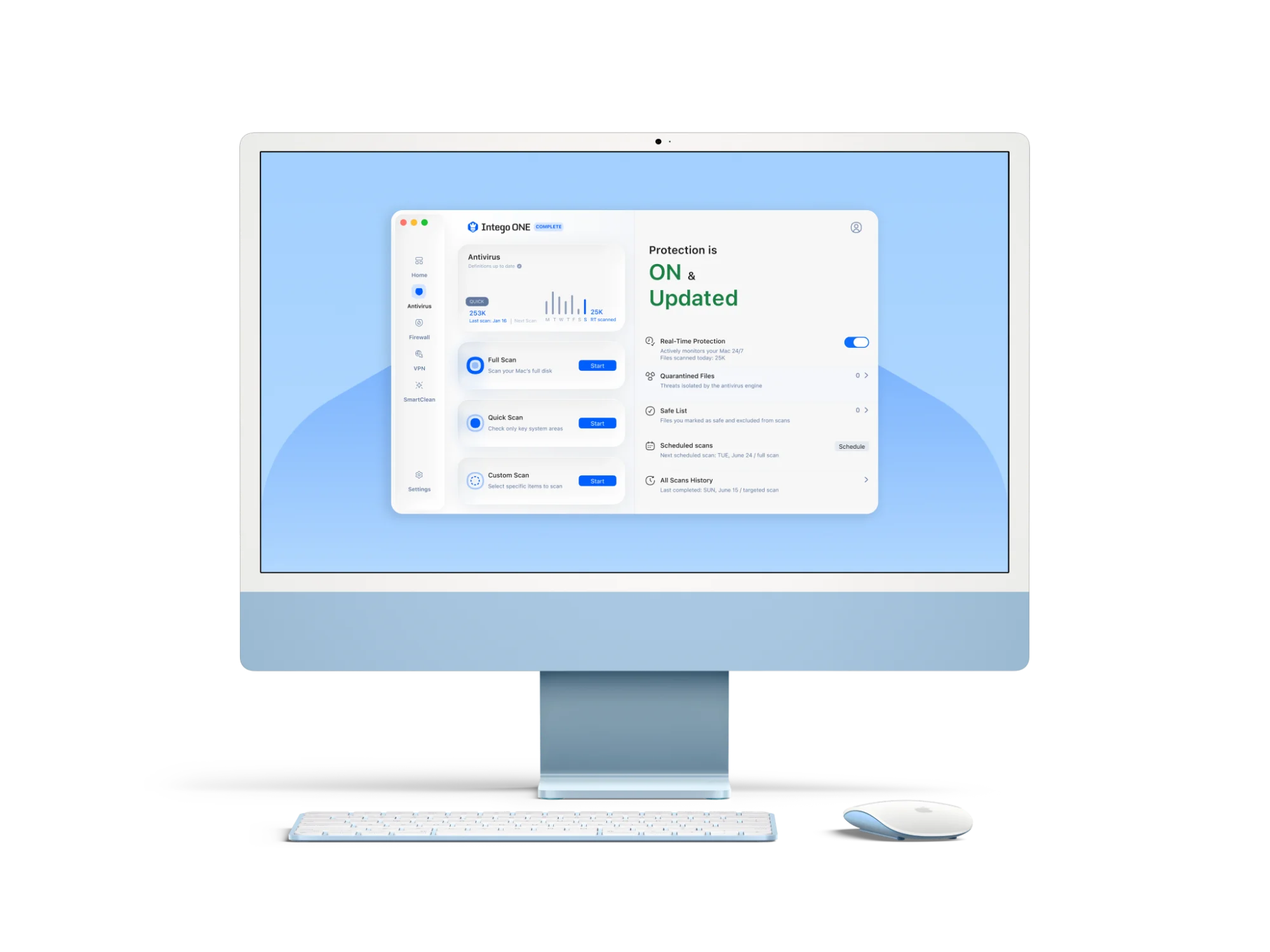
Intego strengthens your Mac’s protection beyond Gatekeeper’s launch-time checks by scanning files, monitoring for malware, and helping detect threats that may already be on your Mac.
So, Gatekeeper acts as a first line of defense by checking apps at the point of launch, while Intego adds ongoing scanning and helps identify threats that Gatekeeper isn’t designed to detect.
This can be especially useful if you download files frequently or want more detailed insight into potential threats.
You don’t need to choose between them, and they won’t get in each other’s way. They simply look after different parts of your Mac, working together to keep things quiet and secure.
Best practices for using Gatekeeper safely
To get the most out of Gatekeeper and maintain a secure system, here are some best practices to follow:
- Keep Gatekeeper active: It’s best to keep Gatekeeper enabled so your Mac can automatically verify any new software before you open it for the first time.
- Maintain system updates: Keep macOS updated regularly and background security updates turned on. This way, Gatekeeper always has the latest information on which software is trustworthy and which has been flagged as a risk.
- Download apps from trusted sources: While Gatekeeper checks apps from many different creators, getting your software straight from the Mac App Store or the developer’s official website is one of the best ways to avoid modified or fraudulent downloads.
- Take Gatekeeper warnings seriously: If macOS blocks an app, take a moment to check the developer, download source, and app reputation before deciding whether to proceed.
- Add another layer of protection: Gatekeeper helps verify apps before they open, but dedicated Mac antivirus software can scan files, monitor for malware, and provide additional visibility into potential threats.
FAQ
What does Gatekeeper do on macOS?
Gatekeeper is a built-in macOS security feature that helps control which apps can open on your Mac. It checks downloaded apps before they launch to help verify that they come from recognized developers and pass Apple’s security checks.
How can I check if Gatekeeper is enabled on my Mac?
Gatekeeper is enabled by default on most Macs. If you want to see how it’s configured, go to System Settings > Privacy & Security, then review the Allow applications from setting in the Security section.
What app sources does Gatekeeper allow by default?
By default, Gatekeeper allows apps from the App Store and from identified developers. This helps balance convenience with security for most Mac users.
Does Gatekeeper block malware or just unknown apps?
Gatekeeper helps prevent untrusted apps from opening, and it also performs checks for known malware and revoked developer certificates.
How does Gatekeeper differ from antivirus software?
Gatekeeper is a built-in macOS feature that checks downloaded apps before they open, while antivirus software scans your Mac more broadly for malware and any other suspicious activity.
What happens if Gatekeeper blocks an app I trust?
When you’re confident you trust an app despite the warning, you can tell macOS to let it through. Open your System Settings > Privacy & Security, scroll down to the Security section, and click the Open Anyway button next to the blocked app notification if it’s there.
Does Gatekeeper work offline?
While offline, Gatekeeper may still be able to read the security information already saved inside the app itself. However, it needs a live connection to check Apple’s servers for the latest updates on known malware and recently revoked developer certificates.