Firewall inbound vs outbound: What’s the difference?
Posted on
by
Doris Muthuri

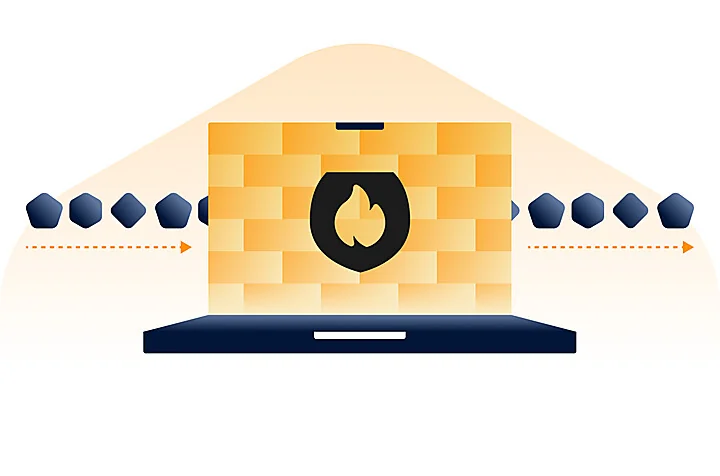
The difference between inbound and outbound firewall protection is where a connection starts. Inbound protection controls connections that other devices try to make to your Mac. Outbound protection controls connections that apps on your Mac try to make to the internet or other devices.
Both directions matter, but they serve different purposes. You might want to stop another computer from connecting to a sharing service on your Mac, or prevent a particular app from connecting online. One firewall can provide both types of control.
Here’s how inbound and outbound protection compare, what their rules look like in everyday use, and what the built-in macOS firewall can and can’t do.
Inbound vs outbound firewall protection at a glance
This comparison shows what each type of protection lets you control. The rules you choose determine which connections are allowed or blocked.
| Inbound protection | Outbound protection | |
| Who starts the connection? | Another device trying to connect to your Mac | An app or background program on your Mac |
| What do the rules control? | Connections to apps and services on your Mac | Connections from your Mac to other devices or online services |
| Everyday example | Blocking another computer from connecting to your shared folders | Blocking a photo-editing app from connecting to the internet |
What does inbound firewall protection control?
A firewall rule tells the firewall which connections to allow or block. You might allow incoming connections to Screen Sharing when you need remote help, while blocking connections to File Sharing if you don’t use it. The exact options available depend on your firewall.
Allowing a connection doesn’t automatically give someone permission to open your files or control your Mac. The service’s own passwords and permissions still apply. The firewall adds a separate check on whether the connection can reach that service in the first place.
Inbound firewall rule example: Blocking an unwanted connection to your Mac
If you’re connected to café Wi-Fi, another computer on the network might try to access File Sharing on your Mac. This could happen even if you aren’t sharing files with anyone.
An inbound rule that blocks connections to that service can stop the request from reaching it. This helps limit unwanted contact from other devices on the shared network.
However, simply turning on a firewall doesn’t mean every sharing connection is blocked. Apple explains that some apps and sharing services may still receive connections through the firewall.
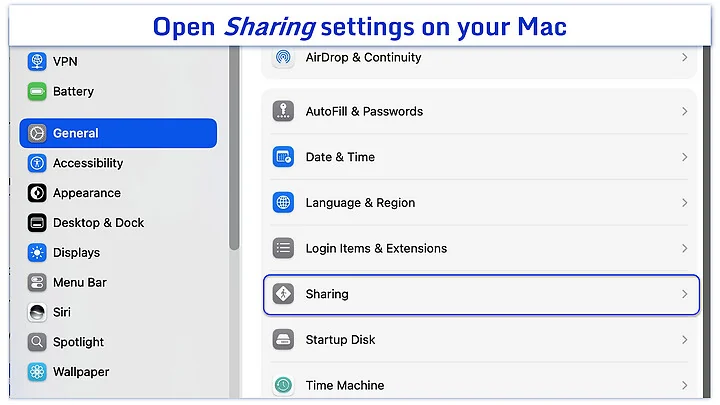
If you don’t need File Sharing, turn it off under System Settings > General > Sharing. Reviewing these settings is a useful part of keeping your Mac safe on public networks.
What does outbound firewall protection control?
Depending on the firewall, you can set rules for individual apps and receive an alert when an app tries to make a new connection. You can then decide whether to allow it. This is useful when you want an app to keep working locally on your Mac without letting it communicate online.
An outgoing rule controls the connection, not what the app can do with files already on your Mac. Blocking an app’s internet connection doesn’t uninstall it or remove any information it has stored.
Outbound firewall rule example: Blocking an app’s internet connection
Suppose you use a photo-editing app to work on pictures stored on your Mac. You only need its offline editing tools, so you create an outbound rule that blocks the app from connecting to the internet.
The app may still let you edit photos stored on your Mac, but features such as cloud storage, downloads, and update checks may stop working. Some apps also need to connect online to check that your subscription is still active. Check which features need the internet before leaving the blocking rule in place.
Outbound rules can also help when an app makes a connection you don’t want. In an August 2026 investigation of MacSync Stealer, Microsoft researchers found that the malware collected information from Macs and uploaded it to servers controlled by attackers. An outbound firewall rule could help stop this information from being sent if it blocks the connection. However, it wouldn’t remove the malware from your Mac.
What the built-in macOS firewall does
Your Mac includes a firewall that controls incoming connections to apps and services. You can choose which apps may receive connections from other devices. However, it doesn’t let you set rules to block apps from making outgoing connections to the internet.
To turn it on and review its settings:
- Open System Settings > Network > Firewall.
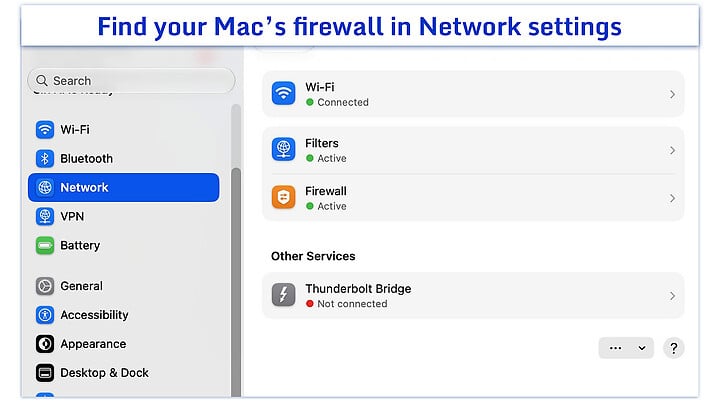
- Turn on Firewall.
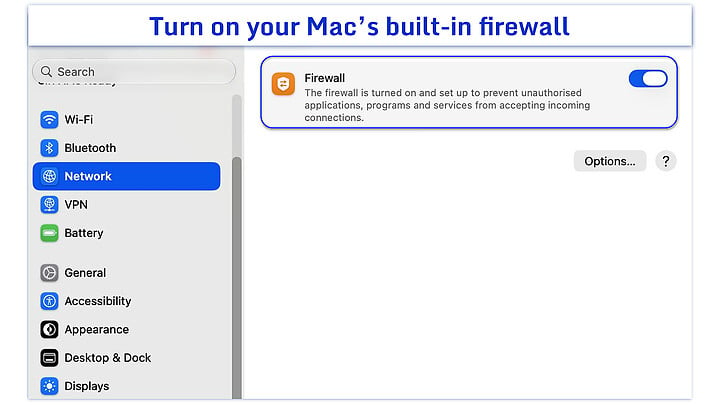
- Click Options to review the settings and add apps or services you want to allow or block.
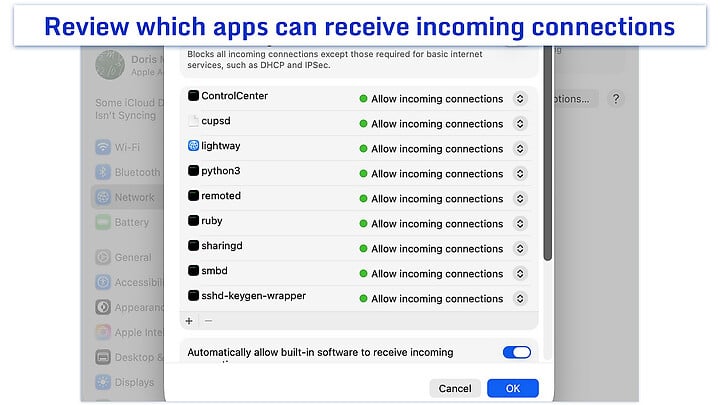
The firewall has options to automatically allow built-in software and downloaded signed software to receive incoming connections. Signed software has a digital signature that helps identify who provided it. That doesn’t mean it needs to receive connections on your Mac. Review these options so you know which software the firewall may allow automatically.
For stricter control, turn on Block all incoming connections. Despite its name, this setting still allows connections needed for basic internet services. It blocks incoming connections to other apps and sharing services, so features such as file sharing and screen sharing may stop working.
Stealth mode stops your Mac from answering certain requests that other devices use to check whether it’s on the network. Your Mac still responds to allowed connections, so this setting doesn’t make it invisible.
When the firewall is on but Block all incoming connections is turned off, some sharing services may still receive connections. If you don’t use a service, turn it off under System Settings > General > Sharing. This stops the service from accepting connections instead of relying on the firewall to block them.
Apple’s firewall settings guide explains these options. For a fuller walkthrough, see our guide to the macOS firewall.
Do you need both inbound and outbound protection?
If you want to control both connections to your Mac and connections made by its apps, choose a firewall that covers both directions. The built-in macOS firewall is a useful starting point for incoming protection. Consider adding outgoing controls if you want to keep certain apps offline or decide which new app connections to allow. Our guide to why you need an outbound firewall explains when this extra control can help.
With outgoing protection, you may need to review alerts when apps try to connect and change a rule if it stops a feature you need. Choose a firewall that clearly shows which app wants to connect and makes it easy to change your decision later. You don’t need to block every connection to benefit from this extra control.
How Intego Firewall helps you control both directions
Intego Firewall brings incoming and outgoing connection controls together. Unlike the built-in macOS firewall, it also lets you control which apps connect to the internet. You can receive alerts when apps try to make new connections and create rules to allow or block them.
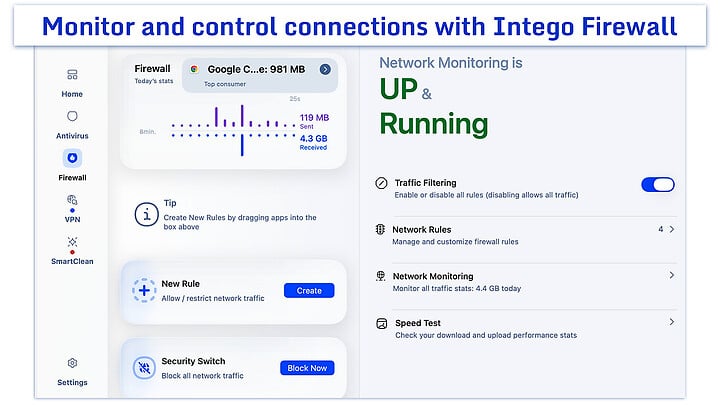
If you know Intego’s firewall protection by its older name, NetBarrier, Intego Firewall in Intego ONE now covers incoming and outgoing connection control.
You can also see how much data individual apps use. If you notice unexpected network activity, this can help you find the app responsible and decide whether it needs to connect. When you need to pause all network communication, the Security Switch lets you block all traffic at once.
Firewall and antivirus protection are available together in Intego ONE for Mac, so you can manage your Mac’s connections and check for malware within the same app.
Take control of your Mac’s connections
You don’t need to block everything to make good use of a firewall. The aim is to allow the connections you need and restrict those you don’t. Incoming and outgoing controls give you more ways to make those choices.
Start by reviewing your Mac’s firewall settings and turning off sharing services you don’t use. If you also want to manage app connections, consider a firewall that covers both directions, such as Intego Firewall. Review unfamiliar requests before allowing them, and adjust rules if they interrupt features you need. Keep macOS and your apps updated, and use antivirus protection too, because blocking a connection doesn’t remove malware.
Methodology
We reviewed how inbound and outbound firewall rules control connections to and from your Mac, including file-sharing requests and app internet access. We checked the steps for enabling the built-in macOS firewall, managing incoming connections, and reviewing its security settings. We also checked Intego Firewall’s app rules, connection alerts, network monitoring, and Security Switch against Intego’s product documentation.
Frequently asked questions
Does blocking incoming connections stop websites from loading?
No, not normally. When you open a website, your browser asks it to send the page to your Mac. The firewall generally allows that reply through, even when it blocks other devices from starting a connection to your Mac. However, if you block your browser’s outgoing connections, it won’t be able to request pages, so websites may stop loading.
What should I do if a firewall rule stops an app from working?
Review the firewall’s rules for the affected app. If you accidentally blocked a connection the app needs, change that rule to allow it, then reopen the app and check whether it works. Only allow connections for apps you recognize and trust. If you’re unsure, check the app developer’s support guidance rather than turning off the entire firewall.
Should I block every outgoing connection?
No. Apps need outgoing connections to load websites, send emails, download updates, and sync files. Blocking every outgoing connection would stop these online features from working. Instead, allow connections that trusted apps need and review unfamiliar connection requests before deciding whether to allow them.
Is an unfamiliar outgoing connection always a sign of malware?
No. Legitimate apps may connect to unfamiliar servers to check for updates, sync files, or provide other features. Check which app is making the connection and whether it has a clear reason to connect. If you’re unsure, consult the app developer’s support information. An unfamiliar connection alone doesn’t prove that your Mac has malware.
Does a firewall protect connections between devices on the same Wi-Fi network?
Yes. A firewall on your Mac can control connections from other devices on the same Wi-Fi network, not just from the internet. It can block unwanted connection attempts, depending on its rules and settings. However, it doesn’t protect every device on that network or encrypt the information exchanged between them.


