A drive-by download is an unwanted download that can start when you visit an unsafe or compromised website, click a deceptive link, or interact with malicious online content. Sometimes it happens quietly in the background. In other cases, the page tricks you into clicking a fake update, warning, or download button.
Drive-by downloads often involve compromised websites, malicious ads, outdated browsers, fake software updates, or unsafe installers. For Mac users, the risk usually comes from software that hasn’t been updated, deceptive pop-ups, or malware disguised as a useful app. Keeping macOS and your browser updated, avoiding suspicious prompts, and using trusted antivirus protection can help lower the risk.
Silent downloads
Some drive-by downloads try to start in the background when a page loads. These usually depend on outdated browsers, plugins, or system software.
Fake update prompts
Fake alerts may claim your browser, macOS, or another app needs an urgent update to trick you into downloading malware.
Malicious redirects
A compromised website or malicious ad may send you to another page that hosts the harmful file, fake warning, or exploit code. When the route starts with a bad ad, it may also involve malvertising.
Exploit-based attacks
Attackers can abuse software vulnerabilities to run malicious code or deliver malware without a legitimate download.
Bundled installers
Some downloads appear legitimate but include unwanted apps, browser changes, adware, or malware alongside the intended file.
A drive-by download usually starts when you visit a compromised page, a deceptive website, or a page reached through a malicious ad or redirect.
01
A page is unsafe
The page may be malicious, compromised, or connected to a harmful ad. It may look normal, especially if it appears on a familiar website.
02
Your browser loads it
When the page opens, scripts, ads, redirects, or hidden content may load in the background. Some attacks check your browser or system version.
03
The attack looks for a gap
If your browser, plugin, or software is outdated, the page may try to use a known weakness. If that fails, it may rely on fake prompts or warnings.
04
A file or code is delivered
The page may trigger a download, run code, open a fake update, or push you toward an installer that appears legitimate.
05
Your Mac may be affected
If the file runs or the exploit works, malware, adware, browser changes, or other unwanted activity may be introduced to your Mac.
What are real-world examples of drive-by downloads?
Drive-by downloads have changed over time. Older attacks often relied on browser and plugin exploits. Newer attacks may combine compromised websites, redirects, fake updates, malicious ads, and social engineering. That’s why drive-by downloads can sometimes overlap with malvertising, even though they aren’t the same thing.
Flashback on Mac, 2012
Flashback remains one of the most notable Mac malware examples linked to drive-by downloads. Intego reported that Flashback spread to as many as 600,000 machines, with newer variants using Java exploits and drive-by downloads. The case is a useful reminder that Macs can be affected when browser-based attacks meet outdated or vulnerable software.
Interlock ransomware, 2025
In 2025, CISA reported that Interlock ransomware actors used drive-by downloads from compromised legitimate websites as an initial access method. The case shows how trusted websites can sometimes be abused to deliver malware without obvious warning signs.
DriveSurge Campaign (2026)
In 2026, researchers uncovered the DriveSurge campaign, which used compromised websites to redirect visitors to fake update pages and deceptive prompts. These pages encouraged users to download and run malware disguised as legitimate software. The campaign showed how attackers can abuse trusted websites to spread malware through drive-by download tactics.
What are the risks and impacts of drive-by downloads?
The impact depends on what the page delivers and whether the file, script, or prompt succeeds. Some incidents cause minor disruption, while others can lead to malware infections or data exposure.
Malware infection
A drive-by download may deliver malware, especially if outdated software is exploited or a fake installer is opened.
Browser changes
Some downloads lead to unwanted extensions, notification spam, search redirects, homepage changes, or pop-ups that make browsing harder to trust.
Data exposure
Certain malware can collect browser data, files, passwords, cookies, or system details. The risk increases if the download is opened or allowed to run.
System slowdowns
Unwanted apps, adware, or background processes may use CPU, memory, or network bandwidth, making your Mac feel slower or less stable.
Who is most at risk from drive-by downloads?
Drive-by downloads can affect many users, but the risk is often higher when software is outdated, downloads are rushed, or browser security warnings are ignored.
Mac users
Mac users can be targeted through fake software pages, unsafe installers, browser-based threats, and malicious websites that take advantage of common security misconceptions.
People who often install apps, media tools, browser extensions, or utilities are more likely to run into fake download buttons and unsafe installers.
Users without security protections
Devices that lack malware protection or browser security features may be more vulnerable to infection.
How can you prevent drive-by downloads?
You can reduce the risk by keeping your Mac updated, avoiding suspicious prompts, and checking downloads before you open them.
Keep your Mac updated
Install macOS, Safari, and browser updates promptly. Updates close many of the weaknesses that drive-by download attacks try to use.
Avoid fake updates
Don’t install updates from random pop-ups or website warnings. Use System Settings, the App Store, or the official developer website.
Check downloads first
Before opening a downloaded file, check where it came from, whether the website is official, and whether the file name matches what you intended to download.
Clean up extensions
Remove browser extensions you don’t use or recognize. Unnecessary extensions can increase browser risk and make unusual behavior harder to spot.
Scan suspicious files
If a download starts unexpectedly or something feels off, scan the file with trusted Mac antivirus protection before opening it.
How Intego helps reduce drive-by download risk on Mac
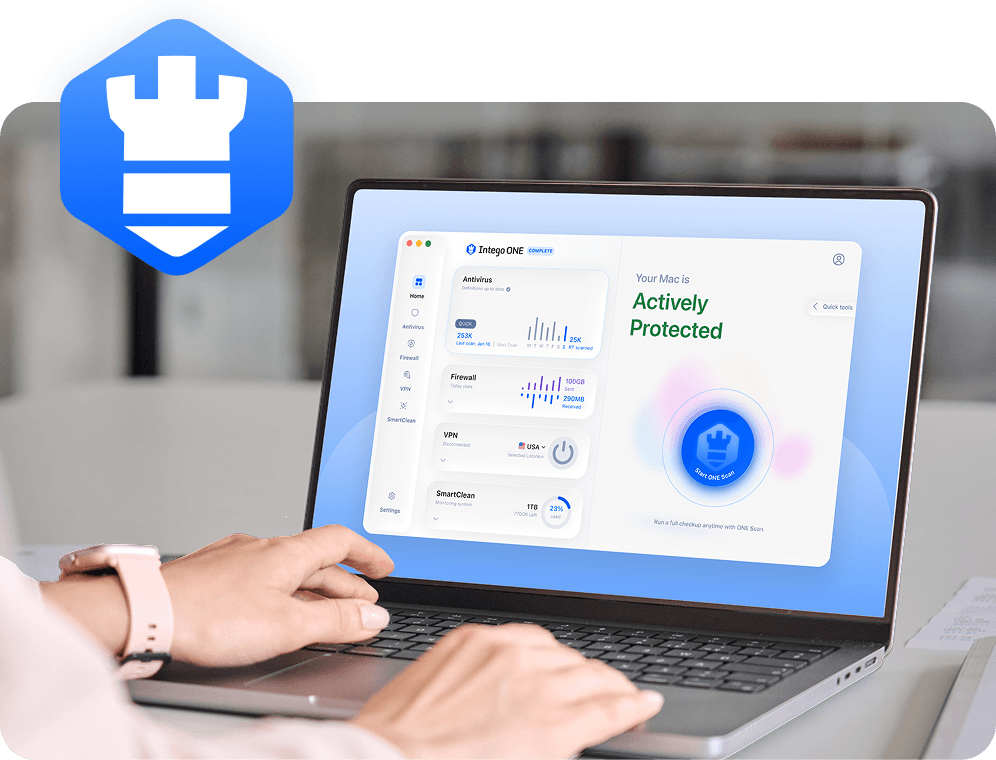
Drive-by downloads can lead to malware, unwanted browser changes, and suspicious app activity. Intego ONE for Mac combines several tools that can help you identify threats, monitor unusual behavior, and maintain better visibility into what is happening on your Mac.
Malware detection
Intego’s antivirus protection helps detect known Mac malware, unsafe files, and suspicious downloads before they can cause further problems on your Mac.
Connection control
Avoid signing in on unsafe networks or suspicious pages. Intego’s firewall helps you control which apps can connect to the internet, making unexpected outbound activity easier to notice and block.
Running app visibility
SmartClean helps you monitor CPU, memory, and storage usage, making it easier to spot unusual resource consumption after installing new software.
Broader Mac protection
Intego ONE brings antivirus, firewall, SmartClean, and VPN tools together in one Mac-focused app, so you manage security, privacy, and performance from one place.
A drive-by download is an unwanted download that can start when you visit an unsafe, compromised, or malicious website. Sometimes it happens without clear user action, especially if outdated software is exploited. In other cases, the page pushes you to click a fake update, misleading button, or unsafe installer. Either way, the risk comes from web content delivering something you didn’t intend to install.
A drive-by download usually begins when your browser loads a compromised page, malicious ad, or unsafe site. The page may check your browser or software for weaknesses, redirect you to another harmful page, or show a fake prompt that pushes a download. If the exploit or trick works, malware, adware, unwanted browser changes, or other harmful activity may follow.
Yes, but they have changed. Older drive-by downloads often relied on browser plugins and unpatched software vulnerabilities. Modern attacks may still use exploits, but they also rely on malicious ads, compromised sites, redirects, fake updates, and convincing download pages. Keeping macOS and browsers updated makes silent exploit-based attacks less likely, but unsafe web downloads and fake prompts remain a practical risk.
Not always. Some drive-by downloads try to run when a page loads, usually by exploiting outdated software. Others need user action, such as clicking a fake download button, approving a prompt, or opening an installer. Because the term is used for both silent and user-assisted web downloads, the practical concern is unsafe web content delivering files or code you didn’t expect.
Antivirus software can help detect malicious files, known Mac malware, unsafe installers, and suspicious downloads that come from drive-by attacks. It may not block every unsafe page before it loads, so it works best alongside updated browsers, careful downloading habits, and attention to fake prompts. If a download starts unexpectedly, scanning the file before opening it can help reduce the risk.
Malvertising uses malicious ads to send people to scams, unsafe pages, or malware. A drive-by download is the unwanted download or web-based delivery that may happen after visiting a compromised page, clicking a malicious ad, or being redirected. In simple terms, malvertising can be one route into a drive-by download, but drive-by downloads can also come from compromised websites or fake update pages.
Intego
Trusted. Proven. Powerful.
Driven by innovation for over 25 years, Intego has provided advanced cybersecurity solutions built to protect what matters most — your data, your privacy, and your devices.
With award-winning antivirus, firewall, VPN, and system optimization tools, Intego combines powerful defense with the simplicity and reliability Mac and PC users expect.