
macOS tucks away system files, configuration data, caches, and app support folders so you don’t accidentally delete something your Mac depends on. Over time, though, these files can accumulate and take up more space than they need to.
The good news is that you can view hidden files, understand which types are usually safe to remove, and clean things up more carefully. The key word is “safely” — not every hidden file is clutter, and knowing the difference matters.
In this guide, you’ll learn how to find and delete hidden files on your Mac, which ones are best left untouched, and how to handle any files that seem out of place.
Hidden files are files and folders that macOS deliberately keeps out of sight in Finder. Not all are harmful or unnecessary. Some exist to help your Mac and apps function correctly, so hiding reduces the chance of you moving, modifying, or deleting them by mistake.
Usually, these files hold things like temporary data, app settings, and system logs: the small pieces of information your software and macOS keep track of behind the scenes.
Even so, some of these files eventually outlive their usefulness. When you delete an app, it can leave behind old settings or temporary data that sits there, slowly taking up space you could use for other things.
What matters is knowing the difference between the files your Mac still relies on and the ones that are safe to let go.
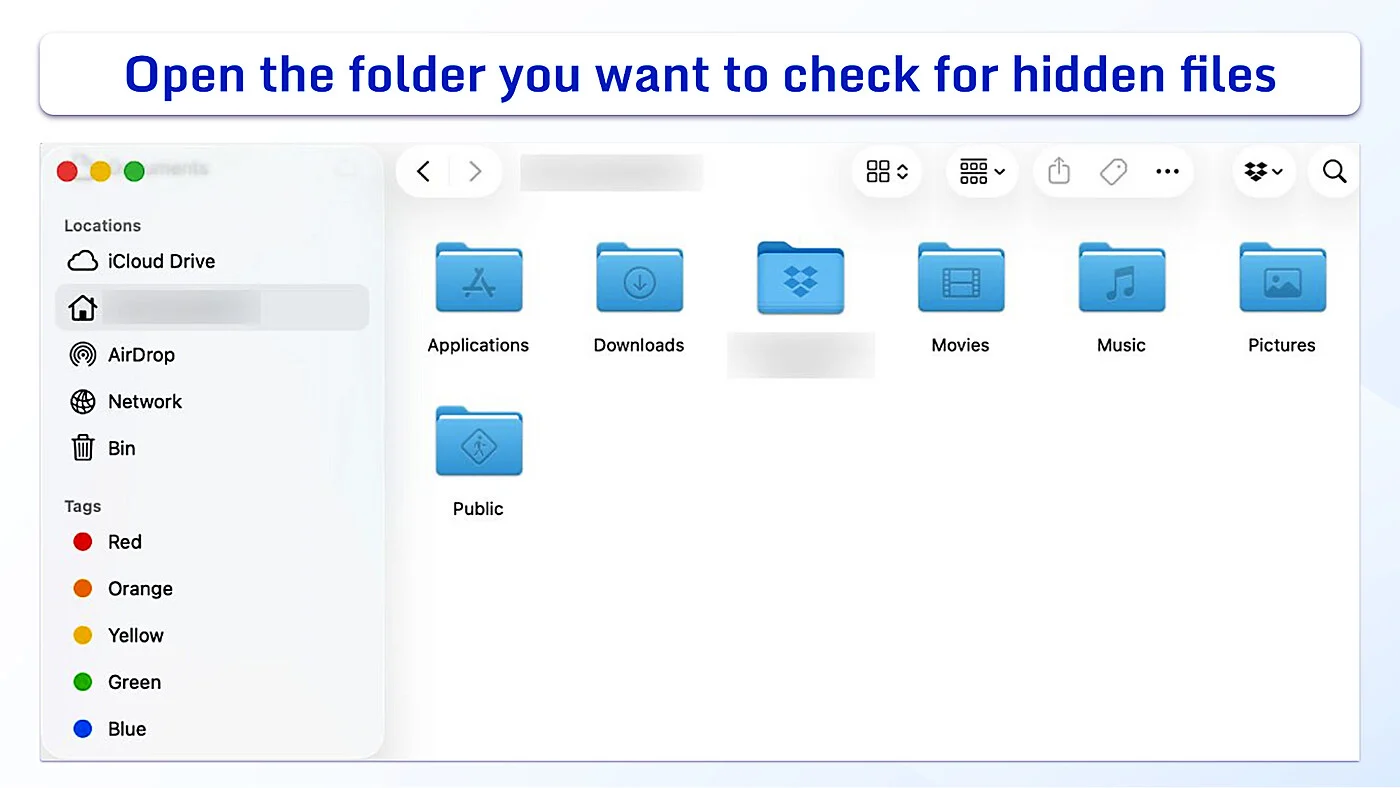
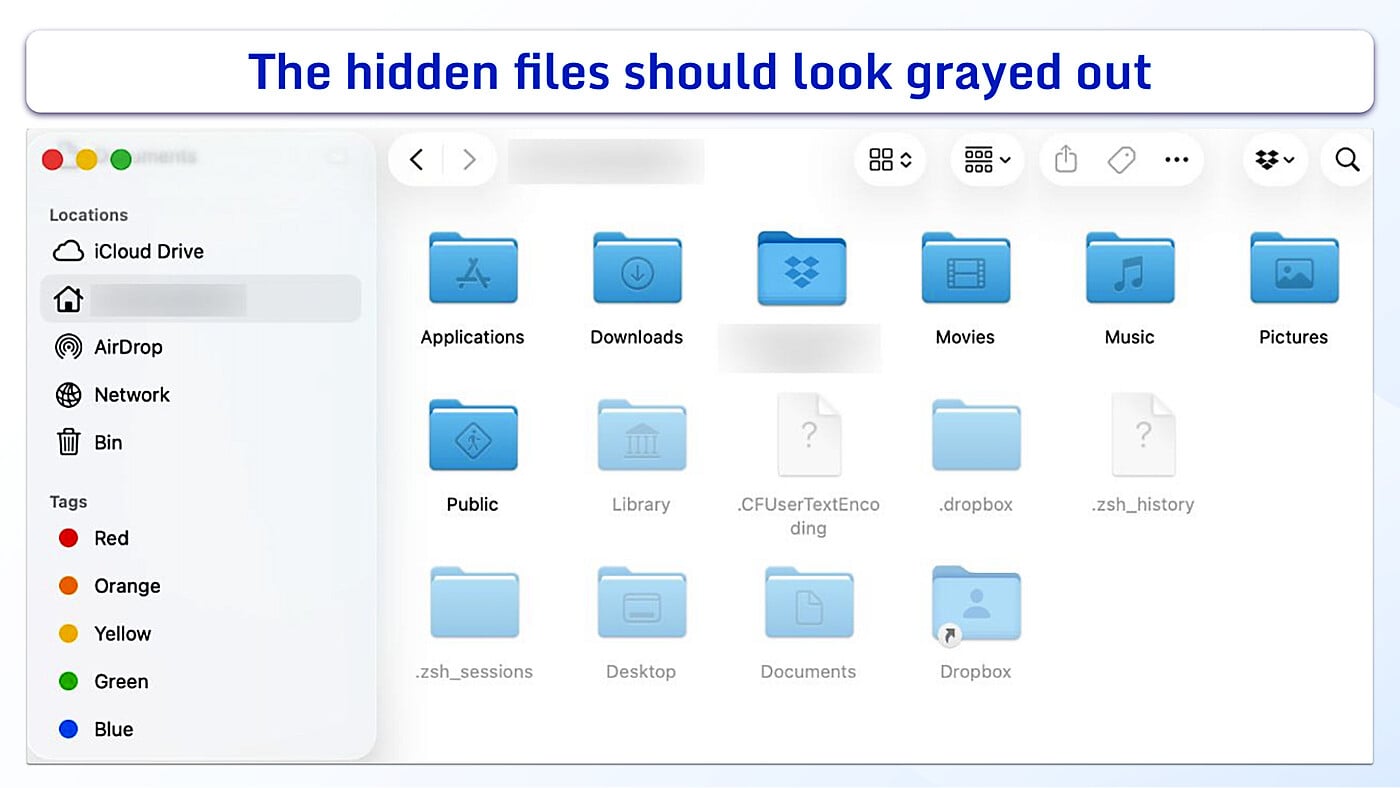
You can unhide hidden files on Mac using this quick keyboard shortcut while you’re in Finder:
The Library folder stores app settings, preferences, caches, and support files your Mac uses in the background.
macOS keeps it out of sight because it contains items your apps may rely on to run correctly. You can get to the folder using either of these quick methods.
Before deleting anything, make sure you know exactly what the file or folder does. If you delete something you don’t recognize, an app might lose your preferences or stop running the way it’s supposed to.
Not all hidden files are worth keeping, and some do accumulate over time in ways that reduce your available storage. The types of files listed below are usually fine to remove, though it’s still best to double-check before you delete anything permanently.
When you delete an app, it often leaves its settings, saved preferences, and temporary files behind on your Mac. If you know you won’t use that software again, you don’t need to keep these old pieces.
These are temporary files that your system and apps create so they can perform well. They can build up over time, though, and take up more room than they should.
It’s safest to only remove caches belonging to a specific app you recognize, rather than emptying entire system folders. Make sure to close the app completely before you clear anything, or it might not run correctly afterward. Restart your Mac afterward so the system can recreate whatever cache it actually needs.
When you open an attachment in Mail, it saves a copy on your Mac, and these copies build up over time. Once you’ve saved anything you still want somewhere safe, you don’t need to keep them. Depending on your Mail settings, you may also be able to limit or remove downloaded attachments without tracking them down by hand.
If you used your Mac to back up an old iPhone or iPad, those backup files may still be taking up space on your drive. Because phone backups are so large, deleting them is one of the quickest ways to recover a lot of space.
For every hidden file that is safe to clear out, there are several more that your Mac or your apps actively depend on. Here’s what’s best left alone.
Anything that belongs to macOS rather than a specific user app should be treated as off-limits. Your system relies on these files behind the scenes to handle startup, maintain security, connect to networks, and keep your Mac running. At the top level of your Mac’s drive, one clear folder to leave alone is private, which holds system directories like etc, tmp, and var.
The hidden Library folder contains many important directories, including Application Support, Containers, Preferences, and Group Containers. While some files in these locations may belong to apps you’ve removed, many are still required by the software you use every day.
Don’t delete a file just because the name looks unfamiliar. Software developers often use technical titles for these folders that look nothing like the actual name of the app.
Cache files, support files, and preferences tied to apps you actively use are not clutter. They’re pieces of information your apps need to run properly. Removing them can reset your settings, erase your preferences, or cause the app to stop working correctly.
If you’re trying to free up storage, uninstalling an app properly is usually a safer option than manually deleting its hidden files.
You might come across guides that recommend using Terminal to locate and remove hidden files. While Terminal is a powerful tool, it’s also much less forgiving than Finder.
A single incorrect command can permanently delete files without sending them to the Trash. If you aren’t sure what a command will do, use Finder instead.
When you find files you are certain you don’t need, you can remove them in a few careful steps. It’s best to take this in stages so you can undo your changes if you need to:
On their own, hidden files are usually nothing to worry about. However, they deserve a closer look if they appear at the same time your Mac starts acting unusual. For example, take a closer look if:
A single issue on this list might be a glitch. But if you are noticing a few of these things happening together, especially after downloading something new, don’t ignore it.
If your Mac started behaving strangely after a suspicious download or unwanted app installation, consider carrying out a malware scan. A scan checks for malicious software that might be changing your hidden files.
You don’t need to delete hidden files regularly to keep your Mac running smoothly. A few adjustments to how you manage your Mac can keep things organized from the start:
Open Finder and press Command + Shift + Period (.). Hidden files and folders will appear right away, usually faded or grayed out compared to regular files. Press the same shortcut again to hide them.
Some hidden files are safe to delete — particularly leftover files from apps you’ve already uninstalled and some cached data. That said, it’s best to leave core system files, data from apps you currently use, and anything unfamiliar exactly where they are.
Terminal can remove hidden files with fewer safeguards than Finder, but it’s rarely necessary or wise for everyday tidying. When you delete something here, it skips the Trash completely, so you can’t undo a mistake. Sticking to Finder is almost always the safer way to clean things up.
Many hidden files are recreated by macOS or your apps as they go about their everyday work. For instance, your Mac will often rebuild its cache files right after a restart. If hidden files keep returning alongside other unusual behavior, such as browser redirects or unwanted pop-ups, it might be worth scanning your Mac for malware.
Generally, they aren’t. Most hidden files exist to help macOS or your apps run the way they should. That said, some malware can use hidden files to stay out of sight. If hidden files appear alongside pop-ups, redirects, unknown apps, or other unusual behavior, scan your Mac for malware.


