Safari’s cache makes your browsing faster by saving temporary files from the websites you visit. Most of the time, that’s helpful. However, if those files become outdated or damaged, they can cause websites to display incorrectly, prevent changes from appearing, or make Safari feel slower than it should.
This guide explains how to clear the Safari cache on your Mac in a few steps. It also compares clearing the cache with clearing cookies, browsing history, or resetting Safari so you know which option to choose.
Choose the option that matches what you need:
If you want to clear only Safari’s cache, you can do that without deleting your cookies or other website data. This means you’ll usually stay signed in to your websites, and Safari keeps your saved website preferences. To do this, you’ll need to use Safari’s Develop menu, which is hidden by default.
Follow these steps to unhide it and delete the cache:

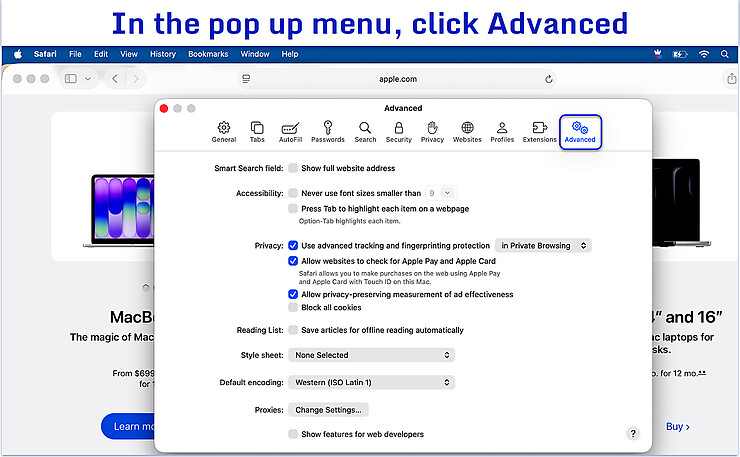
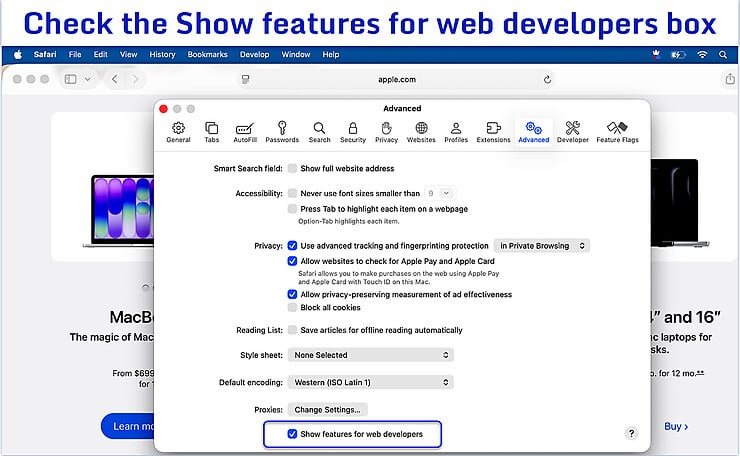

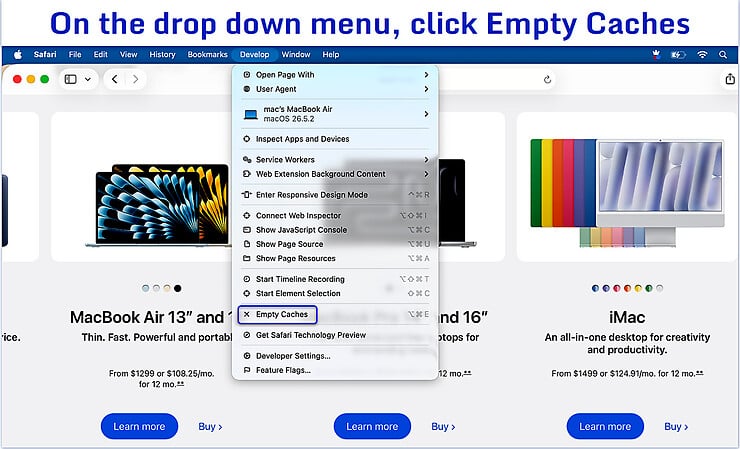
Safari clears the cache right away in the background, so you won’t see a confirmation window. It won’t delete your browsing history, cookies, saved passwords, or other website data, so you’ll usually remain signed in to your accounts.
If the website still doesn’t load correctly, refresh the page. Safari will download fresh copies of the website files instead of using the old ones it had stored on your Mac.
Clearing Safari’s cache removes the temporary website files stored on your Mac. The next time you visit a website, Safari downloads fresh copies of those files. This can fix problems such as websites showing outdated information, pages not loading properly, images that won’t appear, or websites that don’t reflect recent changes.
Browsers save parts of websites in the cache (such as images), so they can load faster the next time you visit. That’s why you don’t need to clear your Safari cache regularly. It’s usually only worth doing if a website has loading or formatting problems or isn’t showing the latest version.
Clearing only Safari’s cache doesn’t remove your browsing history, cookies, or other website data. Your browsing history is a record of the websites you’ve visited. Cookies and website data can keep you signed in to websites, remember your preferences, save the items in your shopping cart, and store other website settings. These are stored separately from the cache.
If clearing the cache doesn’t fix the problem, you may also need to clear cookies and website data, especially if a website keeps remembering incorrect settings or still isn’t working properly. If you only want to remove the record of the websites you’ve visited, clear your browsing history instead.
Follow these steps to clear cache and remove website data from Safari on your Mac. Clearing this data signs you out of some sites, so have your passwords handy. You can clear data for one website that’s giving you trouble or remove it for every website stored in Safari.
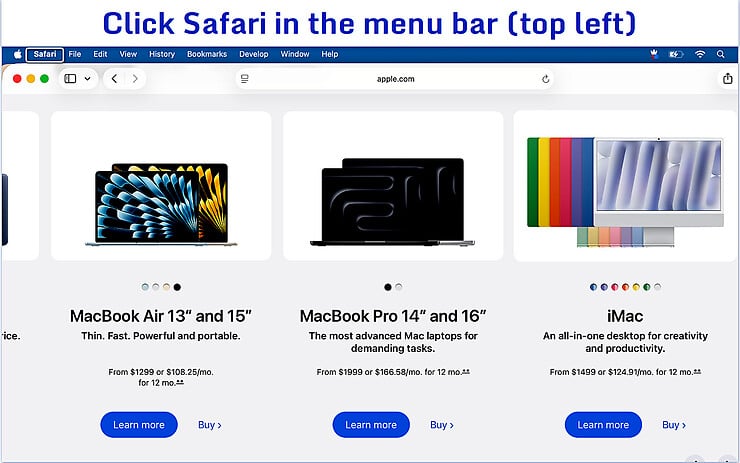
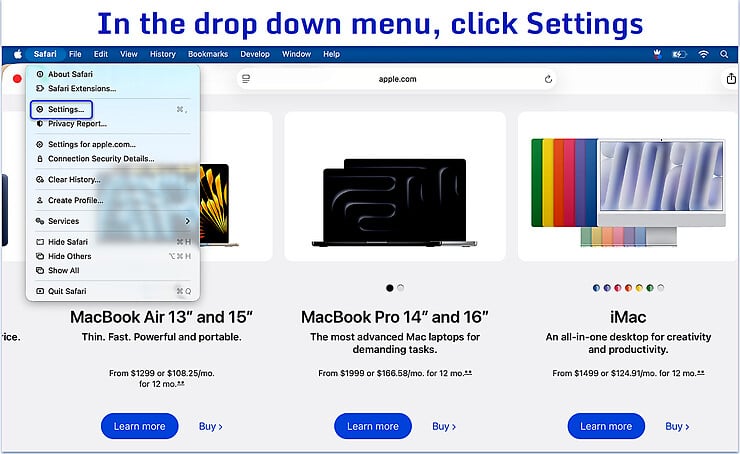
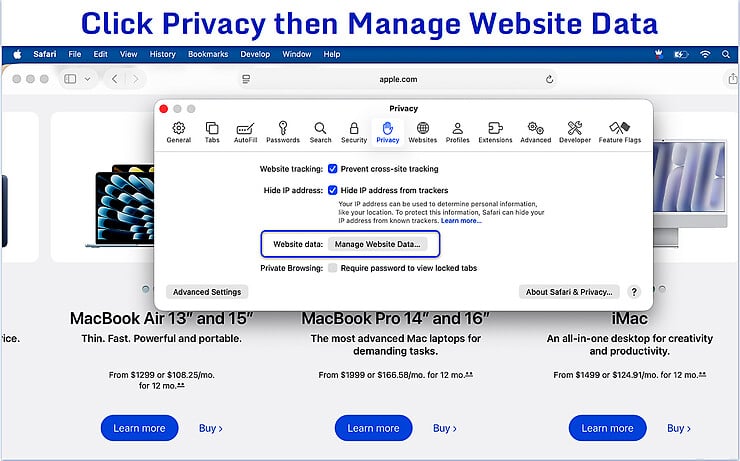
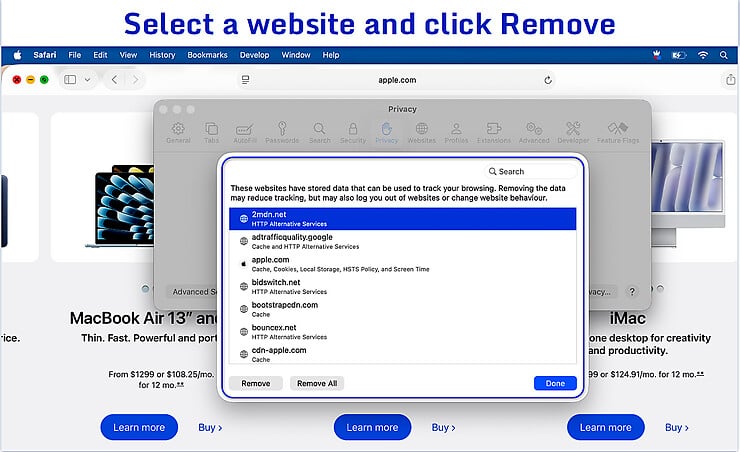
Safari’s Clear History option does more than remove the list of websites you’ve visited. It also removes related cookies and other website data for the time period you choose. That means websites may forget your login session or other saved preferences, so you may need to sign in again. Your bookmarks and saved passwords aren’t deleted.
Follow these steps to clear your Safari history:
If you use iCloud to keep Safari in sync across your Apple devices, clearing your browsing history may also remove it from your other Macs, iPhones, and iPads that are signed in with the same Apple Account and have Safari syncing turned on.
If you’re trying to fix websites that won’t load properly or keep showing old information, clearing your cache is usually the better choice.
Most people won’t need to reset Safari. Clearing the cache or website data is often enough to fix common problems. If Safari still isn’t working properly after you’ve tried those steps, resetting Safari is the next thing to consider.
You may want to reset Safari if you notice things like:
Current versions of Safari don’t have a single Reset Safari button like older versions did. Instead, resetting Safari means checking a few parts of the browser and changing them back to their default settings if something isn’t right. This usually includes:
If Safari is still giving you trouble after you’ve done all of that, the problem may not be Safari itself. The cause could be outdated software, a faulty extension, unwanted software, or malware on your Mac.
If Safari started acting differently after you installed an extension or downloaded something from the internet, it’s worth checking your extensions first. Some extensions can change how Safari works, while unwanted software on your Mac can also affect your browser. If Safari suddenly starts behaving differently, reviewing your extensions is a good place to start.
Look for signs like these:
If you notice any of these problems, open Safari > Settings (or Preferences) > Extensions and look through the extensions you’ve installed. If you see one you don’t recognize, no longer use, or don’t remember installing, remove it. Then use Safari again to see if the problem has gone away. If it has, you’ve likely found the cause.
If the issue started after downloading a file, installing an app, or clicking what looked like a software update, the problem may be caused by unwanted software on your Mac rather than Safari itself. In that case, running a malware scan is a good next step. Intego Antivirus scans your Mac, identifies suspicious files, and quarantines potential threats, so you can remove unwanted files and restore trusted ones.
Clearing Safari’s cache is often the simplest way to fix websites that won’t load properly, show outdated content, or behave unexpectedly. Since the cache only stores temporary website files, it’s a good first step that usually won’t affect your saved passwords, browsing history, or website preferences.
If that doesn’t solve the problem, move on to clearing website data or resetting Safari only when necessary. Starting with the least disruptive option lets you fix many Safari issues without removing more information than you need.
No. Clearing Safari’s cache only removes the temporary website files stored on your Mac. It doesn’t delete your saved passwords. However, if you also clear cookies or website data, you may be signed out of some websites and need to sign in again, but any passwords you’ve saved in Safari or iCloud Keychain will remain unless you delete them yourself.
No. Clearing the cache removes the temporary website files Safari stores to load pages faster. Clear History removes your browsing history as well as related cookies and website data, so it may sign you out of some websites.
You don’t need to clear Safari’s cache regularly. Only clear it when Safari or a website isn’t working properly, such as when pages won’t load, show outdated information, or behave unexpectedly. If Safari is working normally, there’s usually no reason to clear the cache.
The cache isn’t always the cause of the problem. Safari may still not work if there’s outdated website data, a faulty extension, outdated software, or unwanted software on your Mac. Try clearing website data, checking your extensions, updating macOS and Safari, or running a malware scan with Intego Antivirus to check for malware or other unwanted software.
Yes. You can clear Safari’s cache on an iPhone or iPad, but the steps are different from a Mac. Go to Settings > Apps > Safari (or Settings > Safari on some versions of iOS or iPadOS), then tap Clear History and Website Data. This clears Safari’s history, cookies, and other website data. Unlike on a Mac, iPhone and iPad don’t have a separate option to clear only the Safari cache.


