Most people use their iPhones for the same handful of tasks every day — checking messages, scrolling through feeds, or taking photos. It’s easy to settle into those habits and miss the smaller tools that make everyday tasks quicker or easier.
I’ve spent time looking through the settings to find tools that genuinely simplify things. I’m not talking about tricks you’ll only use once — I mean simple, practical adjustments that help you get through your usual tasks with less effort.
You can tap the back of your phone to take screenshots, translate song lyrics as they play, or edit documents without third-party apps like Adobe. These are the kind of things this guide explains.
When I say “hidden” features, I don’t mean secret hacks or technical glitches. I’m referring to simple, useful tools that sit a few layers deep in the settings or are triggered by specific gestures.
Some of these features have been around for years, but most people never come across them. They’re easy to miss if you’re not looking for them.
You might not find all of these features on your iPhone if your device is a little older. Some of these options need a newer iPhone model or the most recent iOS version.
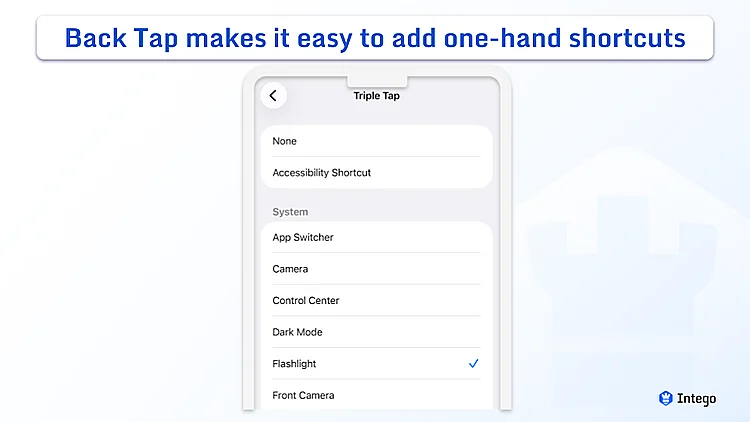
You can use the back of your iPhone as a shortcut for certain actions. A quick tap can take a screenshot, turn on the flashlight, Shazam a song, or even just scroll down a page.
Back Tap is especially useful when you only have one hand free and can’t easily reach the Control Center. You can set one action for two taps and another for three taps, so the functions you use most often are always within reach of your finger.
To set this up, go to Settings > Accessibility > Touch, then scroll to the very bottom and select Back Tap. From there, choose what you want to happen for Double or Triple Tap.
Keep in mind you’ll need an iPhone 8 or newer to use this. If you have a thick protective case, your phone will be less sensitive to your taps.
Typing out your full email address or home directions over and over can be tiring. Text Replacement lets you use shorter cues instead. You can set up a few characters — like “##” or “hmaddr” — so when you type them and hit the spacebar, your phone swaps them for the full phrase or address.
It’s a time-saver for anyone who handles business on their phone or simply wants to avoid misspelling long words. You can also use this to fix a persistent autocorrect mistake, so your phone sticks to the spelling you prefer.
To use Text Replacement, open Settings > General > Keyboard, and tap on Text Replacement. Use the plus (+) icon to add a new one.
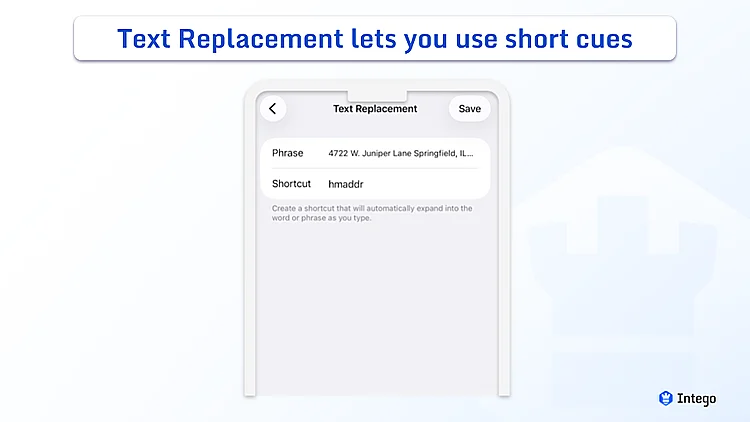
In the Phrase field, enter the full text you want to appear. In the Shortcut field, type the short code you want to use to represent that text. Tap Save, and it’s ready to use.
Getting the cursor exactly between two letters on a small screen can be frustrating. It often takes a few tries to get it right. Rather than tapping repeatedly and hoping it lands in the right spot, you can use the keyboard to move it more precisely.
This is particularly useful for longer emails or notes where you need to move through several paragraphs. After you’ve done this a few times, it feels much more natural than tapping and holding.
To use it, press and hold the Space bar. The letters will fade away, giving you the whole keyboard area to use as a trackpad for the cursor. Keep your finger pressed down and slide it to move the cursor to where you want it.
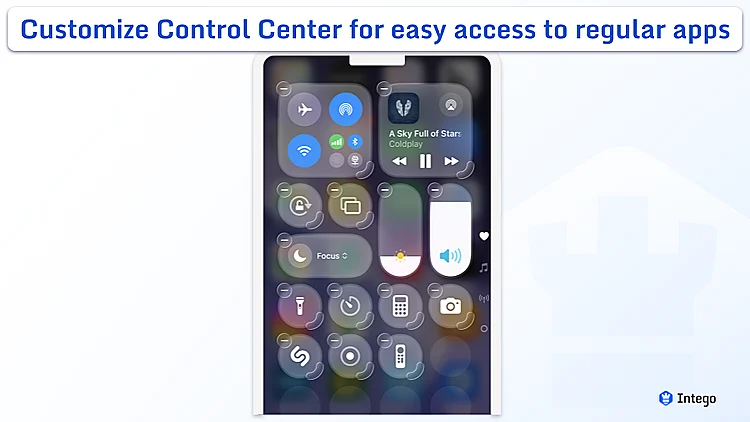
Control Center is much more useful when you set it up for the things you use most often. Adding tools like a screen recorder, a calculator, or a remote for your TV can make your phone feel a little more responsive to your needs.
A lot of these shortcuts give you more control than a simple on/off toggle. For example, if you press and hold the Flashlight icon, a slider appears so you can adjust the brightness.
To customize it, swipe down from the top-right corner of your screen to open the Control Center, then press and hold any empty area. From there, you can remove or add any control.
To explore this feature a bit more, read our guide on 10 ways you can use Control Center.
When you need a specific feature — like opening a private tab in Safari or taking a quick selfie — you don’t have to open the app and tap through several screens. Just press and hold the app icon, and a small menu will appear with a few choices.
These menus are helpful for small, frequent tasks, like starting a new checklist in Notes, or sending your location from the Maps app. You can also use them to check things quickly, like pressing the App Store icon to see if there are any updates waiting.
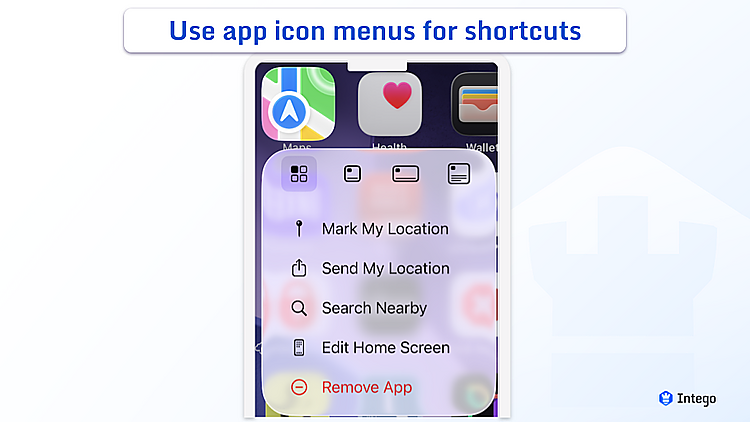
Not every app has these shortcuts, but most of Apple’s built-in apps and tools like Instagram or Spotify do.
It’s easy to miss a call if your phone is on silent or you’re in a noisy place. You can use your iPhone’s flash or screen to alert you when you get a call or notification.
This helps if you don’t always notice sound alerts, or when you need to keep your phone on silent in places like libraries or meetings.
To turn on this setting, go to Settings > Accessibility > Audio & Visual. Scroll to the bottom and tap Flash for Alerts.
Switch the main toggle on. From here, you can choose to use the LED flash on the back, the screen on the front, or both. You can also decide if you want the lights to blink all the time or only when your phone is set to silent.
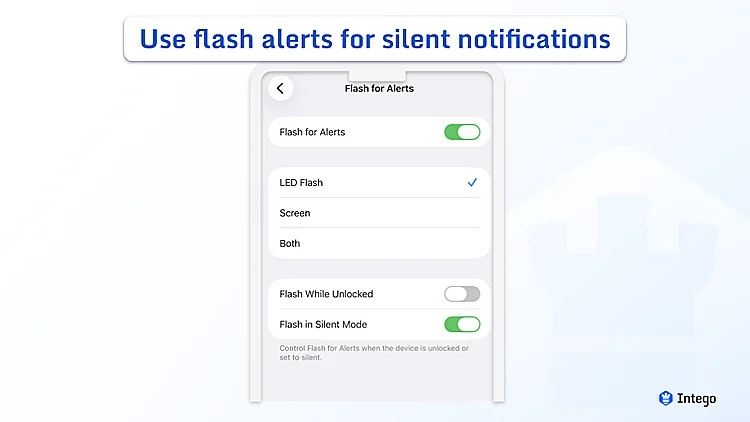
For more ways to manage your notifications, check out how to manage and secure your notifications.
If you have multiple pages of apps but only use a few every day, you don’t need to delete the rest to tidy things up. You can hide entire Home Screen pages to make your phone feel less cluttered. This is useful if you want to set aside work apps for the weekend or move rarely used apps out of the way.
To hide a Home Screen page, long-press on any empty area of your Home Screen until the apps start to jiggle. Tap the row of dots at the bottom of the screen (the page indicator).
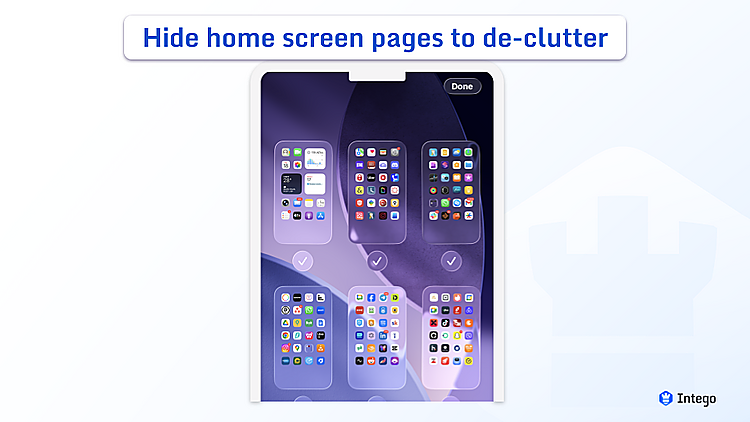
You’ll see a grid of all your Home Screen pages. Uncheck the circle under the ones you want to hide, then tap Done in the top-right corner. To bring them back, follow the same steps and re-check the circles.
If you’re hanging pictures or putting up a shelf, you don’t have to go looking for your toolbox to check if it’s level — there’s a digital level already on your iPhone.
To use it, open the built-in Measure app. You can find it in your Utilities folder or by using Search and typing “Measure.”
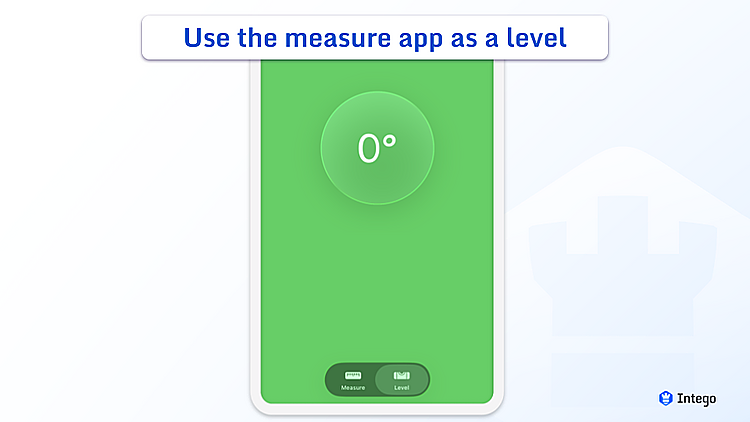
Tap the Level tab in the bottom-right corner, then hold your iPhone against an object or lay it flat on a surface. Once the phone reaches 0°, the screen turns green to let you know it’s level.
If someone asks you where you are while you’re on the move, sending a pin isn’t always practical. You can let them know by typing “I’m at” followed by a space, and your phone will suggest your “Current Location,” which you can tap to send immediately.
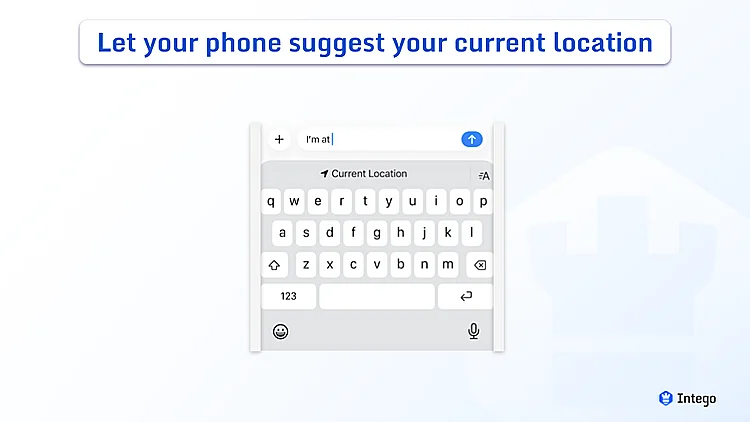
This is particularly useful in open spaces like parks or festivals, where there isn’t a clear street address to give someone. Keep in mind this shortcut works only in the Messages app, and you’ll need to have Location Services turned on.
Your iPhone has a built-in Contact Shortcut that can fill in your details for you. If your information is saved in your contact card, your phone can suggest your name, email, or address so you don’t have to type it out each time.
This helps most when you’re filling out forms or sharing your details with someone new.
To make sure this works, check that your details are correct in the Contacts app under “My Card.” Once that’s set, you can start typing your name in a form or message. Your details will appear in the bar just above the keyboard. Tap the suggestion to fill in the information.
Your iPhone can turn spoken audio into on-screen text. It picks up sounds from your apps and displays it in real time, so you can follow along as you listen. This makes it easier to follow spoken audio when you can’t hear it clearly or prefer to read along.
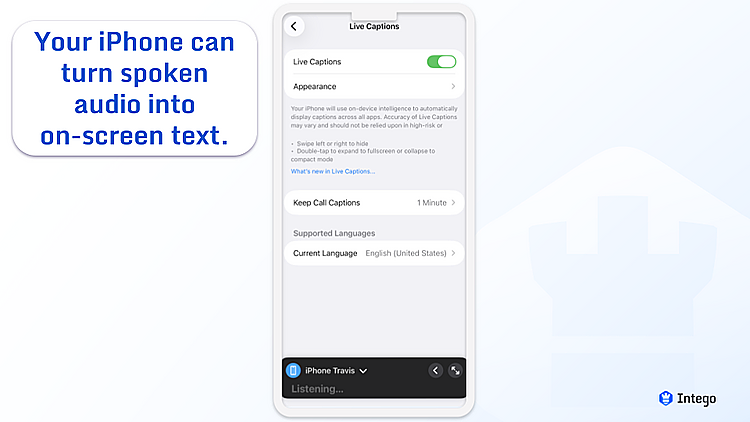
To turn this on, go to Settings > Accessibility > Live Captions. When you turn the switch on, a small box appears at the bottom of your screen. Whenever spoken audio plays, text will appear inside it.
When someone sends a long message in the Messages app, you often only need a small part of it — a confirmation code, an address, or a word you want to look up. Usually, your phone copies the whole message, which isn’t always helpful.
Instead of copying everything and trimming it down, you can pick out exactly what you need. Press and hold the message, tap Select, then drag the selection marker to highlight the part you need. Tap Copy from the menu that pops up.
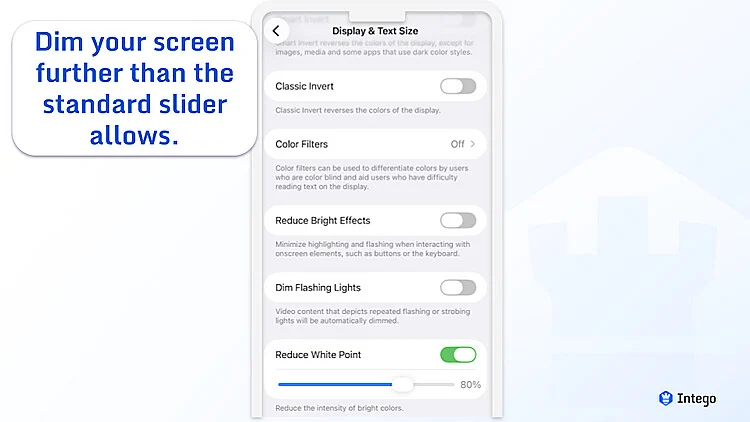
Sometimes even the lowest brightness setting still feels uncomfortable when the room is completely dark. If you find yourself squinting at a notification in bed, you can dim the screen further than the standard slider allows.
Open Settings > Accessibility > Display & Text Size. Look for “Reduce White Point” and turn it on, then adjust it to a level that feels comfortable.
To set up a shortcut, go to Settings > Accessibility > Accessibility Shortcut, and select Reduce White Point.
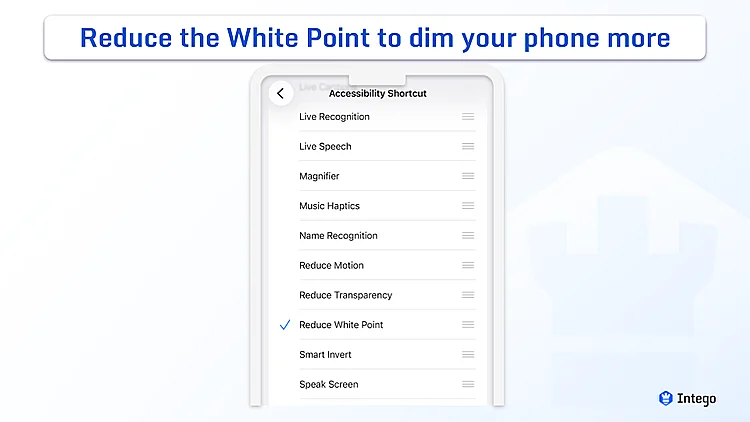
Now, whenever you triple-click your side button, your phone will instantly reduce the brightness of the screen to the level you set.
If you listen to music in another language, you don’t have to guess what the lyrics mean. If you have an Apple Music subscription, Apple Music can show lyric translations for supported songs, so you can follow along as the song plays.
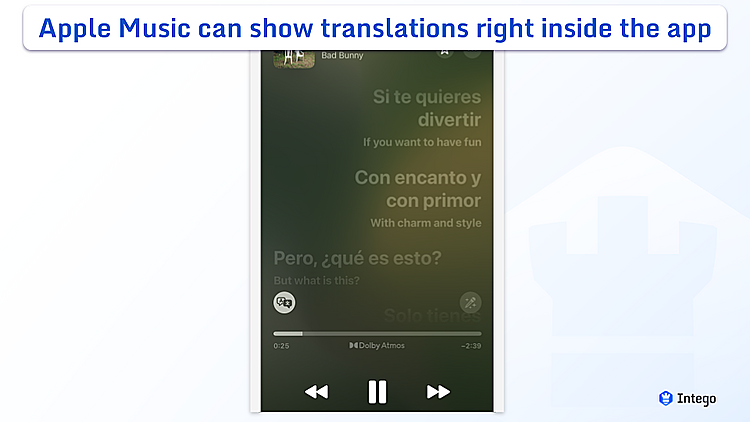
If the song has been translated, you will see Translation and Pronunciation options in the bottom-left corner. Tap them to see both the original language and your own language on the screen. This won’t be available for every song, but it works well for many popular tracks.
If you tend to feel nauseous in a moving car, train, or bus, Vehicle Motion Cues can help. This feature adds small dots to the edges of your screen that move with the vehicle, helping your eyes and brain stay in sync.
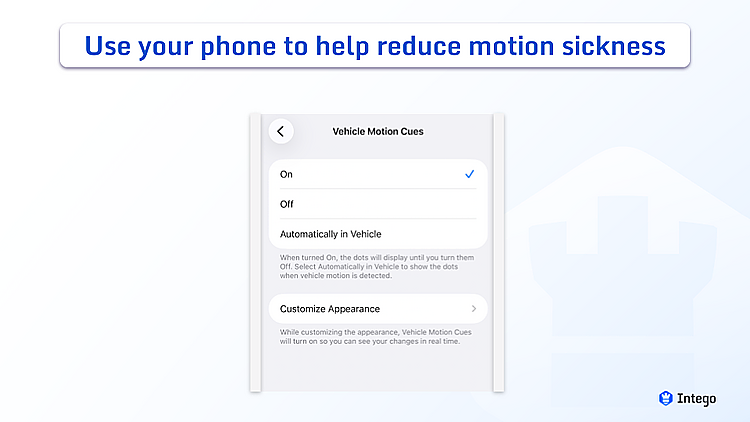
To use it, go to Settings > Accessibility > Motion, then tap Vehicle Motion Cues. You can turn it on manually, or choose Automatically in Vehicle so your iPhone activates it when it detects movement. Once it’s on, you’ll see the dots shift as the vehicle moves.
A quick note: While it works well for many people, everyone’s sensitivity to motion is different. It may take a few minutes for your brain to get used to the new visual cues.
The Preview app on your iPhone lets you do more than just read a PDF. You can write notes, add text, or use a saved signature. If you’re working with a long document, you can move pages into a different order or use your camera to scan a new page directly into the file.
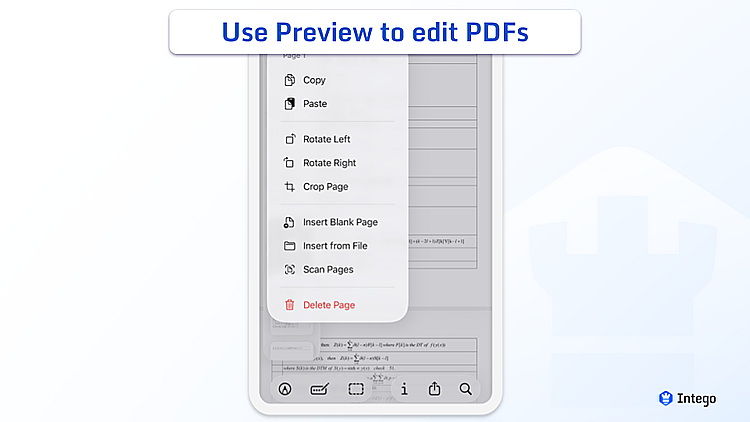
To use Preview, open a PDF from the Preview app, or open a PDF from Files if your iPhone opens supported documents there. To add notes or a signature, tap the Markup icon (the pen tip) at the bottom of the screen. To manage pages, tap the page count indicator at the top-left to see the thumbnails. From there, press and hold a page to rotate it, delete it, or add a blank one.
Keep in mind that these tools are for writing or signing over a document. If you need to change the original text already on the page, you’ll still need a dedicated editor.
Note: Preview on iPhone is available on newer iOS versions, so you may need to update your device to see these options.
If you also use a Mac, the version of Preview there includes a few extra options, such as permanently blacking out sensitive information.
It’s common to think of something you need to send — a question for a coworker, a note to a friend, a birthday wish — at the wrong time. Instead of trying to remember it later, you can write the message now and set it to send automatically. You can schedule a message up to 14 days ahead.
Open the Messages app, type in what you want to send, and tap the plus (+) icon to the left of the text field. Select “Send Later,” then set the date and time you want the message to go out.
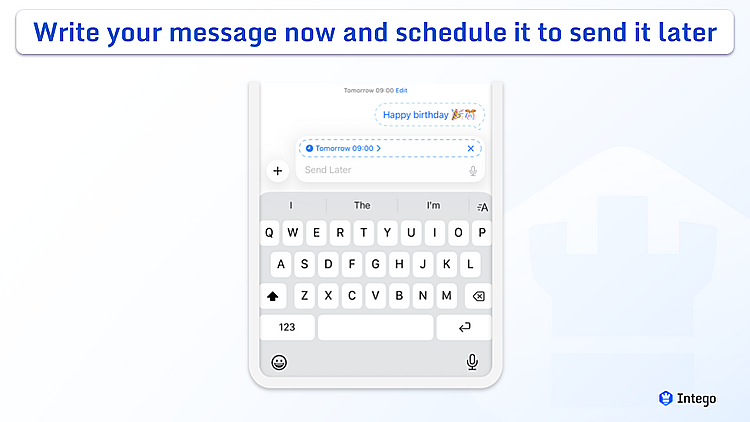
The text will wait in the conversation with a dashed outline until the time you chose. If you change your mind, you can always edit, reschedule, or delete the message before then.
Note: You’ll need iOS 18 or later, and Send Later works with iMessage conversations.
If your phone is propped up or set on a tripod, you can use supported AirPods to take a photo or start recording. This lets you stay settled in the frame rather than rushing to beat a ten-second timer.
Open the Camera app — or another supported camera app — on your iPhone. Once you’re in position and wearing your AirPods, press or press and hold the stem on your AirPods, depending on your settings. If you’re using AirPods Max 2, press or press and hold the Digital Crown instead.
Note: You’ll need AirPods 4, AirPods Pro 2, AirPods Pro 3, or AirPods Max 2, plus iOS 26 or later, to use AirPods as a camera remote in supported camera apps.
To learn more about AirPods, see our guide on choosing the best Apple AirPods.
When an unknown number calls, you don’t always have to answer right away. Live Voicemail lets you see a real-time transcript while the caller leaves a message, so you can decide whether it’s worth picking up before the call ends.
This is useful when you’re not sure whether a call is important, or when you want more context before answering an unfamiliar number. If it’s something urgent, you can still pick up while the voicemail is being recorded.
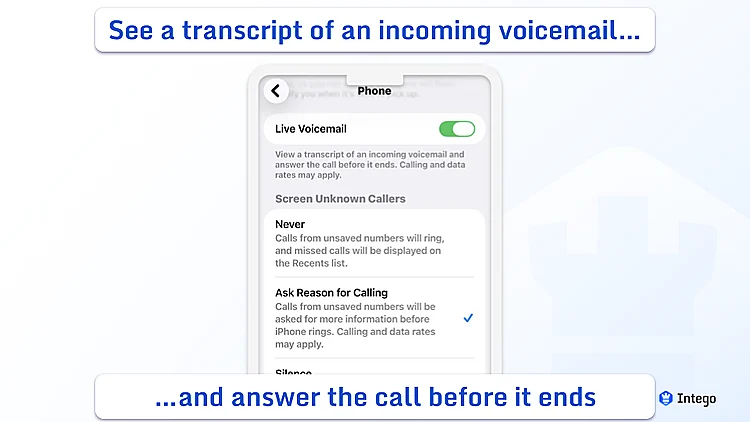
To turn this on, go to Settings > Apps > Phone, then tap Live Voicemail and switch it on.
Note: Live Voicemail isn’t available in all countries, regions, or languages, and availability may depend on your carrier and software version.
The most useful features are usually the ones that make your iPhone easier to use without changing your habits. They tend to show up in a few simple ways:
Learning a few shortcuts can help, but your phone works best when it feels easy to use. Spending a few minutes in your settings can make your screen feel simpler and quieter. You don’t need to change everything — a few small adjustments can make the tools you use most easier to find.
Take a look through your notification list and decide which apps really need your attention right away, and which can wait. Silencing alerts you don’t need can help make sure that when your phone does buzz, it’s for something that actually matters to you.
It’s easy to find apps through the Search bar or App Library, so you don’t need every app icon on your Home Screen. You can hide pages or remove icons from the Home Screen without deleting the apps.
When there are fewer icons to look at, your screen feels a bit calmer, and it’s easier to see the apps you use every day.
You don’t need to use every shortcut listed above just because it’s there. A setting is only useful if it actually helps you get something done. Start with a couple of changes to see if they work for you. If you end up not using them, they’re easy to remove.
Keeping your iPhone up to date doesn’t just help with security — it also improves the features you already use. You might notice smoother performance or improvements to tools like Live Captions or widgets.
Before you download a new app, it’s worth checking what’s already on your iPhone. Apps like Measure or Preview can often do the job without taking up extra space or running down your battery.
If you’d like to explore a bit more, here are a few practical guides to help you get the most out of your Apple devices:


