Keep your iPhone protected with iOS updates
Gets the latest security fixes
Helps close known iOS vulnerabilities
Keeps your iPhone supported by Apple
iOS updates help protect your iPhone with security fixes and new improvements. Intego ONE checks whether your iPhone is up to date and shows you when an update is available.
What Intego ONE checks
Intego ONE checks whether your iPhone is running the latest iOS version available for your device. If an update is available, the app flags it so you can update through iOS Settings.
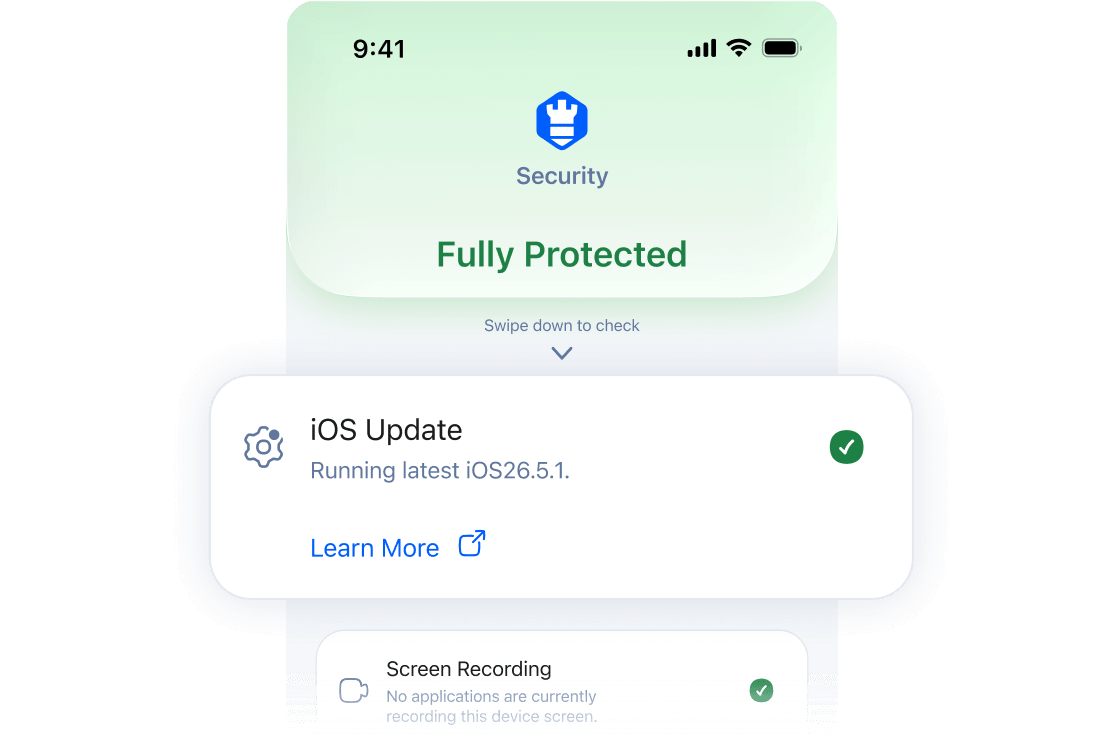
 Intego doesn’t download or install the update itself. It only checks whether your iPhone is up to date.
Why Intego recommends
iOS updates
When iOS is out of date, your iPhone may be missing security fixes Apple has already released. That can leave your device more exposed to known attacks.
Updating iOS helps close those gaps and keeps your iPhone protected with the latest fixes available for your device. That’s why Intego ONE flags this check when an update is available.
How to update iOS
Before you update, connect to Wi-Fi and make sure your iPhone has enough battery or is plugged in.
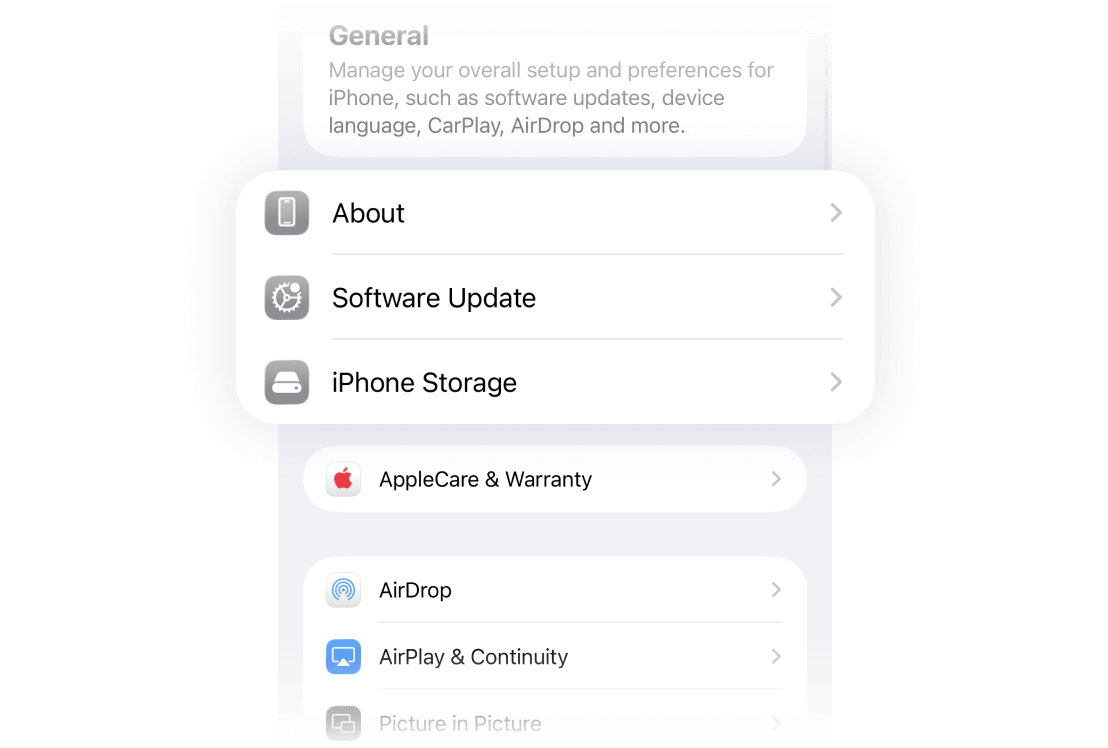
Open Settings.
Tap General.
Tap Software Update.
If an update is available, tap Update Now or Update Tonight.
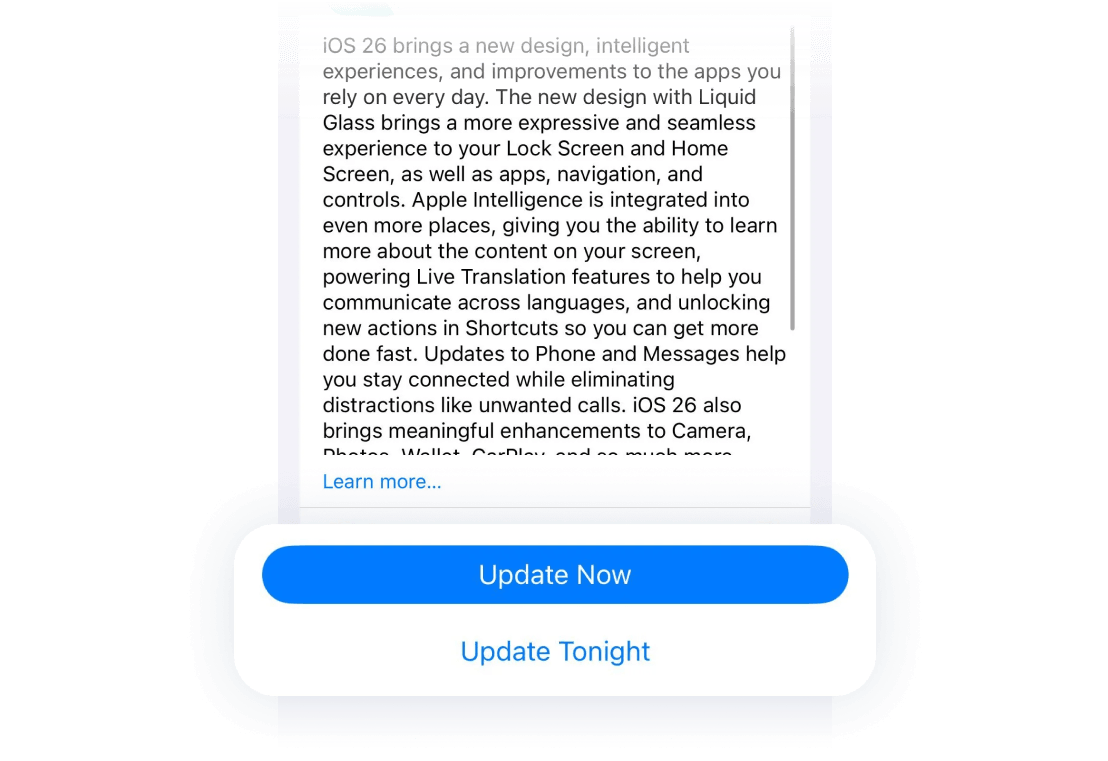
Enter your passcode if asked and follow the onscreen steps.
If iOS says your iPhone is already up to date, there’s nothing else to install. If you just updated, go back to Intego ONE and run the check again. The iOS update check should now show as protected.
How Intego ONE helps
Intego ONE doesn’t replace Apple’s built-in security. It checks whether important iPhone privacy and security settings are turned on, alerts you when something needs attention, and helps secure your connection when you browse.
What is an iOS update?
An iOS update is a new version of the software that runs your iPhone. Updates can include:
New features: Adds new tools, settings, or Apple services.
Bug fixes: Fixes problems that affect how your iPhone works.
Performance improvements: Helps your iPhone run more smoothly.
Security fixes: Closes security gaps that could put your device at risk.
Should users turn on automatic updates?
Automatic updates can help keep your iPhone protected without needing to check manually.
To turn them on, go to Settings > General > Software Update > Automatic Updates, then choose which update options you want to allow.
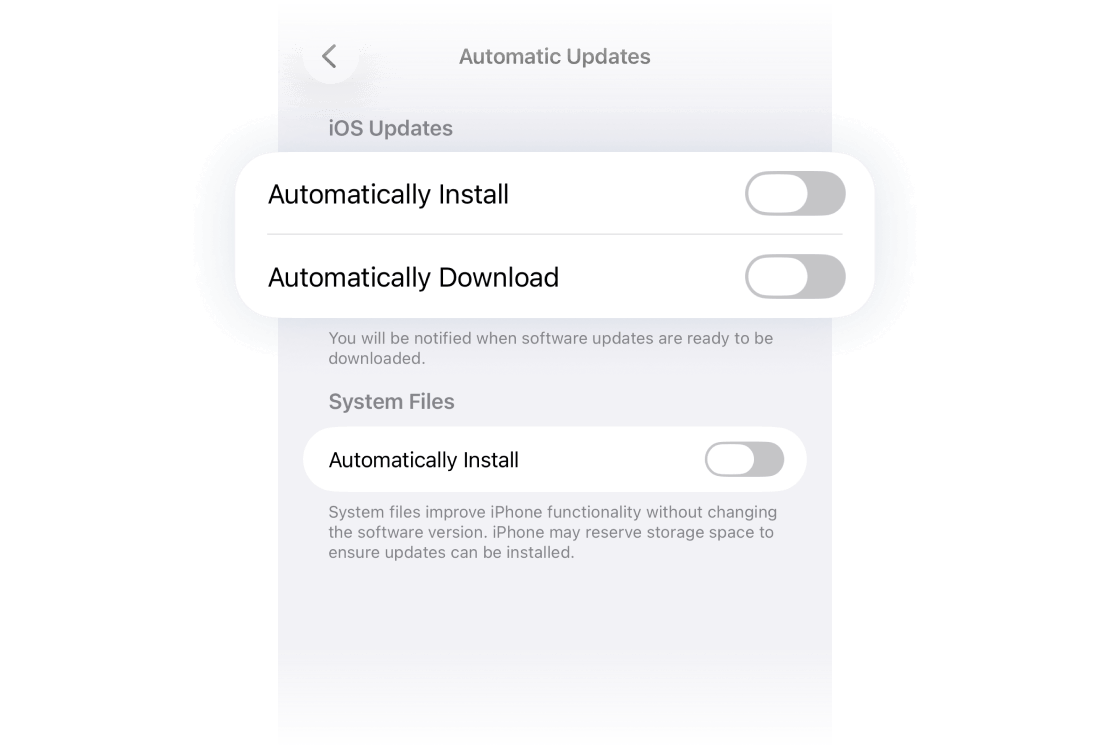
Your iPhone may still ask for your permission before installing some updates.