Unlock your iPhone more securely with a passcode
Helps stop strangers from opening your iPhone
Protects messages, photos, accounts, and apps
Required for Face ID and Touch ID
Your passcode is the main lock on your iPhone. Intego ONE checks whether it’s turned on and shows you how to switch it on if it’s off.
What Intego ONE checks
Intego ONE checks whether your iPhone has a passcode turned on. If it’s on, this check shows as protected. If it’s off, Intego ONE flags it so you can turn it on.
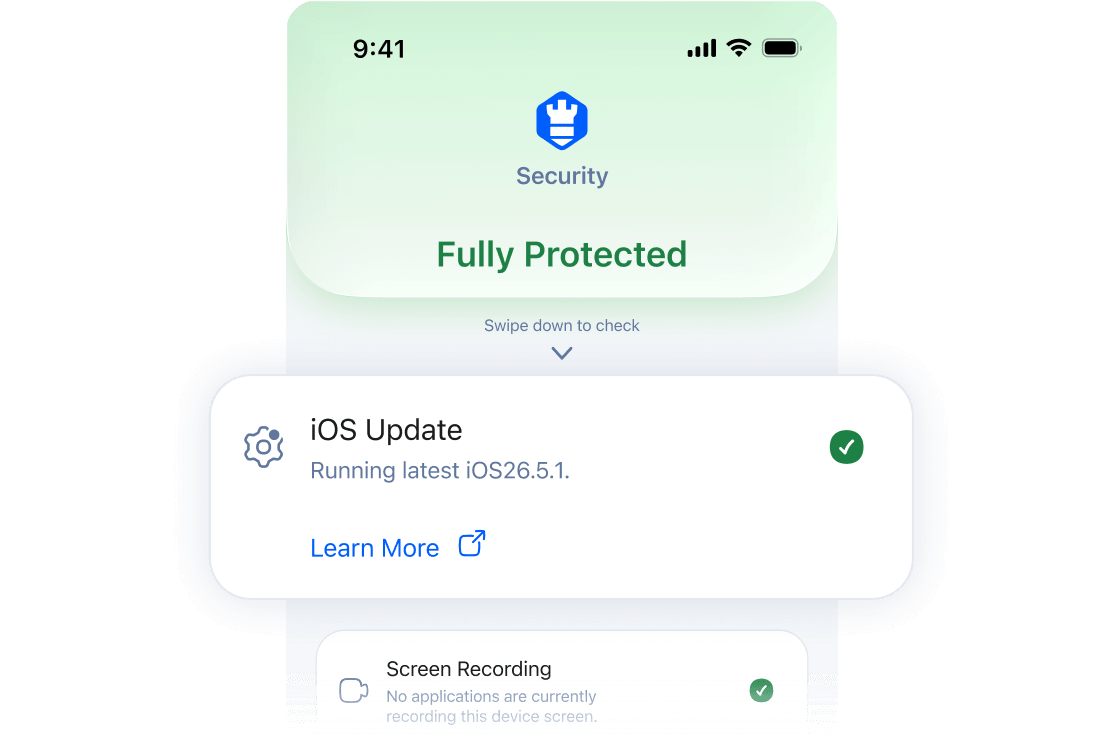
It’s required for Face ID and Touch ID, and helps keep your device protected when biometric unlock isn’t available.
 Your passcode stays private
Intego ONE can’t create, change, or see your passcode. It only checks whether this built-in iPhone protection is enabled.
Why Intego recommends a passcode
If you leave your iPhone in a café, taxi, or meeting room, a passcode helps stop someone else from opening it and going through your messages, photos, accounts, or apps.
It also protects key settings, including Face ID, Touch ID, and saved passwords. That’s why Intego ONE flags this setting when it’s off.
How to turn on or change your
iPhone passcode
You can turn on or change your passcode in iOS Settings.
Open Settings.
Tap Face ID & Passcode or Touch ID & Passcode, depending on your iPhone model.
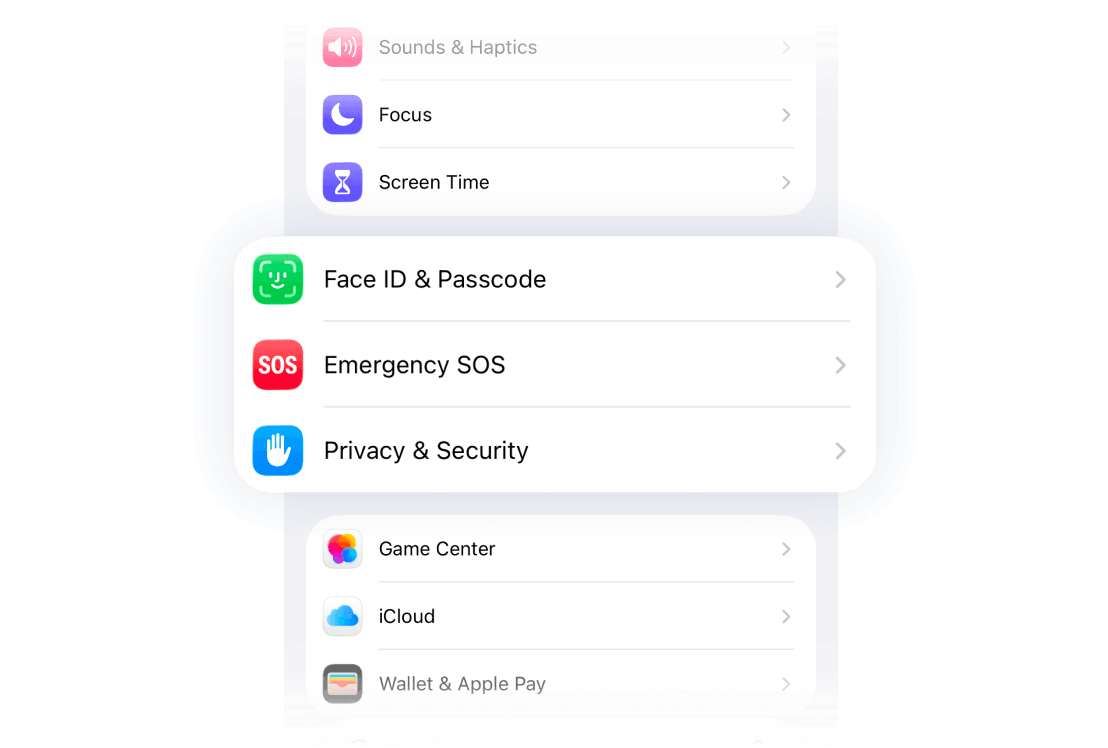
Enter your current passcode if asked.
Tap Turn Passcode On or Change Passcode.
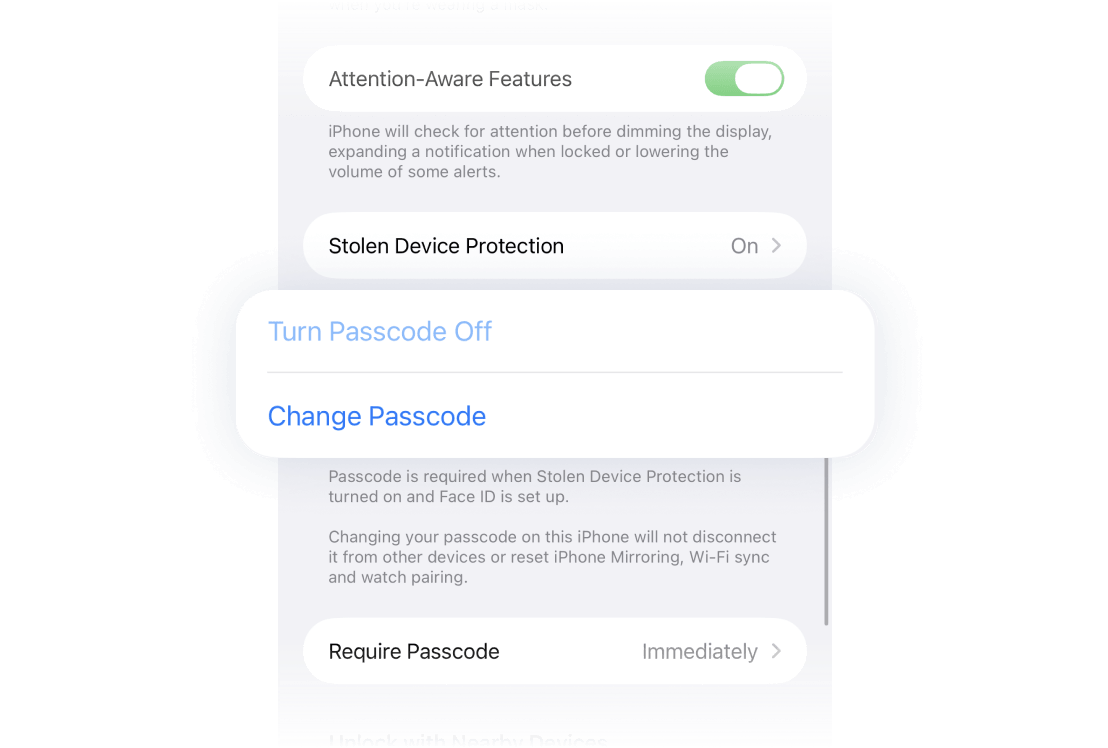
Tap Passcode Options if you want a longer or stronger code.
Choose your passcode type, then enter and confirm your new passcode.
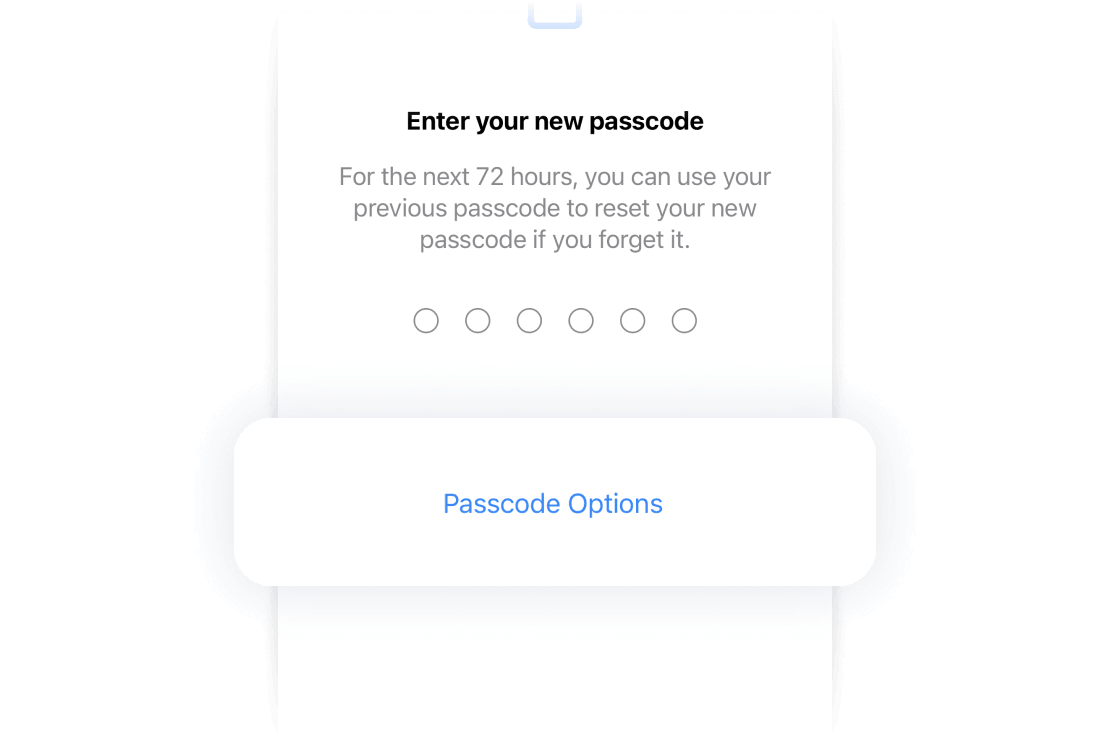
Choose the style you want, then type in your new code and confirm it.
How Intego ONE helps
Intego ONE doesn’t replace Apple’s built-in security. It checks whether important iPhone privacy and security settings are turned on, alerts you when something needs attention, and helps secure your connection when you browse.
What is an iPhone passcode?
An iPhone passcode is the code you enter to unlock your device. Even if you usually use Face ID or Touch ID, your passcode is still the main lock on your iPhone.
You may need it after restarting your iPhone, changing security settings, or when Face ID or Touch ID can’t recognize you.
What passcode type should you use?
A longer passcode is harder to guess than a short one.
- 4-digit code: The weakest option.
- 6-digit code: A better everyday choice.
- Custom numeric code: Lets you use a longer number-only code.
- Custom alphanumeric code: The strongest option because it can use letters, numbers, and symbols.
For most people, a 6-digit passcode is a practical starting point. For stronger protection, use a custom alphanumeric passcode.