
To force quit on Mac, press Option + Command + Esc, select the frozen app in the window, then click Force Quit. You can also click the Apple menu and choose Force Quit.
If that doesn’t work, you can try Activity Monitor, relaunching Finder, or restarting your Mac. Keep in mind that force quitting can cause you to lose unsaved work, so it’s best used only when an app is frozen or not responding.
Below, we’ll cover different ways to force quit apps on a Mac, what to do if Force Quit isn’t working, and how to stop apps from freezing so often.
If the usual quit option isn’t working for an app, there are a few other ways you can close it. It’s best to try the quickest keyboard option first, then try the more direct system tools if the app is still frozen.
The easiest way to force quit an app is to press Option + Command + Esc. This opens the Force Quit Applications window that lists the apps currently running on your Mac.
Look for the app marked “Not Responding,” select it, and click Force Quit. Keep in mind that force quitting an app will cause you to lose any unsaved changes or work.
If you don’t want to use the keyboard shortcut, you can open the same Force Quit window from the Apple menu:
You can also force quit an app directly from the Dock. Right-click (or Control-click) the app’s icon. If the normal Quit command isn’t working, hold down the Option key while the menu is open. The Quit command should change to Force Quit. Click it to close the app.
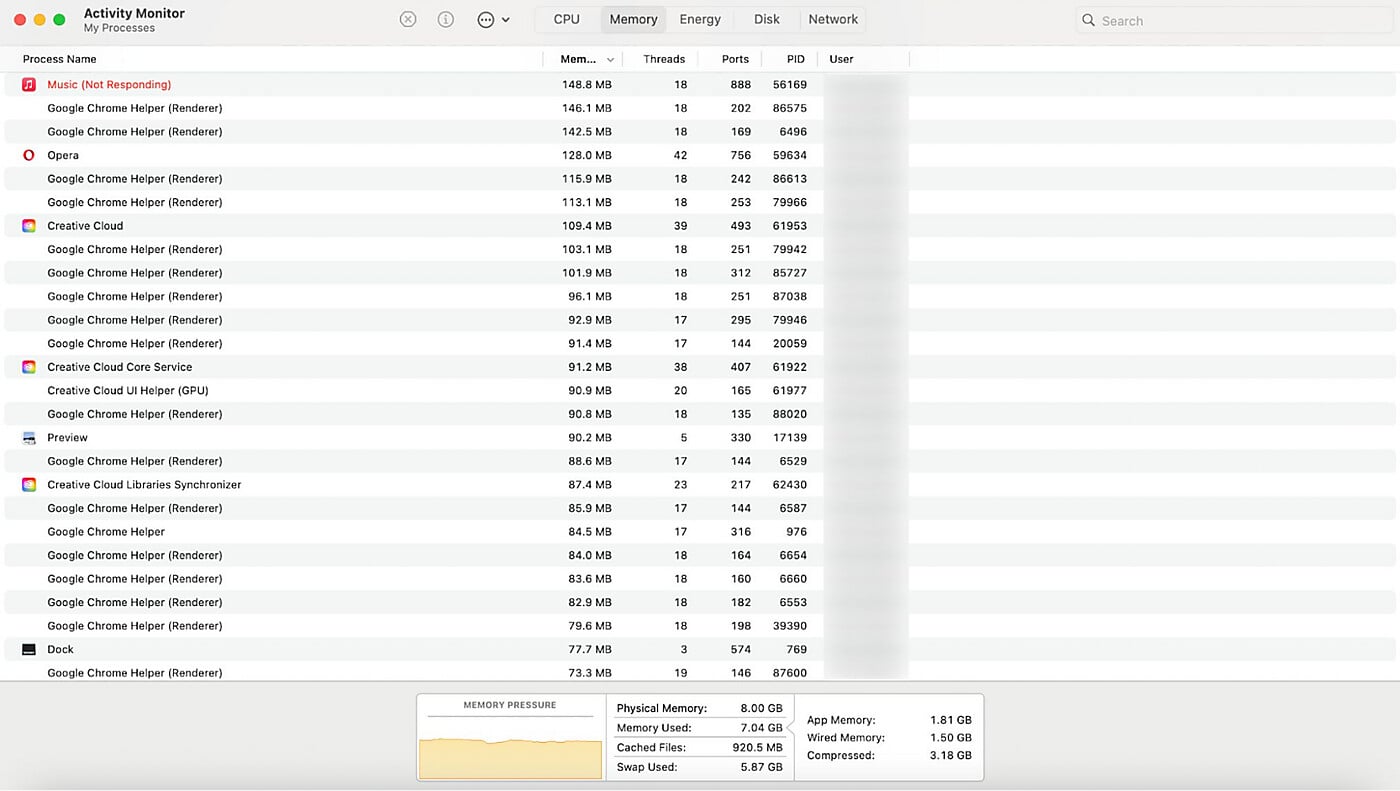
You can use Activity Monitor to troubleshoot problems with apps and force quit them when needed. It’s especially useful if the app doesn’t appear in the Force Quit window or if a specific background task is causing the issue.
Terminal is another option, but it’s best saved for users who are comfortable typing commands. For most people, the shortcut, Apple menu, Dock, or Activity Monitor will be easier and safer.
Browsers and productivity apps occasionally freeze. When that happens, you don’t always need to restart your Mac — you just need to shut down the specific program that’s frozen.
You can force quit Google Chrome using the keyboard shortcut (Option + Command + Esc). If that doesn’t work, you can look for the app in your Activity Monitor.
You may see several Chrome helper processes listed there. Chrome uses these to keep your tabs separate, so you may need to select and force quit them individually.
If Chrome freezes regularly, you may have too many tabs or extensions open at once. Restarting the browser and reducing your number of active extensions and tabs can help it run more smoothly.
To force quit Safari, use the Option + Command + Esc keyboard shortcut. If Safari is still hanging, you can use Activity Monitor to stop the main application or any related web processes that have stopped working.
If Safari keeps freezing, you might want to check your extensions or see if a specific website is using an unusual amount of system resources.
When Microsoft Excel freezes, press Option + Command + Esc to bring up the Force Quit menu and shut it down. Keep in mind that force quitting Excel can cause you to lose any unsaved work.
If Excel freezes often, the problem could be related to very large spreadsheets, outdated add-ins, low available memory, or an older version of Excel. Checking for updates or simplifying your larger workbooks can help keep things stable.
Finder works a little differently from other Mac apps. Instead of “Force Quit,” Finder usually shows a Relaunch option. Press Option + Command + Esc, select Finder from the list, and click Relaunch.
Relaunching Finder is a quick way to refresh your desktop and folders if your files or external drives aren’t showing up as they should. It can often resolve those issues without requiring a full Mac restart.
Occasionally, a frozen app won’t respond to Force Quit immediately. This can happen if the app is overloaded, a background process is stuck, or macOS itself has become unresponsive.
Try these steps in order to get things moving again:
When you quit an app the usual way, you’re giving it time to save your progress and shut down properly. If it needs your attention before closing, such as when there are unsaved changes, the app may stay open.
Force quitting is more abrupt. It immediately stops the app, even if it’s frozen or not responding. Because the app doesn’t have a chance to save its current state, any unsaved changes may be lost. It’s usually better to try a normal quit first and use Force Quit only when the app isn’t responding.
Most app freezes are caused by temporary slowdowns, overloaded system resources, or software issues rather than a problem with your Mac’s hardware. Some of the most frequent reasons include:
While force quitting can get things working again, it’s better to address the underlying cause. These adjustments can help your software run more reliably:
The Mac force quit shortcut is Option + Command + Esc. Pressing these keys opens the Force Quit Applications window, where you can select a frozen app and close it immediately.
If you can’t use your mouse or trackpad, you may still be able to use the Option + Command + Esc shortcut. Use the arrow keys to select the frozen app. If the Force Quit button is selected, press Return. If not, press Tab until the Force Quit button is selected, then press Return.
If the entire Mac is frozen and the keyboard shortcuts don’t work, you’ll need to force your Mac to shut down. Hold down the power button until the Mac shuts down completely, then start it back up as usual.
Force quitting an app won’t normally harm your Mac, though you’ll likely lose any unsaved work. If you find yourself doing this often, there may be a deeper issue with the app, storage space, memory usage, or macOS itself.
Sometimes Force Quit doesn’t work because your Mac is under heavy load, the app has frozen completely, or the whole system has stopped responding. If that happens, you can try using Activity Monitor to close the app manually or restart your Mac if nothing else responds.
Press Option + Command + Esc, select Finder, then click Relaunch. Unlike regular apps, Finder shows a Relaunch button instead of Force Quit because it’s a core part of macOS that manages your desktop, files, and folders.


