
Chrome extensions aren’t automatically unsafe, but they can put your privacy and security at risk if you install the wrong ones. Some extensions can read the websites you visit, access information you type, or collect more data than they actually need. That’s why it’s important to know what an extension can do before you add it to your browser, especially if you use Chrome on your Mac for work, banking, shopping, or other everyday tasks.
This guide explains how safe Chrome extensions really are, the risks to watch for, and the warning signs that an extension may not deserve your trust. You’ll also learn how to choose safer extensions, review their permissions, and remove ones you no longer need.
Chrome extensions are small software add-ons that give your browser extra features. You can install them to block ads, manage passwords, check grammar, take screenshots, save notes, compare prices, organize tabs, or do many other tasks without leaving your browser.
Once installed, an extension becomes part of Chrome and can interact with the websites you visit. Depending on how it’s designed and the permissions you approve, it can read or change page content, access your browsing activity, or work with information you enter on certain websites. Many extensions only request the access they genuinely need, but others ask for much broader permissions than their features require.
Yes, most Chrome extensions are safe to use, especially when they’re well-maintained and come from trusted developers. Google says less than 1% of Chrome Web Store installs in 2024 included malware, so a malicious extension is the exception, not the rule.
However, installing an extension isn’t the end of the story. An extension that’s safe today can become risky later if it’s sold to a new owner, updated with new code, or starts asking for more permissions than it needs. That’s why it’s a good idea to review your installed extensions every so often and remove any you no longer use or trust.
Yes. The Chrome Web Store is generally the safest place to get Chrome extensions. Google checks extensions before publishing them and removes ones that break its rules. That makes it much safer than downloading extensions from random websites.
Still, an extension can pass Google’s review and turn malicious later. In 2025, researchers found 16 malicious Chrome extensions that attackers had bought or hijacked, then updated with malicious code.
They reached at least 3.2 million users before Google removed them. That’s why it’s still worth taking a minute to check who made the extension, what permissions it asks for, and what recent users are saying before you install it.
Chrome extensions often need permission to interact with the websites you visit so they can provide their features. That access isn’t automatically a problem, but it does mean an extension can see or change information in your browser. The more access an extension has, the more important it is to trust the developer behind it.
Researchers have also found that risky extensions aren’t uncommon. A Stanford University study found thousands of Chrome extensions that exposed users to security or privacy risks. These included vulnerable extensions, ones that collected more data than they needed, and others that contained malicious code.
Chrome extensions can be dangerous, so choose them carefully rather than assume they’re all safe. Some Chrome extensions can become a security or privacy risk because they:
No method can tell you with complete certainty that a Chrome extension is safe. Taking a few minutes to check an extension before installing it can help you avoid many common privacy and security risks.
If something doesn’t feel right, trust your instincts and look for another option. There are often several extensions that do the same job, and choosing one from a trusted developer is usually the safer choice.
Before you click Add to Chrome, go through this checklist:
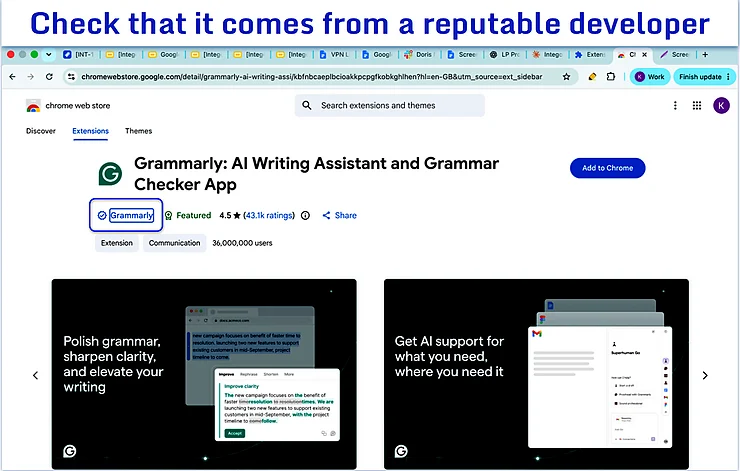
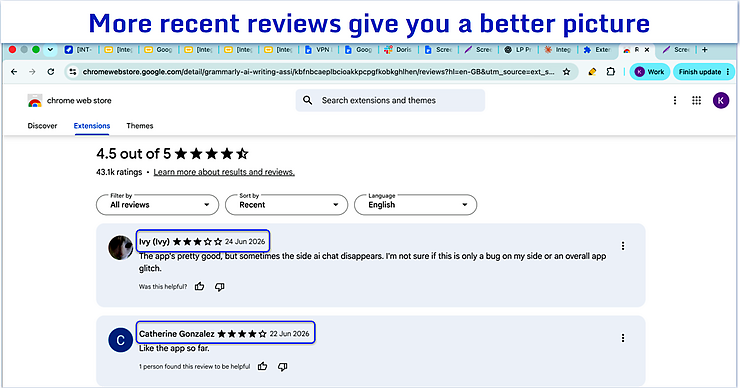
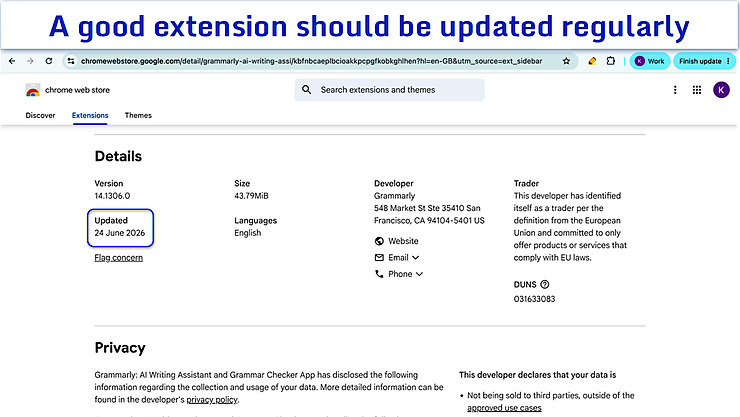
Before you install a Chrome extension, take a moment to look at the permissions it’s asking for. Permissions tell you what the extension can do in your browser. Some are necessary for an extension to work. Others request much broader access than you’d expect. As a general rule, the more access an extension requests, the more confident you should be that you trust the developer.
Pay extra attention if an extension asks to:
If a permission doesn’t seem to match what the extension is supposed to do, it’s worth asking why it needs that access.
Removing extensions you no longer use is one of the easiest ways to reduce privacy and security risks. Every extension you keep installed has some level of access to your browser, even if you rarely use it.
To remove an extension in Chrome on your Mac:
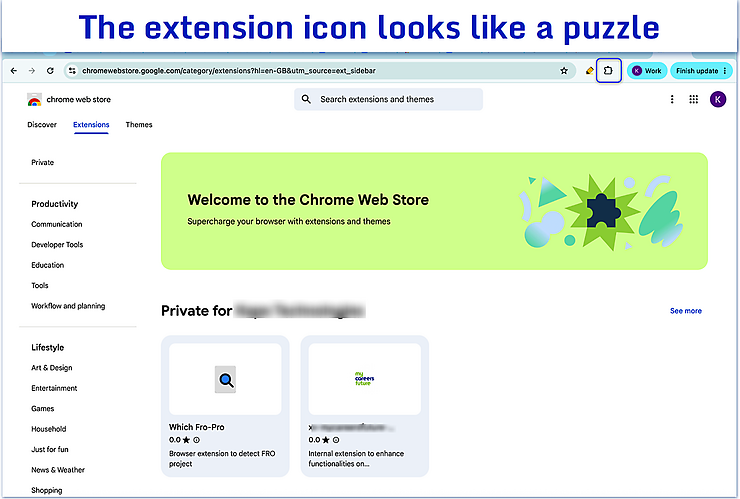
The quickest way: right-click the extension’s icon to the right of the address bar, select Remove from Chrome, then click Remove to confirm.
If you don’t see the icon, or you want to review everything you’ve got installed:
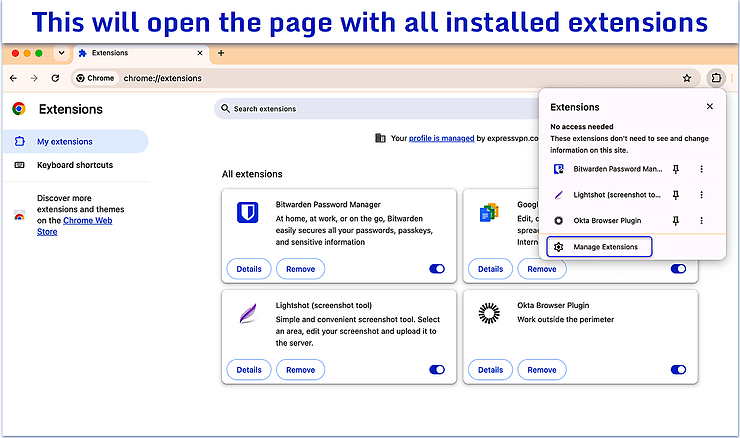
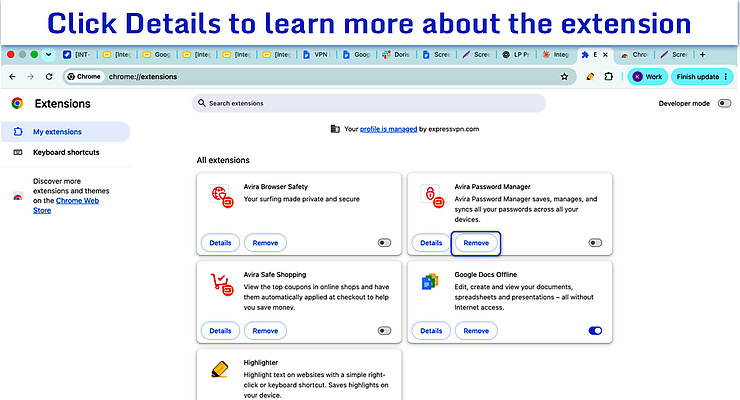
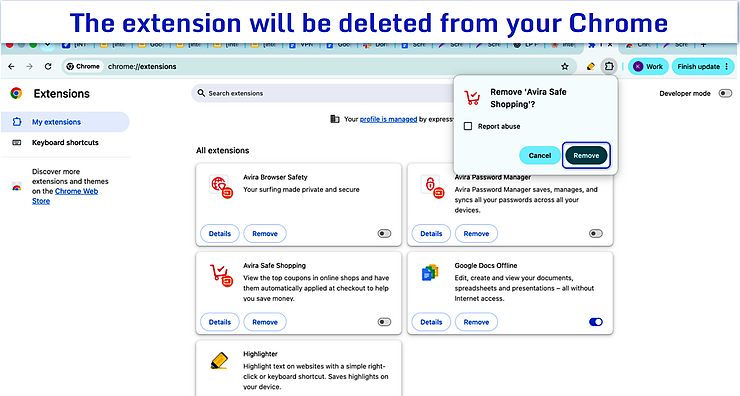
Chrome extensions only work in Chrome and other Chromium-based browsers, such as Microsoft Edge, Brave, and Opera. They don’t run inside Safari or Firefox, so a Chrome extension installed in Chrome can’t directly affect those browsers.
That said, the same safety advice applies to browser extensions in general. Any extension can ask for access to your browser, depending on what it does. Safari extensions go through Apple’s ecosystem, while Firefox has its own extension store and review process. No matter which browser you use, install only the extensions you need, check the permissions they request, and remove any you no longer use.
Antivirus can catch malware on your Mac, but it can’t tell you whether every Chrome extension is safe or make permission decisions for you. If you install an extension that asks for more access than it needs, it’s still up to you to decide whether you trust it. So install only the extensions you need, and review their permissions before adding them to Chrome.
Good browser habits and antivirus protection work best together. Removing extensions you no longer use reduces the amount of software with access to your browser, while antivirus protects your Mac from known malware, malicious downloads, and other threats from unsafe websites or files. For example, Intego ONE for Mac detects known Mac malware, adware, and suspicious files, and removes them from your Mac. If adware also installed a Chrome extension, removing the adware from your Mac may not remove the extension. You’ll still need to remove it from Chrome yourself.
Chrome extensions can make everyday browsing easier, but treat them like any other software you install on your Mac. Before adding an extension, make sure you trust the developer, check the permissions it requests, and ask yourself if you really need it.
You don’t have to avoid Chrome extensions altogether. Choosing them carefully, removing ones you no longer use, and using trusted security software on your Mac can go a long way toward protecting your privacy and security online.
Yes, many Chrome extensions are safe to use if they come from trusted developers and only ask for the permissions they need. However, some can collect more data than expected or become risky over time. Before installing one, check who made it, review its permissions, and remove any you no longer use.
Yes, the Chrome Web Store is generally the safest place to get Chrome extensions. Google reviews extensions and removes ones that break its rules, but no review process catches everything. Still, check who made the extension, review its permissions, and read recent reviews before installing it.
Yes, some malicious Chrome extensions can steal passwords when they have permission to read login pages or the information you type. So install extensions only from developers you trust, review their permissions, and use a reputable password manager instead of saving passwords in untrusted extensions.
Not in the traditional sense. Chrome extensions aren’t viruses, but a malicious extension can still harm your privacy or security. It may collect your data, track your browsing, or change what you see online. That’s why it’s important to install extensions only from trusted developers and review their permissions before installing them.
Check who made it, read recent reviews, and review the permissions it requests. Also choose extensions that get regular updates and only ask for the access they need to work. If anything seems unnecessary or suspicious, don’t install it.
Yes. Removing extensions you no longer use reduces the number of programs with access to your browser. It’s a simple way to lower your privacy and security risk and keep Chrome running more efficiently.
Yes, many browser extensions are safe on a Mac if they come from trusted developers and only request the permissions they need. However, unsafe extensions can still collect data or affect your privacy. Before installing one, check who made it, review its permissions, and remove any extensions you no longer use.
Yes, but not completely. Antivirus can protect your Mac from malware and other threats, but it can’t tell you whether every Chrome extension is safe or stop you from granting risky permissions. The best protection is to install trusted extensions, review their permissions, remove ones you no longer use, and use reputable antivirus software.


