Some websites rely on third-party cookies to run things like an embedded video, a shared login, or a payment window. When your browser blocks these cookies, you might find yourself repeatedly prompted to log in, unable to watch videos on a page, or having trouble completing checkouts.
The trade-off is that keeping them on means companies can follow your habits from one site to another, which takes away some of your privacy.
Your browser gives you a say in how it handles these cookies. You can turn them on when you trust a site that needs them, and keep them turned off otherwise.
We’ll walk through what these cookies are, when and how to allow third-party cookies for the specific Mac browser you use, and what to do if a site still doesn’t work after.
Third-party cookies are small files placed in your browser by a website other than the one you’re currently visiting.
Sites use them to load content from another domain: an embedded video, a shared login, or a payment window. So turning them on often fixes a page that’s stuck, a login that keeps repeating, or a video that won’t play.
On the privacy side, these cookies can also let advertising companies follow you from one site to another. A good rule of thumb is to leave them off, and switch them on only when a page you trust needs them to work.
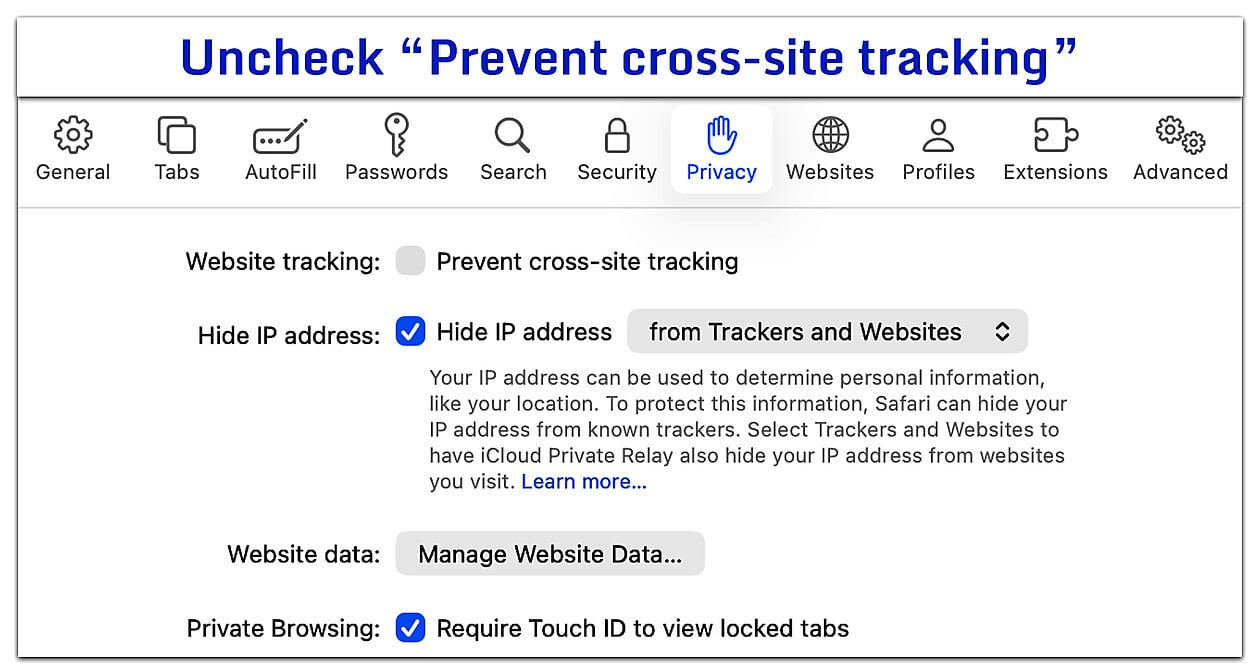
Safari is set up by default to block websites from tracking you across the internet. Two settings control this, and for most people only one needs changing.
To allow third-party cookies on Mac Safari:
Safari also has a stricter setting called Block all cookies, in the Advanced tab and turned off by default. If you or someone sharing your Mac turned it on, third-party cookies stay blocked until you turn it off too. Because it blocks first-party cookies as well, most sites work better with it left off.
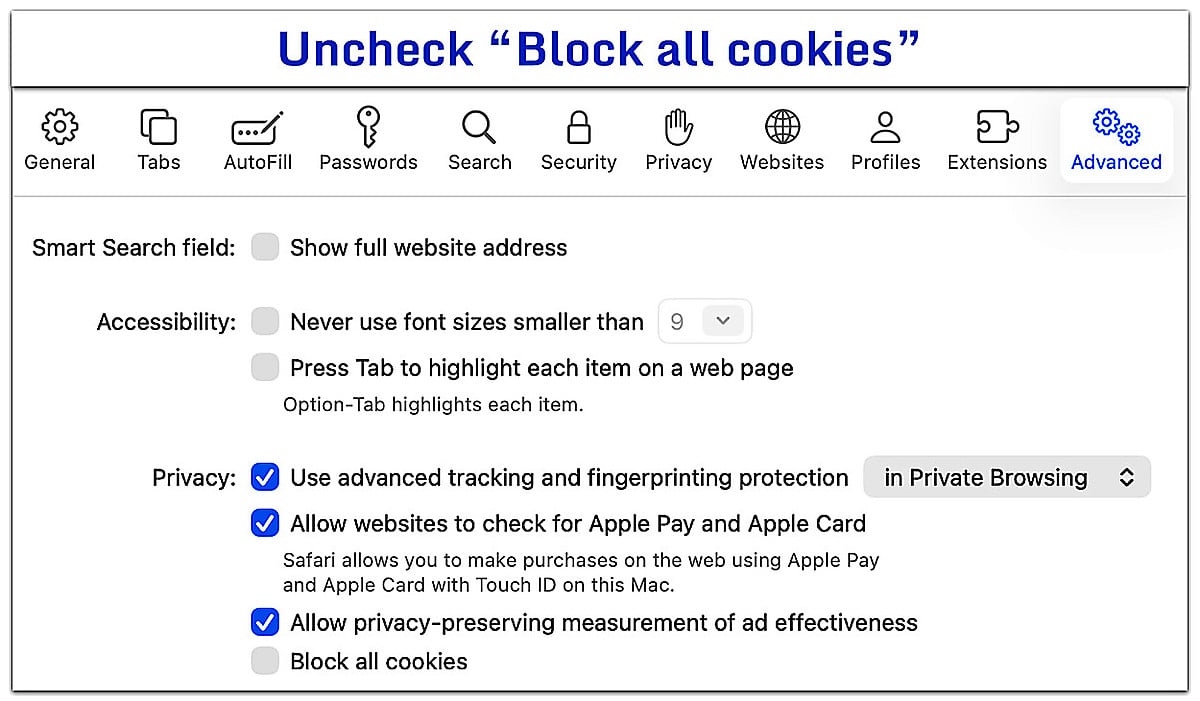
Turning this off lowers one of Safari’s tracking protections, so switch it back on once the site works. To see what else Safari does to limit tracking, read how to stop websites from tracking you on Safari.
Safari doesn’t let you allow cookies for just one specific website while blocking the rest. If you need that level of control, you might find it easier to use a different browser like Chrome.
Chrome lets you turn on third-party cookies for every site you visit, or just for the specific one you are trying to use. Choosing to allow cookies only where they are needed is usually the better choice for browsing privately on Mac.
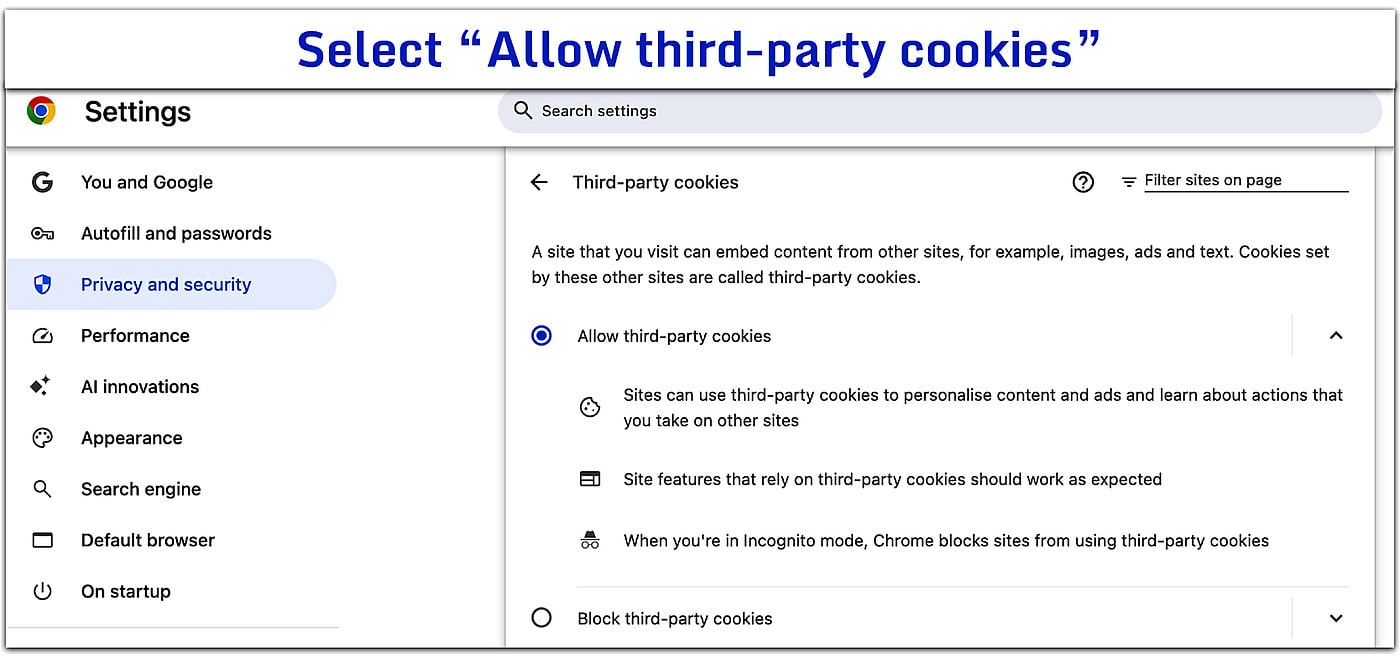
To allow third-party cookies for all websites:
To allow third-party cookies for a specific website:
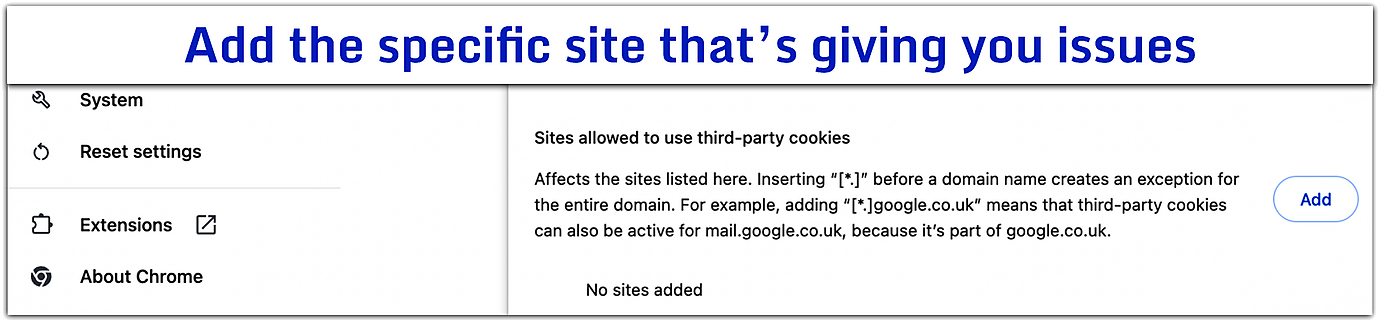
Chrome blocks third-party cookies in Incognito windows by default. A site you add to the allowed list still works there, but the global setting doesn’t carry over. Testing in a regular Chrome window keeps things predictable.
Firefox handles third-party cookies differently than other browsers. Instead of blocking or allowing everything at once, it uses a feature called Enhanced Tracking Protection.
This stops companies from following you across different websites, but keeps the settings relaxed enough that most sites still work the way they should.
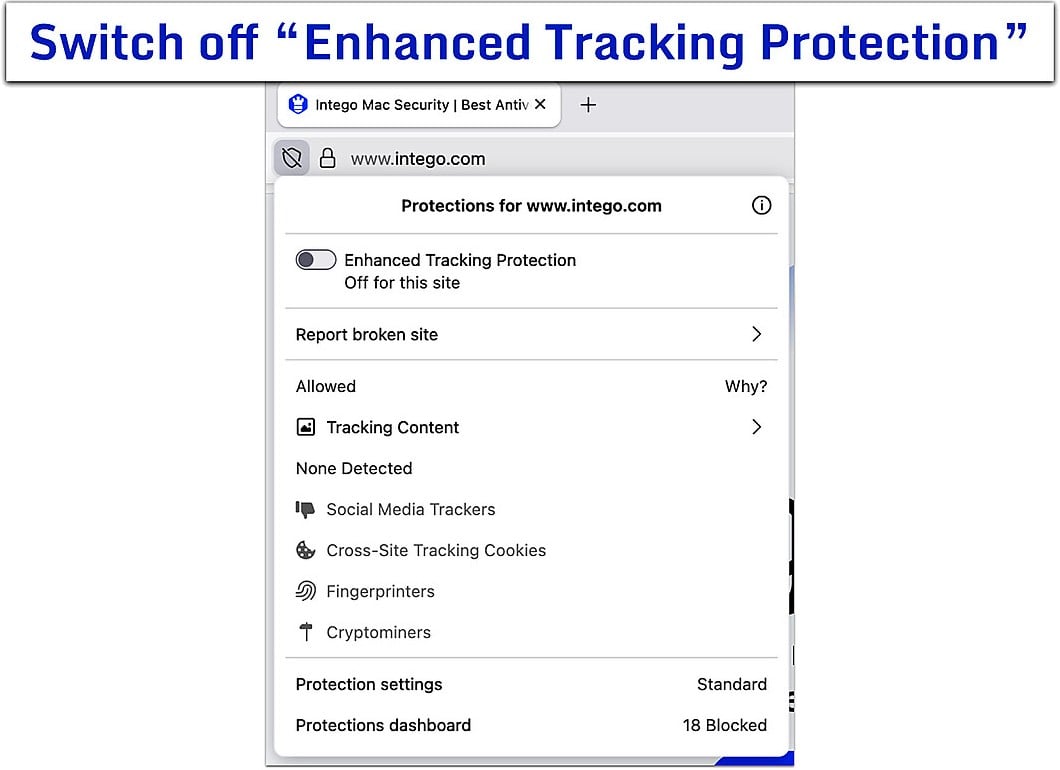
Standard is the default level, so if a single website isn’t working, turn off protection for that one site:
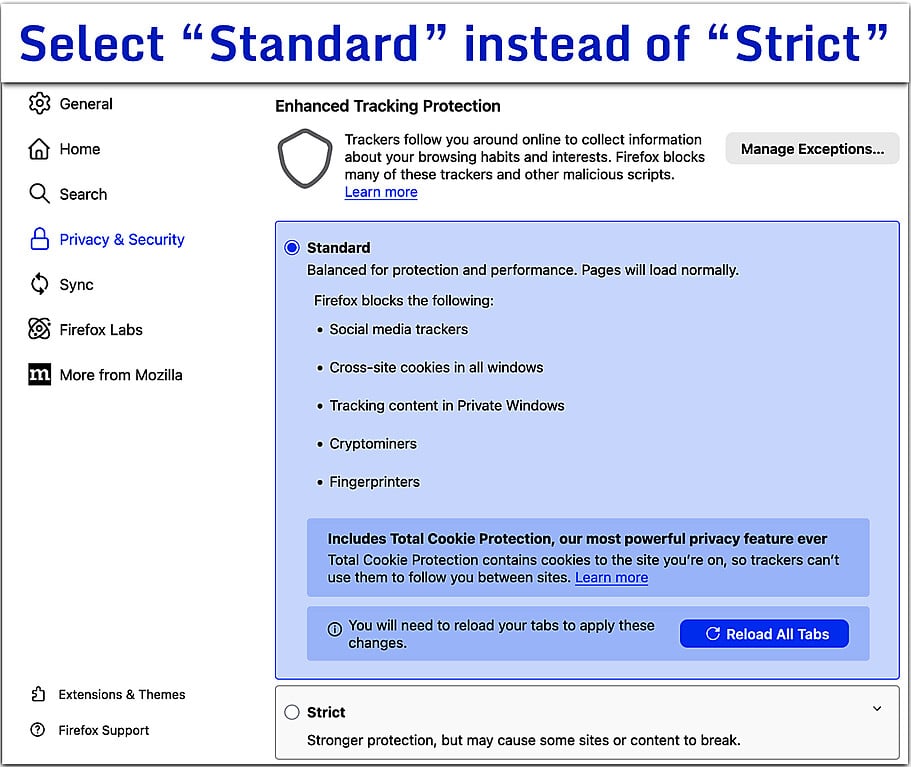
If you previously set your protection level to Strict and several sites are affected, switching back to Standard often clears it up:
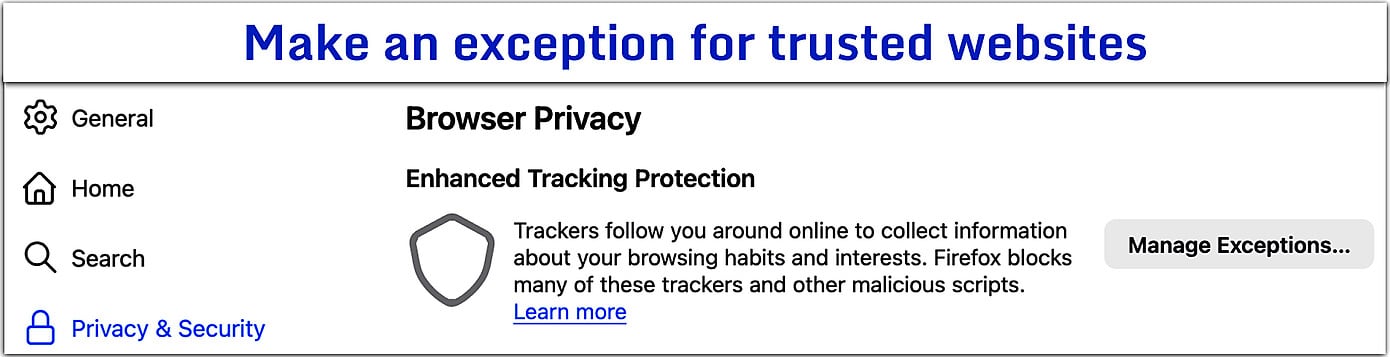
You can also manage these settings ahead of time by clicking Manage Exceptions in that same Privacy & Security menu. There, you can type in the addresses of sites you want to skip the protection entirely.
If you’re trying to watch a lecture on Kaltura, log in to a work portal, or pay for something online, you’ll usually need to turn third-party cookies on for those pages to work.
Whenever possible, grant this permission only to the specific site you are using, or in Safari, turn the setting off just while you use the site. That way, you can get things working without opening yourself up to extra tracking across the rest of the web.
Once you’ve updated your settings, refresh the page and try again. If that doesn’t do it, closing and restarting your browser entirely will usually clear the way.
If this is for a school or work account, your organization’s internal help pages may also have specific instructions. Sometimes, IT departments recommend a specific browser or have their own preferred settings.
Keep in mind that cookies aren’t always the cause of the problem. Browser extensions, a full cache, outdated software, or temporary issues with the website can also prevent logins, payments, or embedded content from working correctly.
In some cases, yes. Accepting a third-party cookie isn’t like downloading software, and it won’t introduce malware or expose your passwords. They simply don’t have that kind of access to your system.
The real concern is privacy, not security. These cookies are primarily used to follow your activity across different websites and build a profile of what you do online. That profile is then used to target ads.
That kind of tracking can be intrusive, but it’s a different kind of risk than a virus or a scam designed to steal your data.
Generally, it’s best to keep these cookies blocked, turning them on only when a reliable website explicitly requires them to work, and switching them back off when you are done.
Be cautious if you’re asked to change your cookie settings by a sudden pop-up window or an unfamiliar site. A trusted website might need you to enable cookies to log in or complete a payment, but they rarely make a loud demand for it.
If your browser keeps redirecting you to unexpected pages or becomes slow after a download, cookies may not be the cause. Instead, your Mac could be infected with malware. Running a scan with dedicated Mac antivirus software can find and remove malware that’s affecting your browser.
If you turned third-party cookies on only to use a specific site, you can block them again when you’re done. Here’s how to do that in the browser you use.
Return to Safari > Settings > Privacy and turn Prevent cross-site tracking back on. Reload the page to apply it.
If you also turned off Block all cookies in the Advanced tab, return there and turn it back on.
Keep in mind that enabling Block all cookies can prevent some websites from working correctly, so only use this setting if it matches your browsing preferences.
To block third-party cookies everywhere again, open Settings > Privacy and security > Third-party cookies, then select Block third-party cookies.
If you only added a site exception, removing it from the Sites allowed to use third-party cookies list is enough.
If you turned off protection for a single site using the shield icon, revisit that site and turn Enhanced Tracking Protection back on. The page reloads on its own.
If you changed your overall protection level from Standard to Strict earlier, open Settings > Privacy & Security and select your preferred level.
If you also want to clear the cookies and site data websites have already stored, you can do that in your browser’s settings.
Just be aware that doing this will likely log you out of your accounts and reset things like saved shopping carts or display preferences, so you’ll need to sign back in on your next visit.
For day-to-day privacy, removing the permission you gave to a specific website is usually plenty. You only need to clear everything out if something isn’t working right, or if you simply want a fresh start.
It’s also worth noting that cookie settings affect the specific browser profile you are using. If you share a Mac and use the same profile as the rest of your family, changing these settings will affect their browsing too.
Open Safari and go to Safari > Settings > Privacy, then turn off Prevent cross-site tracking. If you’d also turned on Block all cookies in the Advanced tab, turn that off too. Reload the page.
Go to Chrome > Settings > Privacy and security > Third-party cookies and select Allow third-party cookies. Or, you can add the specific website you are trying to use under Sites allowed to use third-party cookies.
Firefox doesn’t have a single on-off switch for third-party cookies. If a site you trust isn’t loading correctly, click the shield icon next to the web address and turn off Enhanced Tracking Protection for that site. If you’d set your overall protection to Strict, switching it back to Standard under Settings > Privacy & Security can also help.
In some cases, yes. Cookies aren’t harmful files and they won’t damage your Mac or install unwanted software. The real issue is your privacy, because companies use these cookies to quietly follow you from site to site to build a profile of what you do online.
Chrome lets you add specific websites to a list of sites that are allowed to use third-party cookies. Firefox lets you turn off its protections for individual sites as you visit them. Safari doesn’t offer a per-site option for third-party cookies. Its cross-site tracking protection applies to every site at once, so you turn it off for all sites or none.
Sometimes it can, especially when the website relies on another service to work. It’s worth trying, but not every login or payment issue is caused by disabling third-party cookies.
Session cookies use the same browser settings as other third-party cookies. There’s no separate switch. Once you allow third-party cookies for a site, its session cookies work too. Session cookies clear when you close your browser.


