If you’ve used a Mac for a while, you might remember Boot Camp — the tool Apple used to let you install Windows directly on your Mac.
While you can still use Boot Camp on a Mac with an Intel processor, it doesn’t work on Macs using Apple silicon chips like the M1, M2, M3, M4, or M5.
To run Windows 11 on these modern Macs, you’ll need virtualization software, which lets Windows run inside macOS like a regular app.
Since these Macs use a different internal architecture from Intel processors, you’ll need the version of Windows designed for Arm processors, known as Windows 11 Arm.
Parallels Desktop is usually the simplest virtualization app for running Windows on a Mac, but it requires a paid subscription. If you’d prefer not to pay, UTM is a practical alternative, though the setup takes a little more work.
This guide explains how to set up Windows 11 on an Apple silicon Mac using UTM and what to expect once it’s installed.
NOTE: UTM itself is free when downloaded from the developer’s website, and Microsoft provides the Windows 11 Arm file as a free download. However, you may still need a valid Windows license to activate every feature long term. It’s best to stick with official downloads from Microsoft; using modified versions or “cracked” installers often leads to security problems or a system that crashes regularly.
Yes, you can run Windows 11 on an Apple silicon Mac using virtualization software, which lets Windows run inside your macOS desktop like a regular app. This means you can switch between Windows and macOS without needing to shut down or restart.
Because Apple silicon Macs use a different architecture from Intel PCs, you’ll need the Arm version of Windows 11 rather than the standard x64 version used on most Windows computers.
Boot Camp only works on Intel-based Macs, so it’s not available on Macs with M-series chips. On Apple silicon Macs, virtualization is now the standard way to run Windows.
There are two main ways to do this:
Regardless of which app you pick, make sure you download the Arm version of Windows 11 to ensure everything works properly on your Mac.
You won’t have to pay for the tools used to run Windows on your Mac, but you may still need to pay for a Windows license.
UTM is free when downloaded directly from the developer’s website, and Microsoft provides the Windows 11 Arm64 ISO needed for installation. This means you can get Windows 11 running on your Mac to see how it works without having to pay for a subscription or a specific app first.
However, Windows 11 itself may still require activation with a valid product key. If you don’t activate Windows, you may notice small limitations, like restricted personalization settings or occasional activation reminders.
It’s also best to avoid cracked versions of Windows or unofficial installers found on the web. These can create security and stability problems for both Windows and your Mac.
To keep things simple and secure, download both UTM and the Windows 11 Arm64 ISO directly from their official sources.
Before setting up Windows 11 on your Mac, it helps to have a few things ready:
UTM is a free virtualization app that lets you use Windows on your Mac like a regular app. It’s one of the most popular free ways to run Windows 11 Arm on Apple silicon Macs.
You can download UTM for free on its website, or you can purchase it for $9.99 from the Mac App Store. The App Store version works the same way, but purchasing it helps support development and provides updates through the App Store.
Compared to Parallels Desktop, UTM is more hands-on and requires more manual setup. However, it’s free and works well if you only need to use Windows occasionally for simple tasks.
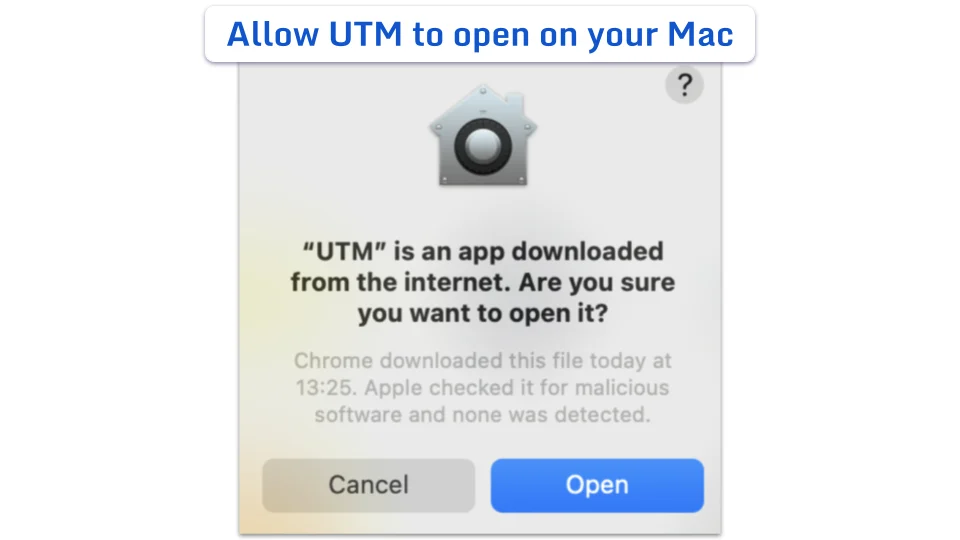
Start by downloading UTM from the official UTM website. The initial download is about 238 MB. Once opened, drag the UTM icon into your Applications folder as you would with most other Mac software.
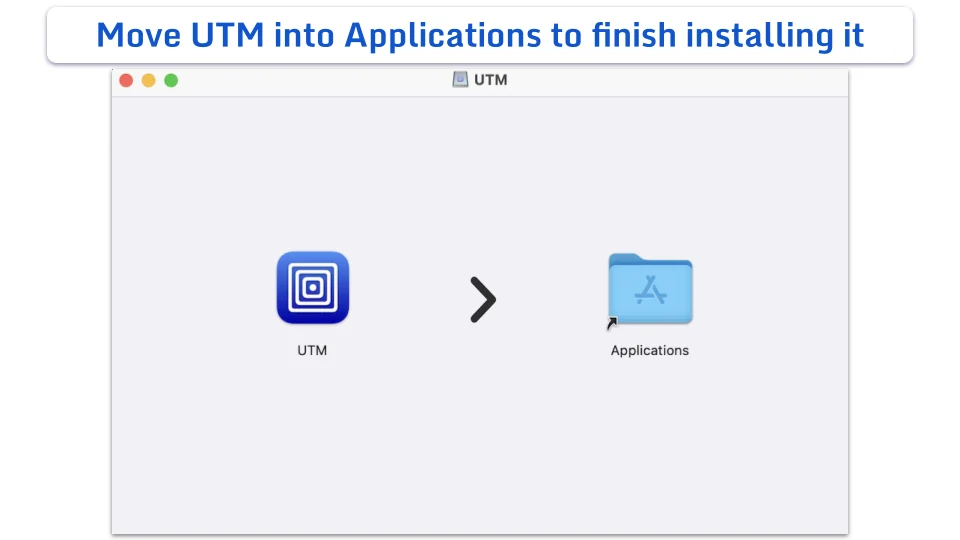
The file expands once it’s installed, so keep in mind that it will need about 1.22 GB of space on your drive.
Next, get the Windows 11 Arm64 ISO installation file. The file is roughly 7.4 GB, so you might want to give it a few minutes to finish downloading.
It’s best to download the ISO directly from Microsoft. Unofficial versions can cause setup, security, or stability problems later on.
With UTM installed and your Windows 11 Arm64 ISO ready, you can now create your Windows virtual machine.
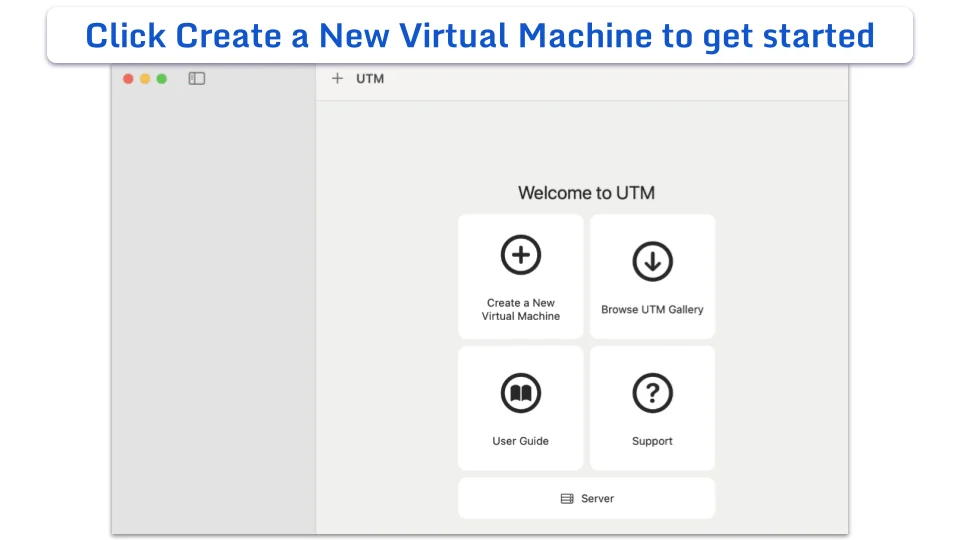
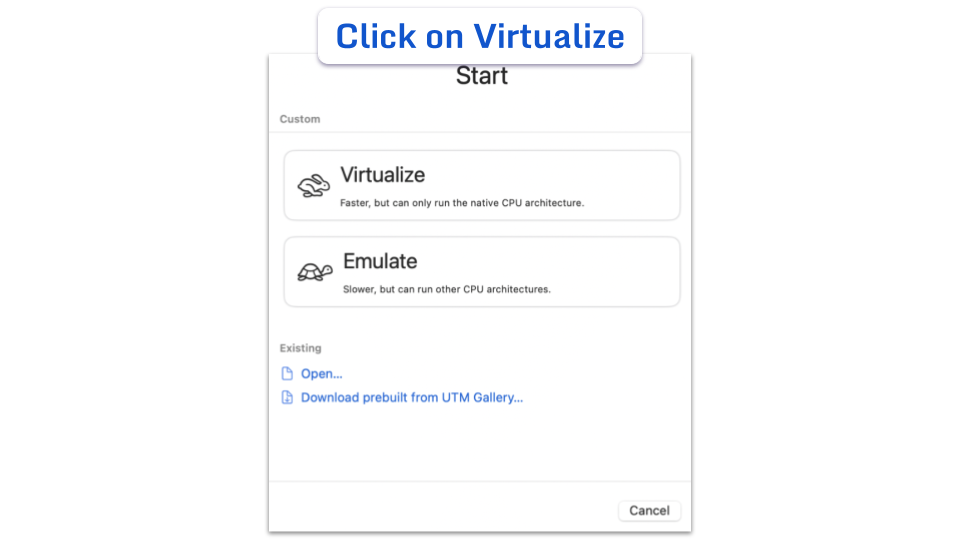
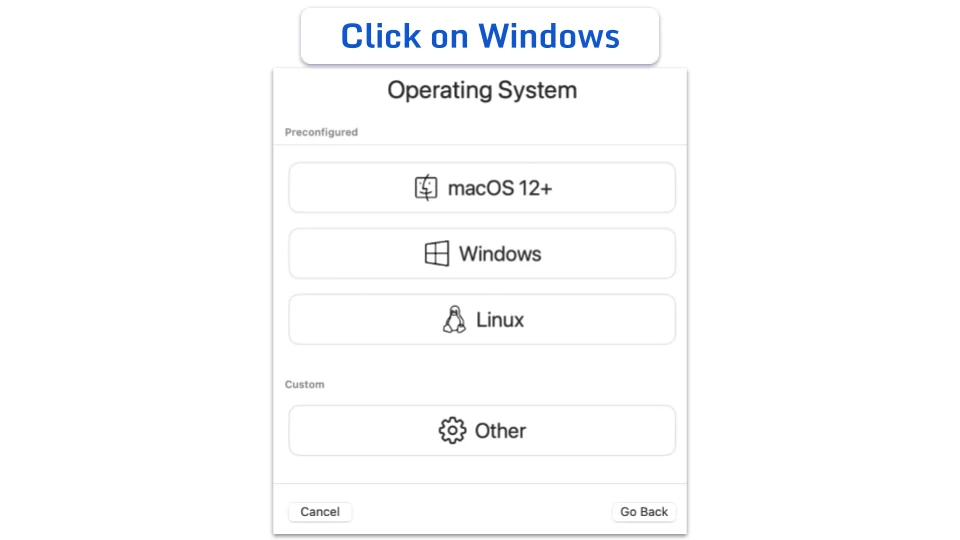
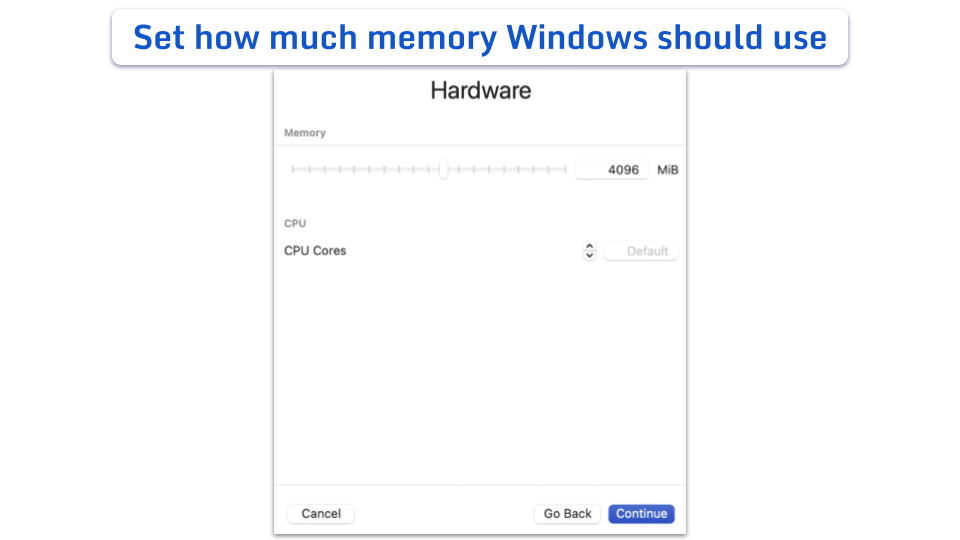
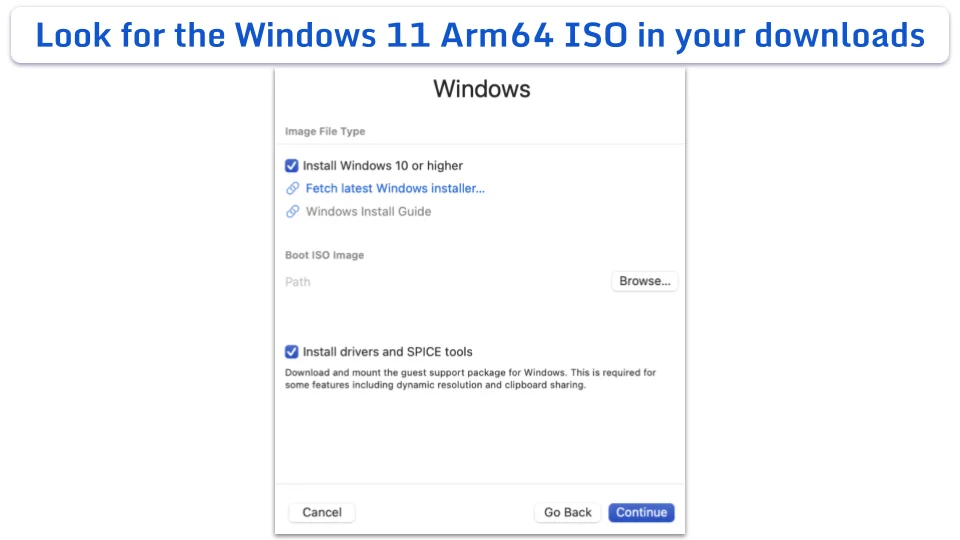
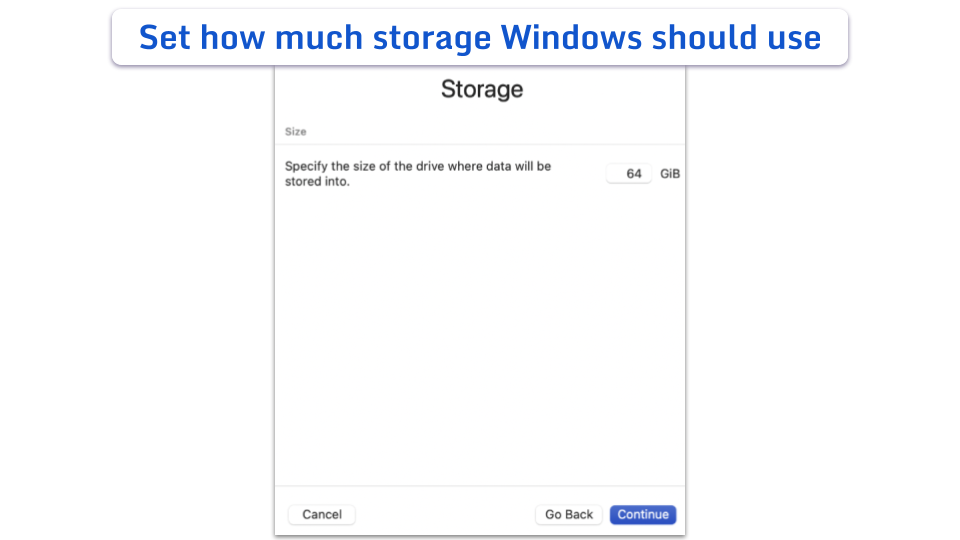
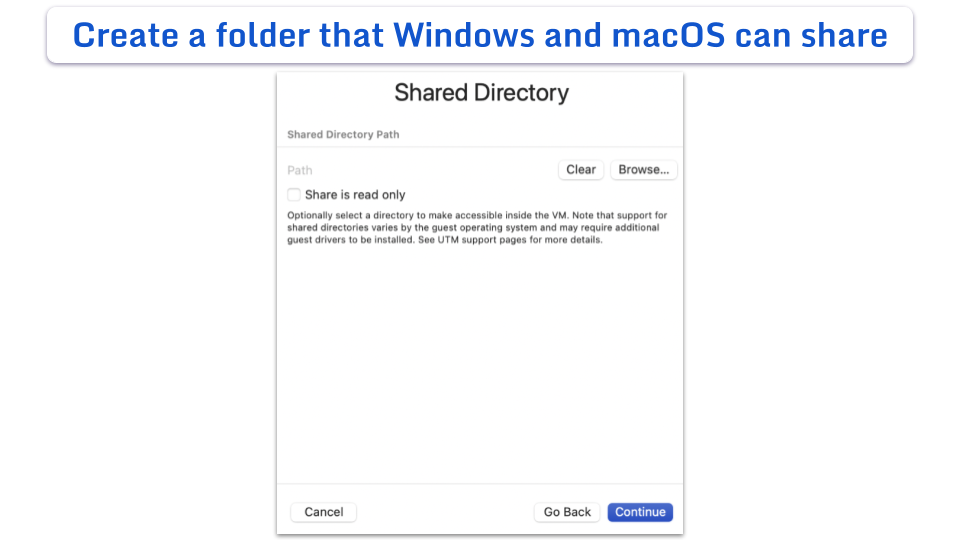
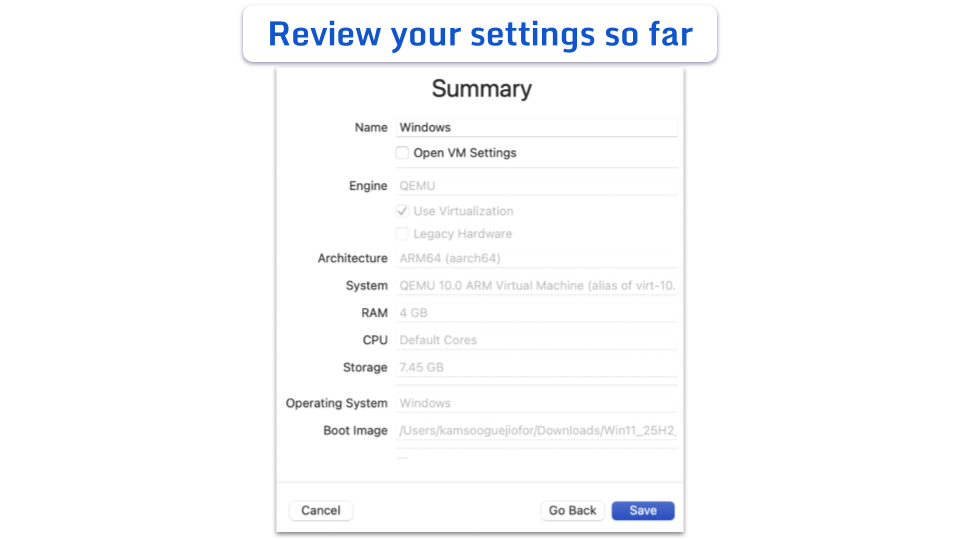
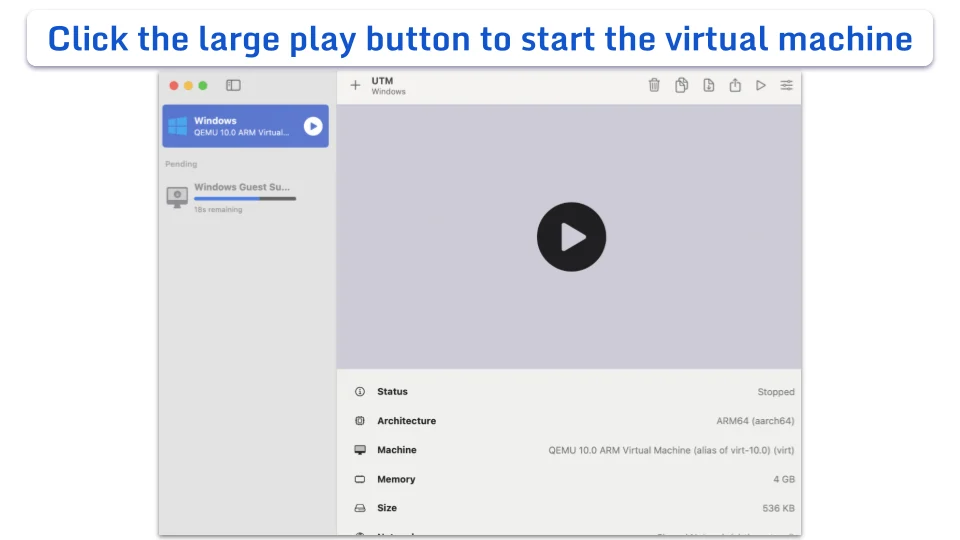
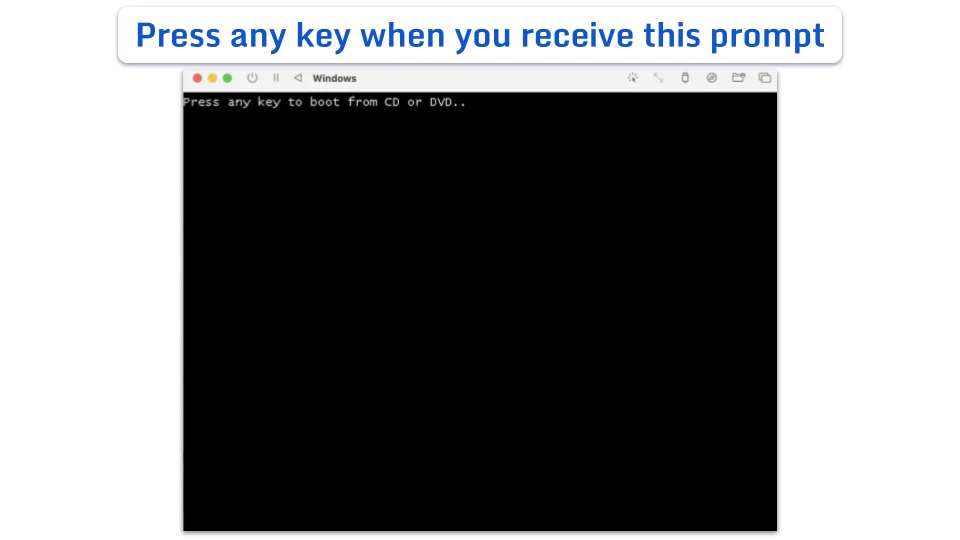
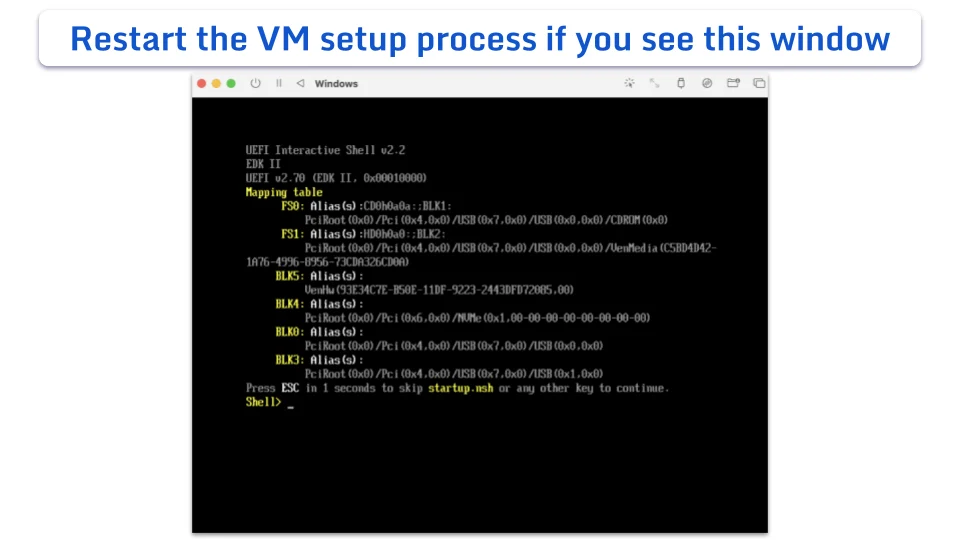
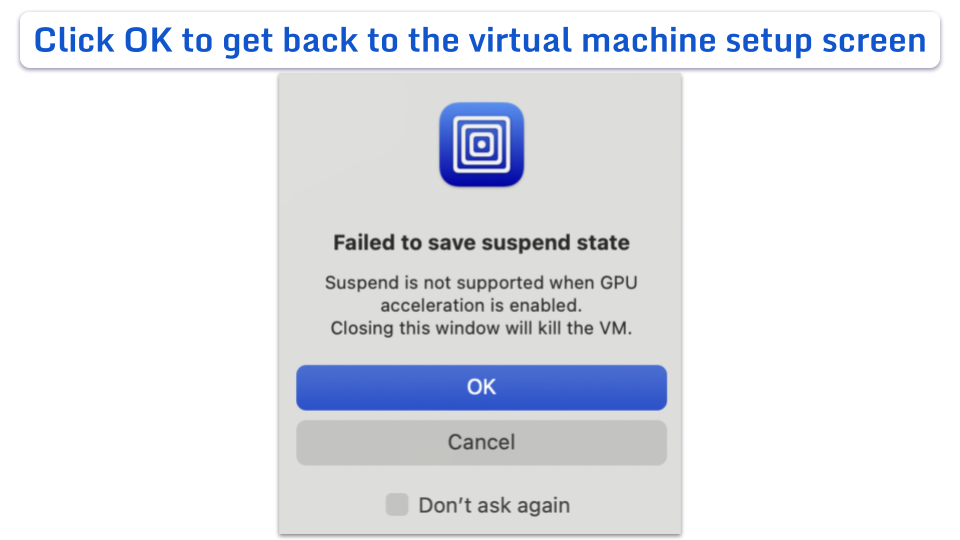
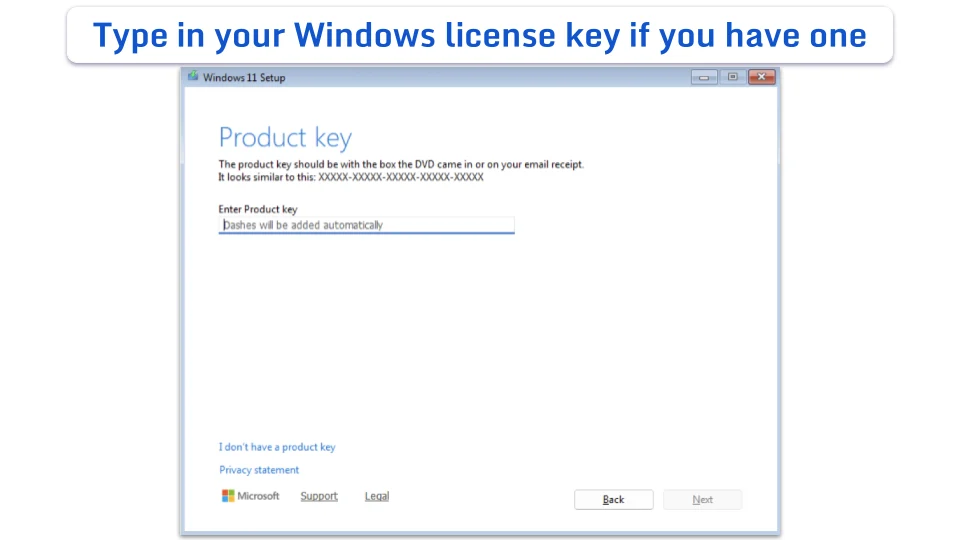
When the virtual machine opens, you’ll see the same Windows setup screens you’d find on any new PC, right inside the UTM window.
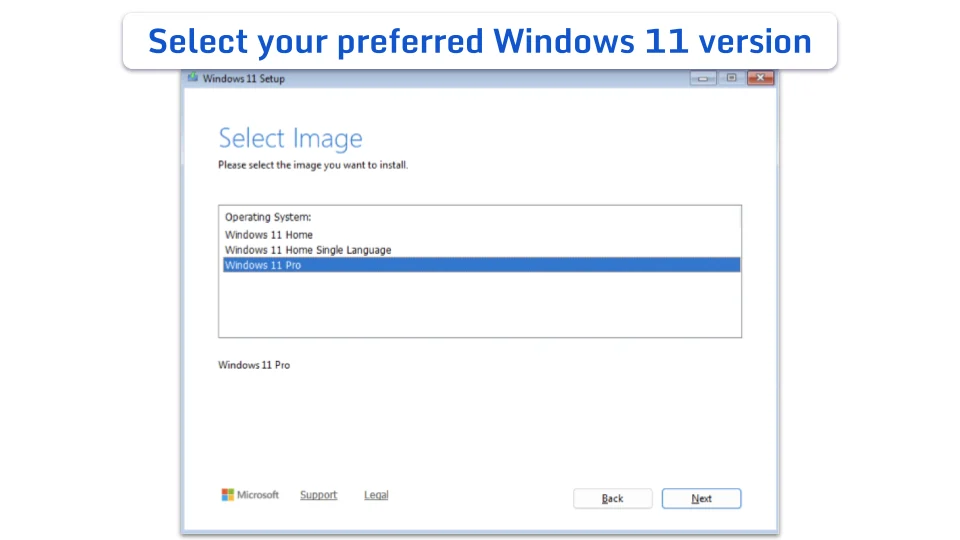
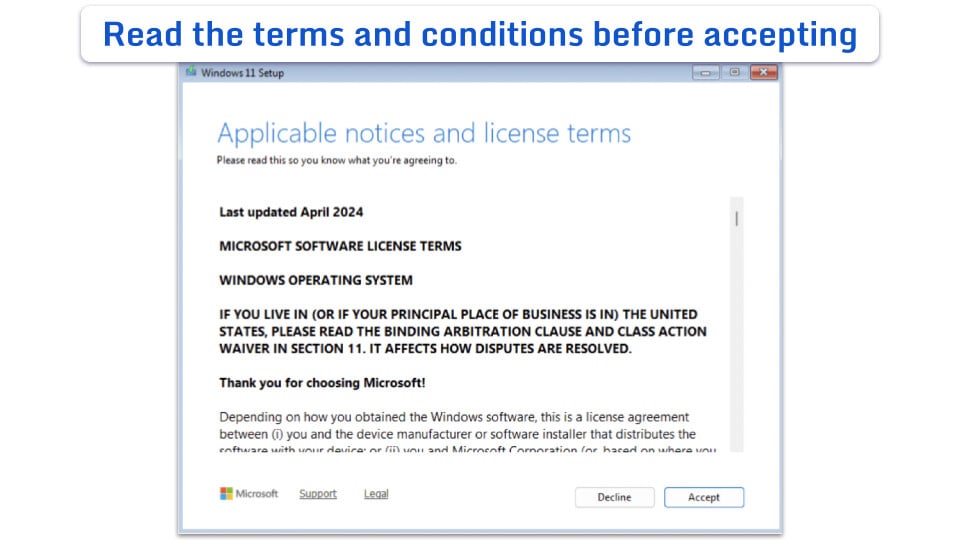
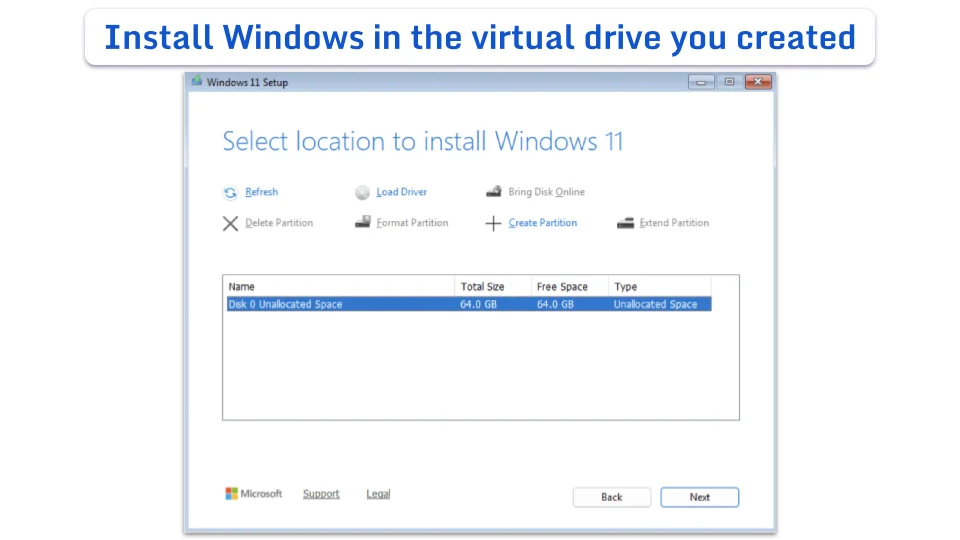
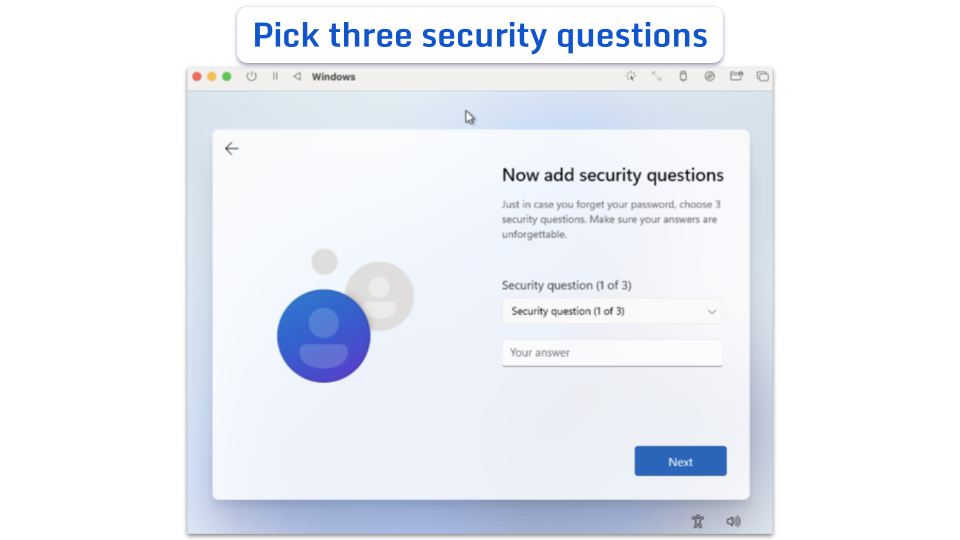
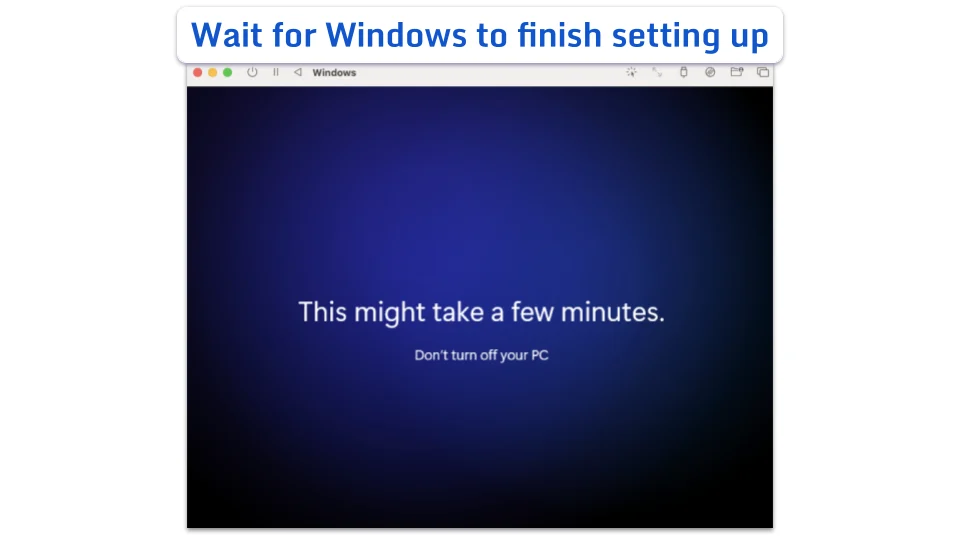
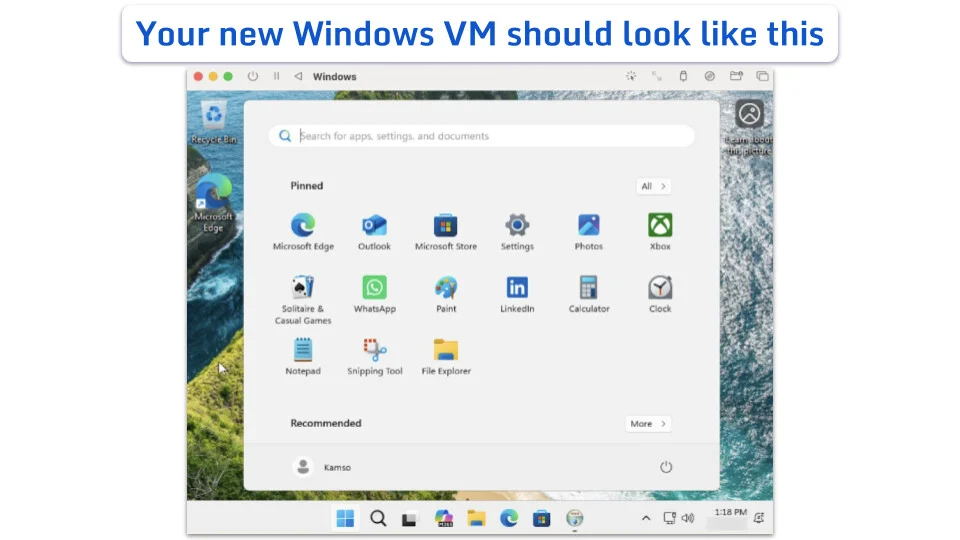
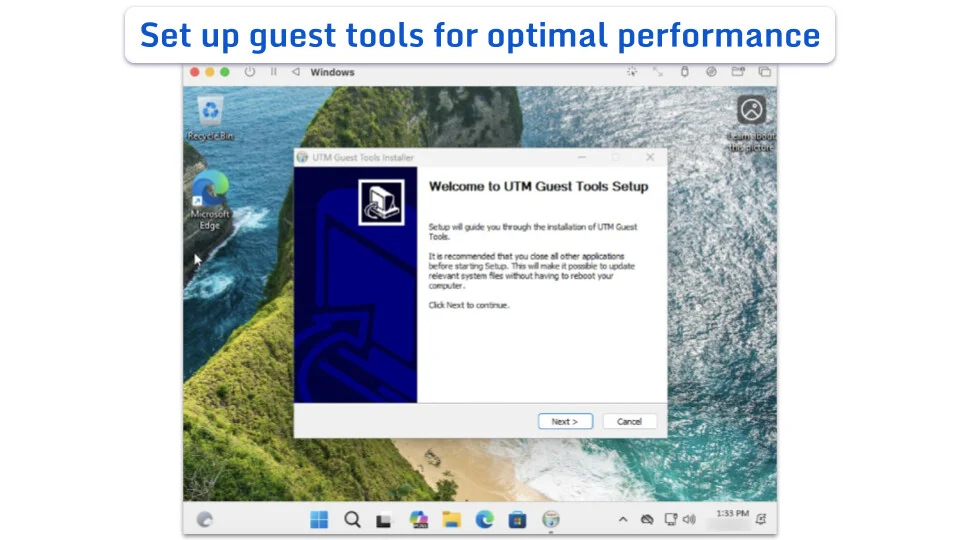
Before you start using Windows 11, you’ll want to set up the UTM guest tools and drivers. Without them, you may notice mouse lag, the window won’t resize properly, or slow file sharing between the two systems.
Guest tools can improve:
When the Windows screen opens, you’ll see a prompt to set up the tools. Follow the steps to finish the installation.
For most everyday tasks, Windows 11 on UTM performs reasonably well on an Apple silicon Mac. If you mainly need occasional access to Windows rather than a full gaming PC or workstation, the setup is usually practical for day-to-day use.
You can generally expect good results when:
While Windows on Arm can run many traditional Windows apps, some apps and features may behave differently than they would on a standard Windows PC.
You may run into problems with:
Performance can also vary depending on how much memory and storage your Mac has available. Running several macOS apps alongside Windows at the same time can slow performance, especially on Macs with limited memory.
Modern graphics-heavy games usually won’t run well in UTM, though some older or lighter games may still be playable.
Before relying on this setup for work or school, check whether your most important apps are compatible with Windows on Arm. Some apps may install successfully but still have limited features or stability issues.
For most people, the choice is between the simplest setup and a free option.
UTM works well if you prefer not to pay for a subscription and only need Windows occasionally. It’s a practical choice for testing things out or running software that doesn’t require a lot of graphics or processing power.
Parallels Desktop offers a more polished setup experience and integrates better with Mac. It’s a better choice if you plan to use Windows regularly or need stronger overall performance. However, it requires a yearly subscription.
Before choosing, it’s worth checking if the specific apps you need are compatible with Windows on Arm. Some older apps or specialized tools may still not work properly.
Running Windows 11 inside a virtual machine on your Mac is generally safe, but it’s important to remember that the Windows environment still behaves like a real Windows PC.
That means malware, unsafe downloads, phishing emails, and malicious apps can still affect the virtual machine itself. If you share folders between macOS and Windows, infected files could potentially move between both systems.
To reduce risks:
Yes. UTM is free to download from the developer’s website, and Microsoft provides the Windows 11 Arm64 installation files. However, you may still need a paid Windows license to use all of its features.
Yes, the process is generally the same for all Apple silicon Macs with M-series chips.
No, Boot Camp isn’t available on Apple silicon Macs. It only works on older Intel-based Mac models.
Yes. Apple silicon Macs require the Arm version of Windows 11 rather than the standard x64 version designed for most PCs.
The choice between UTM and Parallels depends on how you plan to use it. UTM is a practical free option if you only need Windows occasionally. Parallels Desktop offers a more polished setup experience for regular Windows use.
You may be able to run older or lightweight Windows games, but UTM isn’t a good choice for demanding modern games or graphics-heavy titles.
It can be, especially if you download UTM and the Windows 11 Arm64 ISO from official sources and keep both macOS and Windows updated.


